


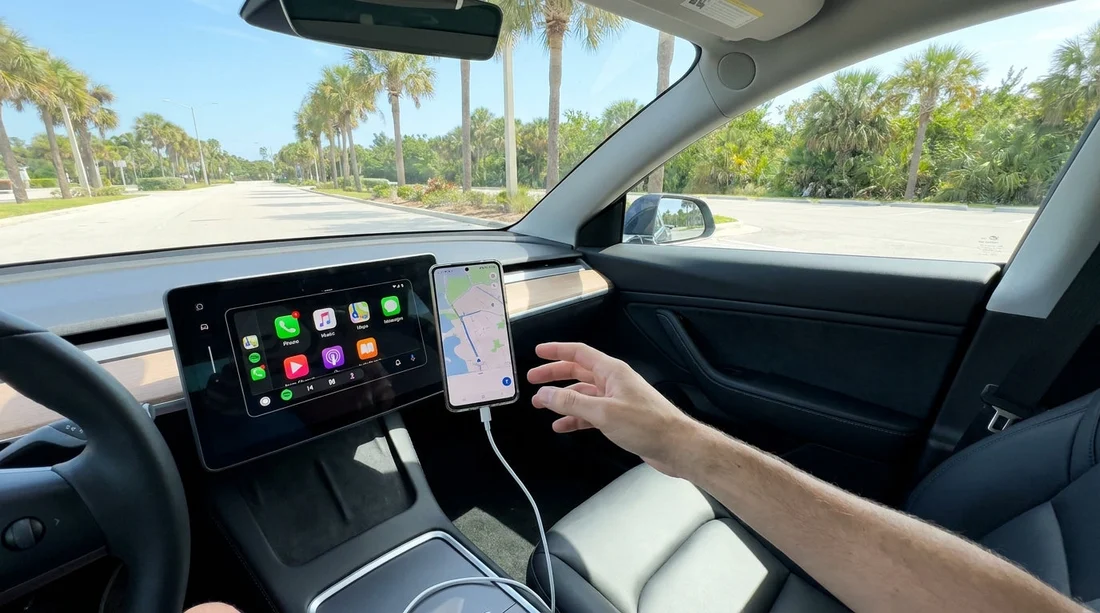
Quick Summary:
- Bring your own USB‑C data cable, many rentals only include USB‑A ports.
- Use a short, high-quality cable, charge-only leads often fail Android Auto.
- At pick-up, test Android Auto with ignition on before leaving.
- Confirm port type, wireless support, and permissions in phone settings.
If you are arranging car hire in Florida and want Android Auto to work first time, bringing your own cable is the safest approach. Many rental cars do not supply a cable at all, and even when a cable is present it may be charge-only, damaged, or too long for a reliable data connection. Because Android Auto relies on stable data transfer, the right cable and a quick compatibility check at pick-up can save time, avoid distraction on the road, and help you start navigation immediately.
The good news is that most modern Android phones will connect easily once you have the correct lead and you know which USB port the car expects. The key is to match your phone’s connector (commonly USB‑C) to the vehicle’s infotainment port (often USB‑A, sometimes USB‑C), then confirm Android Auto launches while you are still in the car park.
Do you actually need to bring your own USB‑C cable?
In practical terms, yes, you should. Florida rental fleets are varied, so one vehicle might have a USB‑C port and wireless Android Auto, while the next relies on a single USB‑A port for wired projection. Rental companies typically do not guarantee a cable, and staff at a busy airport desk may not have spares. Bringing your own cable also means you control quality, which matters because a flaky cable can cause random disconnects and failed pairing.
If you are picking up around Orlando, the simplest plan is to have a known-good cable ready before you arrive at the counter, especially when collecting from car rental at Orlando MCO. Airport pick-ups are fast-paced, and testing on the spot is much easier when you are not searching for accessories.
Which cable types typically work for Android Auto?
Android Auto over a cable needs a data-capable USB lead, not just a charging lead. The most common combinations in rental cars are:
USB‑C phone to USB‑A car port: This is extremely common. Many vehicles still use USB‑A for the infotainment connection even if there are USB‑C charging ports elsewhere. Use a USB‑C to USB‑A data cable, ideally USB 2.0 or better, from a reputable brand.
USB‑C phone to USB‑C car port: Increasingly common in newer models. Use a USB‑C to USB‑C cable that supports data. Some very cheap USB‑C leads are power-only or poorly shielded, which can cause intermittent dropouts.
USB‑C phone with an adapter: A USB‑C to USB‑A adapter can work if you already have a good USB‑C to USB‑C cable, but adapters add another failure point. If reliability matters, bring the correct direct cable instead.
Aim for a shorter cable, about 0.5 to 1 metre. Long cables can be more prone to signal loss and can clutter the cabin, which is not ideal when you are unfamiliar with the car. Also, avoid visibly worn or loose-fitting plugs. Android Auto can be sensitive to a slightly unstable connection.
How to connect quickly at pick-up, step by step
Use this quick routine before you leave the lot. It is designed to confirm the cable, the correct port, and the phone permissions all in one go.
1) Start the vehicle fully. Put the ignition on, or start the engine, so the infotainment system is awake and stable.
2) Identify the correct USB port. Some cars have several ports, but only one supports Android Auto data. Look for a small phone or projection icon near the port, or check the infotainment screen prompts. A port inside the centre console may be the correct one, while dashboard ports may be charging-only.
3) Plug in and unlock your phone. Android Auto often requires the phone to be unlocked the first time, so keep the screen active.
4) Approve permissions. Accept prompts for Android Auto, contacts, microphone, and location, as needed for navigation and hands-free calling. If you deny a permission, Android Auto may launch with limited features or not launch at all.
5) Confirm audio and navigation. Open your maps app and start a short route. Then play audio to ensure the car speakers switch correctly. If audio is silent, check the car’s media source is set to Android Auto, not Bluetooth or radio.
6) Do a quick disconnect test. Gently wiggle the cable ends. If the connection drops, swap to your spare cable, or try a different port, before leaving.
This check is useful no matter where you collect your vehicle. For city pick-ups such as car rental in Brickell, you can still test in a calmer environment and avoid surprises once you are in traffic.
How to confirm compatibility before leaving the lot
Compatibility is usually about three things: the vehicle supports Android Auto, the port supports data, and the phone is ready.
Confirm the car supports Android Auto. Look for the Android Auto icon in the infotainment menu. Some systems list it under “Apps”, “Projection”, or “Phone”. If you only see Apple CarPlay, the model may not support Android Auto, or it may require a software setting.
Check the port type and location. Even if the car has USB‑C, the Android Auto data port may still be USB‑A. If your phone is USB‑C, pack a USB‑C to USB‑A data cable as the most flexible option.
Confirm your phone setup. Ensure Android Auto is installed and updated. On many phones it is built in, but updates still matter. Turn on Bluetooth and location services, and disable battery restrictions for Android Auto if your device is aggressive about background activity.
Know the common failure signs. If the phone charges but Android Auto never appears, the cable may be charge-only, the wrong port is being used, or the car needs Android Auto enabled in settings. If Android Auto starts and then drops, the cable or port connection is usually the culprit.
What to pack for Florida car hire if Android Auto matters
For smooth car hire travel days, a small kit makes a difference.
Pack two data-capable cables, one USB‑C to USB‑A and one USB‑C to USB‑C, so you can handle either port type. Add a compact 12V car charger in case the car’s USB port charges slowly on longer drives.
If you are collecting around Tampa, where fleet mix can vary widely between models, planning for both port types is sensible for car hire at Tampa TPA.
Troubleshooting: quick fixes that solve most issues
Switch ports. Try every USB port in the cabin, because only one may support projection.
Change the cable. This is the most common fix. A cable that works for charging can still fail for data.
Restart both devices. Reboot the phone, and restart the car infotainment system if the vehicle offers that option.
Forget and re-pair. Remove the car from your phone’s Bluetooth list and remove the phone from the car’s paired devices, then reconnect.
Clean the phone port. Pocket lint in a USB‑C port can prevent a firm connection and cause disconnects.
Check VPN and privacy settings. Some VPNs or restrictive work profiles can interfere with Android Auto functionality.
When you have a specific vehicle type in mind, such as an SUV, it can still come with different infotainment options across trims. Testing matters even if you are choosing SUV hire in Doral, because a newer cabin does not automatically mean wireless Android Auto is enabled.
FAQ
Q: Will a USB‑C charging cable work for Android Auto in a Florida rental car?
A: Not always. Many charging cables are power-only, and Android Auto needs a stable data connection. Use a USB cable clearly rated for data.
Q: My phone charges but Android Auto does not appear, what should I do?
A: Try a different USB port, then swap to a different data-capable cable. Also unlock your phone and accept any permission prompts on first connection.
Q: Do rental cars in Florida usually have USB‑C ports?
A: Some do, especially newer models, but many still use USB‑A for the Android Auto connection. Bringing a USB‑C to USB‑A data cable is the most versatile choice.
Q: Can I rely on wireless Android Auto instead of bringing a cable?
A: You should not rely on it. Wireless availability varies by vehicle and software. A cable is the simplest way to confirm compatibility before leaving the lot.
Q: What is the fastest way to confirm Android Auto works before I drive off?
A: Start the car, plug into the likely data USB port, unlock your phone, approve prompts, then start a short navigation route and play audio through the system.





























































































