


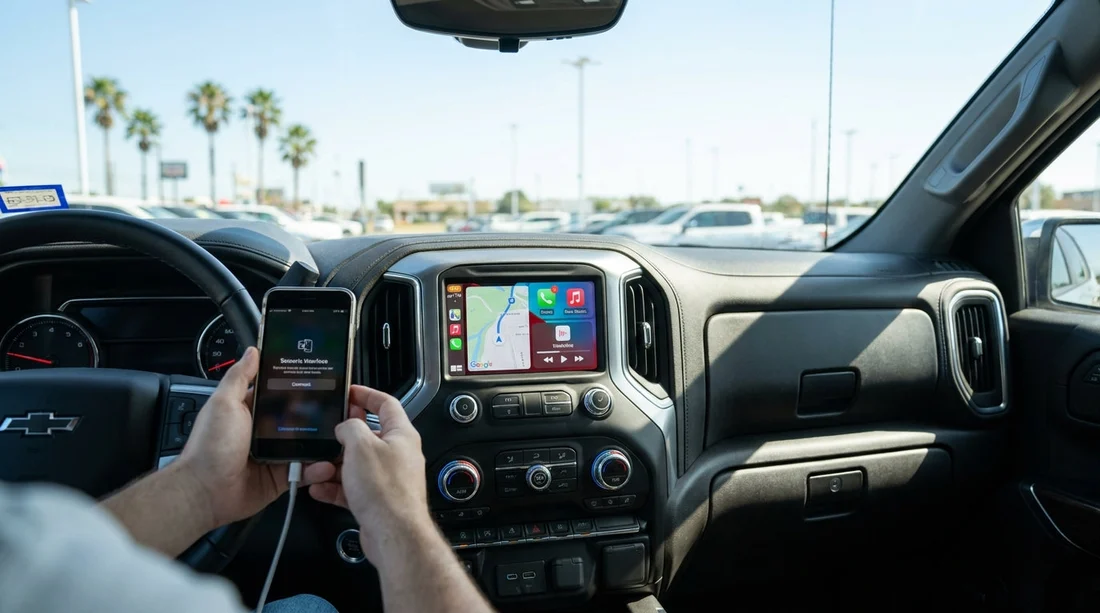
Quick Summary:
- Confirm your phone connects, stays connected, and reconnects automatically after locking.
- Test a call for clear audio, mic pickup, and steering-wheel controls.
- Play music, switch sources, and check voice assistant responds correctly.
- Run navigation, verify GPS accuracy, and ensure prompts use car speakers.
In Texas, a smooth pick-up matters because you often leave the lot straight into fast highways, frontage roads, and complex interchanges. Before you drive off in a car hire, spend a few minutes confirming Bluetooth, Apple CarPlay or Android Auto behaves the way you expect. It helps you avoid silent navigation prompts, calls that route to the handset, or music that cuts out the moment you pull away.
This checklist focuses on the practical tests that reveal most issues quickly, even if you are collecting after a long flight or in a busy airport garage. If you are picking up around Austin, the guidance is useful whether you collected via Austin airport car rental or a city location, because the vehicle infotainment setups vary by model and trim.
Before you start pairing, do a 60-second set-up
First, put the car in Park with the handbrake set, then turn the ignition fully on so the infotainment system boots completely. If the screen is still loading, pairing attempts can fail and you may think the system is broken.
On your phone, switch on Bluetooth and, if you plan to use CarPlay or Android Auto, unlock the phone and keep it on the home screen. If you use a VPN or work profile, consider pausing it for the initial pairing, because some head units struggle with corporate device policies.
Finally, locate the USB ports. Many cars have multiple ports, but only one supports data for CarPlay or Android Auto. The data port is often labelled, or it is the port closest to the screen. If you are travelling with family and extra devices, you may also prefer a larger vehicle, and a page like minivan rental San Antonio can help you compare options with more accessible charging points.
Bluetooth pairing: test connection stability, not just “it connected”
Pairing is easy to tick off too quickly. Instead, verify three things: it connects, it stays connected, and it reconnects automatically.
Pair the phone and allow permissions for contacts and messages if you want hands-free calling and caller ID. Declining permissions may still allow audio, but you may lose call controls or see “Unknown” for callers.
Lock the phone, wait 10 seconds, then unlock it again. Some vehicles drop the connection when the phone locks, which becomes obvious only after you set off.
Turn Bluetooth off on the phone, then back on. The car should reconnect within about 15 seconds without you opening settings.
If the car shows multiple previously paired devices, ask staff to remove them or do it yourself in the Bluetooth device list. Old devices can hijack connection priority, especially if a previous renter left their phone in range while returning the car.
CarPlay and Android Auto: confirm the exact mode you will use
Next, test the smartphone interface you actually rely on. Many drivers prefer CarPlay or Android Auto for familiar navigation and voice commands, but the experience differs depending on whether it is wired or wireless.
Wired test: Plug in using a known good cable. Cheap or worn cables cause random disconnects, which feels like an infotainment fault. If the screen does not prompt you to enable CarPlay or Android Auto, try another USB port, then try another cable.
Wireless test: If the car supports wireless, enable it and then do a quick sleep and wake test. Turn the screen off, or open the driver door briefly, then confirm the phone reconnects without you touching it. Wireless can be convenient, but it can also drain battery faster on long Texas drives, so check you still have a working charging option.
If you are collecting in North Texas, you may encounter different fleet mixes by provider. Pages like Avis car rental Fort Worth DFW and Hertz car rental Fort Worth DFW can be helpful references for what to expect at major hubs, but the checks below apply regardless of brand.
Audio playback: verify speakers, volume behaviour, and app switching
Play a song or podcast you know well. Keep the volume low at first, then raise it to a typical driving level. You are listening for distortion, missing channels, or sudden volume jumps when a prompt plays.
Source switching: Move between Bluetooth audio, CarPlay or Android Auto, and radio, then back again. If audio fails to resume after switching, you may need to re-select the source each time, which is frustrating in traffic.
Steering wheel controls: Test volume up and down, track skip, and the voice button. A common issue is that track skip works only in one mode, or the voice button launches the car’s built-in assistant instead of Siri or Google Assistant.
Calls and microphone: prove it works before you hit the highway
Make a real call to voicemail or a friend, and keep it short. Ask the other person whether your voice sounds clear and not muffled. Then test the reverse direction by speaking while turning your head slightly, because some microphones are sensitive to seating position.
Where the call audio routes: Ensure the sound comes through the car speakers, not the handset. If it keeps jumping back to the phone, re-check Bluetooth permissions and set the car as the preferred device.
Incoming call handling: Ask your caller to ring back. Answer using the steering wheel or screen button. Confirm you can end the call the same way, and that audio switches back to music afterwards.
Echo and feedback: If the other person hears themselves, reduce the call volume slightly. If echo persists, try disabling “HD Voice” or similar enhancements on the phone, or re-pair the device.
Navigation: check GPS accuracy, routing, and offline readiness
Open your maps app in CarPlay or Android Auto and set a short route, even if it is just to a nearby petrol station. Verify the blue location dot is correct and the heading arrow points the right way. A GPS offset of even one street can cause bad lane guidance in dense areas.
In parts of Texas, mobile coverage can drop on rural stretches. Before leaving, download offline maps for your first hour of driving, or at least the metro area you are heading into. Also check the phone has adequate battery, especially if you plan to use wireless CarPlay or Android Auto.
If something fails: quick fixes to try at the counter
If Bluetooth, CarPlay or Android Auto does not behave, try these in order, because they solve most issues without changing vehicles.
Restart the phone. It clears stuck Bluetooth and USB processes.
Forget the car in your phone’s Bluetooth list, and delete your phone from the car’s device list, then pair again.
Use a different cable and a different USB port. Data ports can be picky.
If problems persist and hands-free calling or navigation is essential for your trip, ask about switching to a different vehicle. It is easier to resolve before you leave the pick-up area than after you join Texas traffic.
FAQ
Do I need to pair Bluetooth if I plan to use CarPlay or Android Auto?
Not always. Wired CarPlay or Android Auto can work without separate Bluetooth pairing, but wireless systems often use Bluetooth for the initial handshake, so pairing is still useful.
Why does my phone connect for music but calls won’t work?
Usually it is permissions. Check that contacts and phone permissions were allowed during pairing, then confirm the car is selected for calls in Bluetooth device settings.
What cable should I use to test CarPlay or Android Auto at pick-up?
Use a short, good-quality cable you trust. Some charge-only cables will not pass data, and worn cables cause disconnects that look like a vehicle fault.
My navigation prompts are silent, but music plays fine. What should I adjust?
Increase guidance volume while a prompt is speaking, using the car volume knob. Also check the maps app’s prompt volume and mute settings inside CarPlay or Android Auto.
Is it safe to set all this up in the rental car lot?
Yes, as long as the vehicle is parked securely. Complete pairing and test calls and navigation before driving, so you do not handle the phone on the road.





























































































