


Quick Summary:
- Park safely, start ignition, and confirm CarPlay support on the infotainment screen.
- Use a known-good USB cable, connect firmly, and choose CarPlay when prompted.
- Allow required permissions on iPhone, then set Maps, audio, and notifications.
- Test calls, music, and navigation audio, then lock phone away.
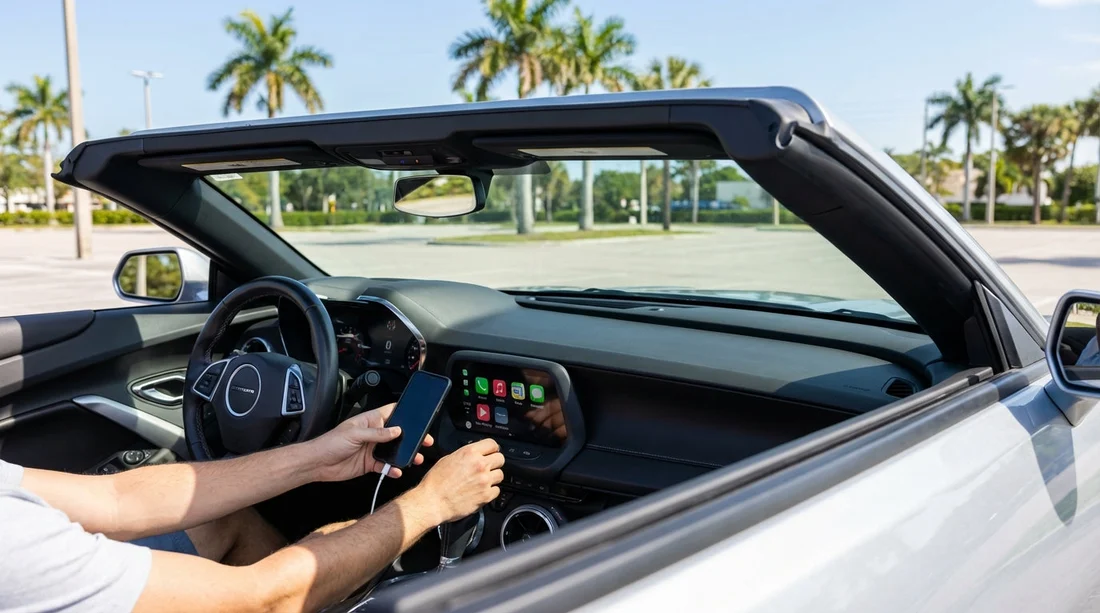
Setting up Apple CarPlay in a car hire in Florida is best done before you leave the car park, while you have time to handle prompts calmly and test audio. Different rental fleets use different infotainment systems, but the setup principles are consistent: use a reliable cable, approve the right permissions, confirm audio routing, and minimise distraction before you roll.
If you are collecting a vehicle after a flight, it helps to build a repeatable routine. Whether you are picking up near Orlando International Airport via car hire at Orlando MCO or starting in South Florida around car rental in Miami, the goal is the same: leave the lot already configured, with your phone stored and your first destination set.
Before you plug in: a two-minute car park safety check
Do the setup while stationary, in Park, with the parking brake engaged if available. In many Florida lots it is bright and busy, so take a moment to reduce variables.
1) Confirm the car is ready for pairing. Start the engine or turn the ignition to accessory mode so the infotainment system stays powered. Some vehicles time out quickly in accessory mode, so engine-on is often easier.
2) Check the steering wheel and mirrors first. Adjust your seat, mirrors, and steering wheel before connecting. Once CarPlay is active, it is tempting to begin tapping, and you do not want to be adjusting posture afterwards.
3) Locate the correct USB port. Many cars have multiple USB ports, but only one supports CarPlay data. Look for a port labelled with a phone icon, “CarPlay”, or located near the main console. If a port only charges, CarPlay will not appear.
4) Turn down cabin noise sources. If the radio is loud or the HVAC fan is blasting, initial prompts can be hard to hear. Lower the volume temporarily so you catch permission and pairing prompts.
Cables and connection method: wired first, wireless second
In a car hire, the fastest path is usually wired CarPlay. Wireless CarPlay is convenient, but it introduces extra steps and can be inconsistent across models.
Use a dependable cable. If your iPhone uses Lightning, use an Apple-certified Lightning cable. If you have a USB-C iPhone, use a USB-C cable that supports data, not charge-only. If the car has USB-A and you only have USB-C, you may need a compatible cable rather than a loose adapter that can disconnect over bumps.
Plug in firmly, then wait. Connect your iPhone to the CarPlay-capable USB port. Keep the phone unlocked for the first connection. The screen may show “Allow CarPlay while phone is locked?” or a similar prompt. Tap Allow if you want it to connect reliably without repeated unlocking later.
If the car offers wireless CarPlay. Some cars ask you to pair via Bluetooth first, then hand over to Wi‑Fi for CarPlay. If you prefer wireless, complete the initial pairing while parked, and confirm it reconnects after you lock and unlock the phone. If it fails, switch to wired so you are not troubleshooting at the exit barrier.
Bluetooth and iPhone settings: the permissions that matter
Apple CarPlay setup can fail silently if permissions are denied. You can still keep your privacy, but approve what is required for safe, hands-free use.
On the iPhone prompt, choose Allow when appropriate. Typical prompts include access to contacts, notifications, and microphone. Contacts access enables caller ID and hands-free calling. Microphone access is required for Siri voice commands. Notifications can be limited if you want fewer distractions.
Check CarPlay settings on your iPhone. On your iPhone, go to Settings, then General, then CarPlay, and confirm the vehicle appears. If multiple cars are listed, you can remove old ones to reduce confusion.
Decide on Siri before you move. Siri is central to safe CarPlay use. If Siri is disabled, you may end up touching the screen more. Enable “Hey Siri” or the side button activation, then plan to use steering wheel voice controls if the car has them.
Set a sensible notification policy. In Focus settings, consider enabling Driving Focus. Allow only key contacts if needed. The aim in Florida traffic is to keep the screen calm, especially on unfamiliar multi-lane roads.
Infotainment screen steps: common menus and what to look for
Every infotainment system looks different, but most follow the same logic.
Find the CarPlay tile or projection menu. Look for icons labelled “Apple CarPlay”, “Phone Projection”, or “Smartphone”. Select it, then confirm your iPhone when it appears. If the system asks to “Enable Apple CarPlay”, toggle it on.
Accept any safety disclaimers. Some systems display a legal notice each time. Accept it while parked so you are not forced to tap after you start rolling.
Set the default audio source. If the car keeps jumping back to AM or FM, set the infotainment source to CarPlay or Bluetooth Audio, depending on the system. This prevents surprises when navigation begins speaking over an unexpected source.
Check the time and location prompts. A few systems ask for location services or time sync. These can affect navigation accuracy. If prompted, allow location access for your maps app, and confirm the car is not in a restricted “valet” or limited mode.
Audio, maps, and microphone: test before leaving the lot
A working CarPlay screen is not enough. Do a quick test cycle, it takes less than a minute and prevents “I can’t hear it” problems once you are on a highway ramp.
1) Test navigation voice. Open your preferred maps app and start a short route, even if it is just to the exit. Increase guidance volume using the car’s volume knob while the voice is speaking, because some cars separate media volume from navigation volume.
2) Test music or podcasts. Play a track and confirm the sound comes through the car speakers, not the phone. If the audio is thin or missing, check the car’s audio source, and check that Bluetooth is not routing to another device.
3) Test a hands-free call. Call a voicemail or a travel companion. Confirm you can hear them and they can hear you. If they report echo, reduce call volume slightly or switch from speaker to the car’s built-in hands-free setting.
4) Confirm the mic works with Siri. Press the steering wheel voice button or use Siri activation and say, “Navigate to nearest petrol station” or “Call [name]”. If Siri cannot hear you, the car may have a muted microphone setting or the phone may have denied mic permission.
If you are in a larger vehicle, such as an SUV from SUV rental in Doral or a family-sized option from minivan rental in Miami Beach, do this mic test carefully. Bigger cabins and rear-seat noise can make voice commands less reliable, and it is easier to adjust settings before passengers settle in.
Privacy and security in a car hire: prevent your data lingering
CarPlay is designed to be privacy-conscious, but a few habits help ensure you do not leave personal data behind in a car hire.
Prefer CarPlay over native pairing when possible. CarPlay tends to keep more data on the phone. Some cars also store Bluetooth contacts and call logs. If the car asks to download your contacts to the vehicle system, you can often decline while still using CarPlay calling.
Disable “Sync contacts” if you do not need it. You can still make calls via Siri by saying the contact name, but depending on the system it may require contacts access. If you choose to allow it for convenience, plan to delete the paired phone before return.
Turn off message previews. If notifications are enabled, set messages to announce only through Siri, or reduce previews to avoid personal content appearing on-screen when someone else is in the car.
Know how to remove your phone later. Before you leave the lot, locate the vehicle’s “Phones” or “Bluetooth devices” list so you know where to delete the pairing at drop-off. This is especially useful if you are swapping cars or locations, such as continuing your trip through Dollar car rental at Tampa TPA after a few days in Miami.
Troubleshooting while still parked: quick fixes that usually work
If CarPlay does not appear right away, do not assume the car does not support it. Try these steps in order, they solve most issues within a minute or two.
Switch USB ports and re-seat the cable. The most common problem is using a charge-only port or a loose cable. Try another port, and push the connector firmly into the phone and the port.
Unlock the iPhone and check the prompt. Sometimes a permission request is waiting on the phone screen. If you missed it, disconnect and reconnect with the phone unlocked.
Restart the infotainment system. Many cars let you hold the power or volume knob to reboot the screen. A restart clears a stalled connection without needing to restart the engine.
Toggle Bluetooth and Wi‑Fi. For wireless CarPlay, turn Bluetooth and Wi‑Fi off and back on in iPhone settings, then attempt pairing again. If it still fails, switch to wired and drive off with a stable connection.
Forget old vehicles in iPhone settings. In Settings, General, CarPlay, remove older cars you no longer use. Too many stored profiles can cause the phone to connect to the wrong system, especially in busy pick-up areas.
Check for restricted mode or Screen Time limits. If CarPlay is disabled by Screen Time or corporate device profiles, it may not connect. If you cannot change this, use standard Bluetooth hands-free and mount-free voice guidance through the car audio, while keeping the phone stored safely.
Safe setup habits before you drive off in Florida
Florida roads can change quickly from car parks to multi-lane arterials, so the best CarPlay setup is the one that reduces interaction once moving.
Set your first destination while stationary. Enter your hotel, meeting, or first stop before shifting into Drive. Save favourites for “Home” or “Hotel” to avoid typing later.
Use voice control as the default. Decide now that you will use Siri for changes, like “Find coffee” or “Call the office”. It is safer than hunting menus on a new dashboard layout.
Position the cable to avoid snagging. Run the cable so it does not interfere with gear selection, cupholders, or the handbrake. A snagged cable can disconnect CarPlay right when navigation is needed.
Put the phone away. Once CarPlay is working, place the phone in a closed console or a stable tray. The point of CarPlay is to avoid holding the phone. Also, storing it reduces overheating risk in sunny weather.
Confirm charging. Navigation and streaming drain battery. Look for the charging icon and ensure the cable is delivering power. If the phone is not charging, swap cables before leaving.
Do a final glance check. Make sure the CarPlay home screen is visible, volume is reasonable, and the route overview makes sense. If something looks off, fix it now, not at the first traffic light.
FAQ
Do all car hire vehicles in Florida have Apple CarPlay? Not all. Many newer vehicles do, but trims vary by model and fleet. Check the infotainment “projection” menu or ask staff at pickup, then verify in the car park before leaving.
Should I use wired or wireless CarPlay in a hire car? Wired is usually faster to set up and more reliable, especially when you are unfamiliar with the vehicle. Wireless is convenient, but it depends on the car’s system and can be fussier to reconnect.
Why does CarPlay not show up even though the car has USB ports? Some USB ports are charge-only. Try another port, swap to a data-capable cable, and reconnect with the iPhone unlocked so you can accept prompts.
How do I stop my contacts and messages staying in the rental car? Prefer CarPlay over syncing to the car, limit notification previews, and delete your phone from the car’s Bluetooth/device list before you return the vehicle.
What is the safest way to use navigation once I am driving? Set the destination before moving, keep the phone stored, and use Siri or steering wheel controls for changes. Avoid typing or scrolling on-screen in traffic.





























































































