


Quick Summary:
- Pair after leaving the pick-up bay, then deny contacts and messages.
- Choose Bluetooth audio only, and keep CarPlay or Android Auto off.
- Use guest mode or restricted permissions to prevent address book copying.
- Before returning, delete your phone, call history, and paired profiles.
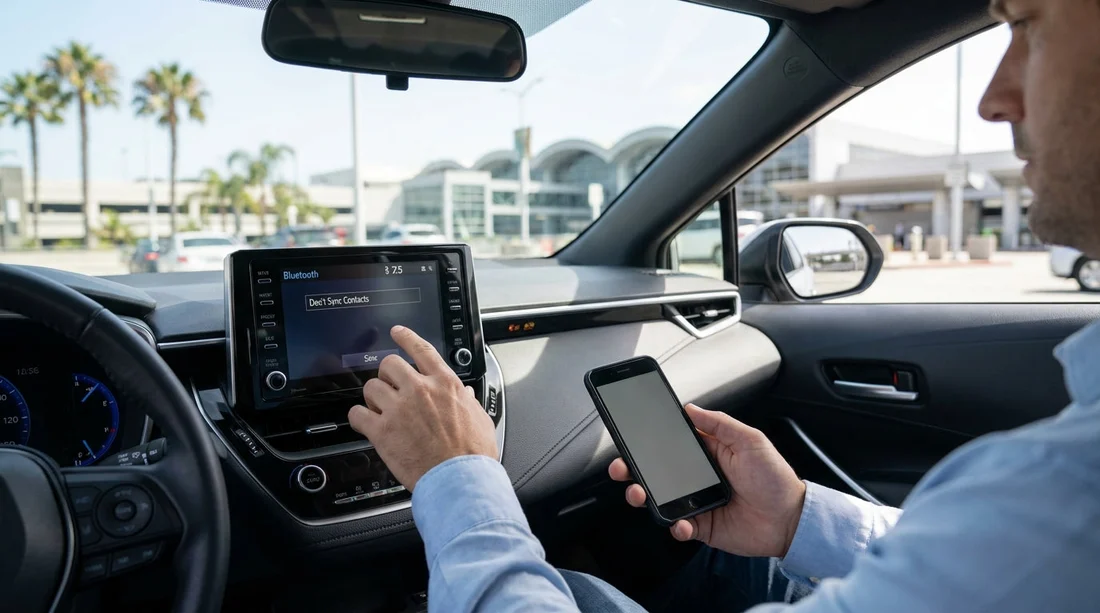
Pairing your phone to a rental car in Los Angeles is convenient for hands-free calls and music, but it can also expose your contacts, call logs, and recent destinations. Many infotainment systems automatically offer to download your address book, show recent calls on-screen, or keep a profile stored for the next driver. A privacy-first setup means you still get safe audio and navigation prompts, without handing over more personal data than necessary.
If you are collecting a vehicle around LAX, you can plan to do the pairing once you have pulled away from the counter and are parked safely. That gives you time to read permission prompts carefully and avoid accidentally approving contact sync while staff are waiting behind you. If you are arranging car hire through Hola Car Rentals for Los Angeles, it helps to expect that different brands and models will label these options differently, but the privacy principles stay the same.
Before you pair, prepare your phone for privacy
A good result starts on your phone, because many cars simply mirror what your device is willing to share. Do these quick checks before you begin pairing.
First, consider turning on a “guest” or “work” profile if your device supports it, or at least temporarily hiding sensitive contacts. On Android, a separate user profile can keep personal contacts out of sight. On iPhone, you cannot create a full guest profile, but you can still reduce what gets exposed by controlling permissions and avoiding contact-sharing prompts.
Second, switch off contact sharing at the Bluetooth level where possible. On iPhone, after pairing, you can open the device details and disable “Sync Contacts” (wording can vary). On Android, you can usually toggle “Contact sharing” or similar under the paired device settings.
Third, decide whether you really need phone calls through the car. If you only want music, you can connect for “audio” and keep “phone” disabled. This reduces the chance the head unit will display recent calls or suggest importing contacts.
Step-by-step: privacy-first Bluetooth pairing in a rental car
Most rental cars in Los Angeles follow the same general sequence: enable Bluetooth in the car, start pairing on your phone, confirm a code, then accept or deny permissions. The last step is where privacy can be lost, so slow down there.
1) Start pairing from the car screen, not from your phone’s “discoverable” list. Initiating from the car often gives you clearer permission prompts and avoids pairing to the wrong nearby vehicle in a busy car park.
2) Confirm the passkey or code carefully. You should see the same number on the car screen and your phone. If it does not match, cancel and retry.
3) When asked to “download contacts”, “sync phonebook”, “import address book”, or “allow messages”, choose Deny or Not now. If there is an “Always allow” option, avoid it. Some systems also ask for “favourites” or “recent calls” access, deny those too.
4) Choose “Bluetooth audio” if offered. If the car presents separate toggles for Phone and Media, leave Phone off unless you truly need hands-free calling.
5) If you must enable calling for legal hands-free reasons, keep it limited. Approve basic Bluetooth pairing but still deny contacts and messages. You can dial manually or use recent numbers on your handset, without handing over your address book.
If you are picking up near the airport, these steps are easy to do after you leave the terminal area. Hola Car Rentals has dedicated pages for common pick-up points, including Los Angeles LAX car rental and, for travellers landing elsewhere, Santa Ana SNA car rental.
CarPlay and Android Auto: convenience versus privacy
Apple CarPlay and Android Auto can be brilliant, but they can also surface more personal information than plain Bluetooth audio. CarPlay, for example, can show recent destinations, message previews, and suggestions depending on your settings. Android Auto can do similar. In a rental, your safest approach is to treat these features as optional.
If you only need music and simple calling, Bluetooth media is usually enough. If you need turn-by-turn navigation on the car screen, consider using a phone mount and running navigation on your handset, with audio through Bluetooth. That way the car does not learn your home address or recent searches.
Common permission prompts and what to select
Different infotainment systems use different wording, especially across manufacturers and rental fleets. Here are the prompts that matter most, and the privacy-first choices.
“Allow contacts and favourites sync?” Choose Deny. If there is a temporary option, choose that instead of “Always”.
“Allow message access?” Choose Deny. This prevents texts from being read aloud and stored as notifications on the car screen.
“Share call history?” Choose Deny or Not now. Call lists can reveal who you speak to regularly.
For travellers comparing providers, Hola Car Rentals aggregates multiple options around LAX, including pages for Alamo at Los Angeles LAX and Budget in California at LAX. The on-screen prompts may differ, but the safe selections above remain the same.
How to remove your phone before returning the car
The most important privacy step happens at the end of your trip. Many drivers pair successfully, deny contacts, then forget to remove the device. The next person can sometimes see your phone name, reconnect automatically, or view recent call entries depending on the system.
Use this simple return checklist while parked safely, before you hand over keys.
1) On the car screen, open Settings, Bluetooth, or Phone. Find your device, then choose “Forget”, “Remove device”, or “Delete”. If there are multiple profiles, remove all entries with your phone name.
2) Clear personal data if the system offers it. Some vehicles have options like “Clear personal data”, “Reset infotainment”, “Delete user profile”, or “Factory reset”. If you have time, a personal-data reset is the cleanest approach, but ensure it will not disrupt required vehicle settings. If you are unsure, deleting your phone profile is still very helpful.
3) Check for secondary connections. If you connected via USB, look for a “Phone Projection” list (CarPlay or Android Auto) and remove your device there as well.
4) On your phone, remove the car too. In Bluetooth settings, tap the car name and choose “Forget”. This stops your phone trying to reconnect in the return bay.
FAQ
Will the rental car keep my contacts even if I deny sync? Usually no, but some systems may store recent calls or device names. Denying contact and message access greatly reduces exposure, and deleting your phone profile before return finishes the job.
What if I accidentally allowed contacts at pick-up? Go to the car’s Bluetooth device list, remove your phone, then re-pair and deny contacts. Also disable contact sharing in your phone’s Bluetooth settings for that car, so it cannot request the phonebook again.
Is Bluetooth safer than CarPlay or Android Auto for privacy? Bluetooth audio only is typically the most privacy-friendly because it can be limited to media. CarPlay and Android Auto can show more personal content, so use them only when needed and remove your device afterwards.
Can the next driver see my texts or call history? If you allowed message access or contact sync and did not remove your profile, it is possible. Prevent this by denying those permissions, then deleting your paired device before returning the car.
Do I need to pair at all to stay legal for calls in Los Angeles? California requires hands-free use for phone calls while driving. You can comply by using the car’s hands-free system with contacts denied, or by using a single-ear earpiece, depending on your needs and local rules.





























































































