


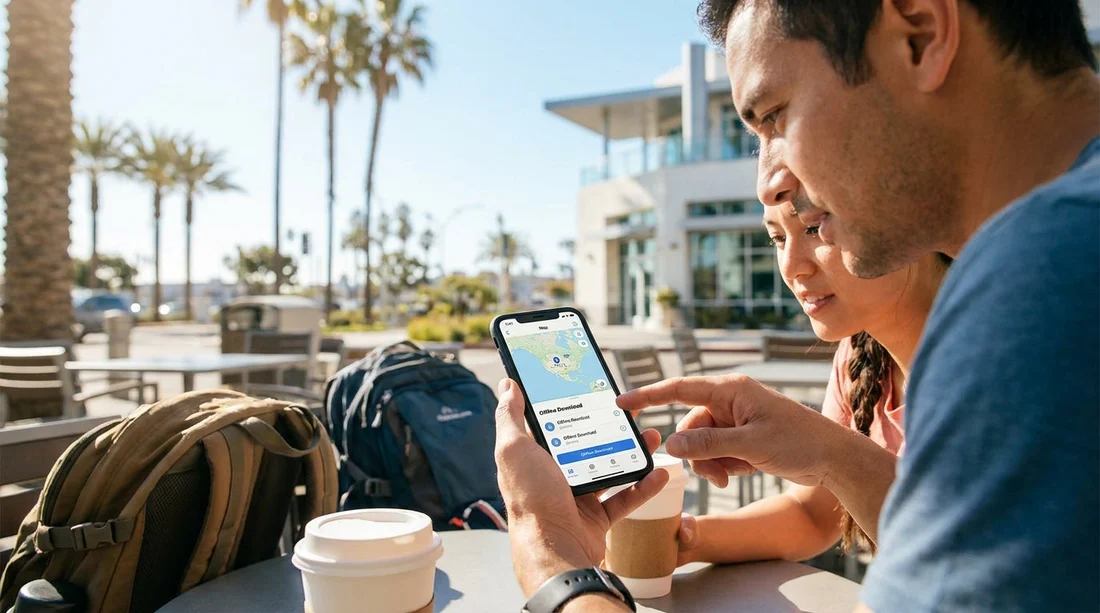
Quick Summary:
- Update iOS, then download offline map areas for your pickup city.
- Save areas around airports, hotels, and first-day routes before arrival.
- Verify offline routing by enabling Airplane Mode and running a test drive.
- Carry a car charger, mount, and paper address list for backups.
Picking up a car hire in California often means you want to get moving quickly, especially if you are landing after a long flight. The catch is that mobile data can be patchy at terminals, expensive on roaming plans, or slow while your phone negotiates a new network. Apple Maps can help by letting you download map areas in advance, so key roads, navigation prompts, and place searches keep working even when you leave the counter without a reliable signal.
Offline Maps in Apple Maps are not quite the same as offline navigation apps from years ago. You do not download “routes” as fixed turn lists. Instead, you download a map area that includes roads and places, then Apple Maps uses that stored data to calculate routes on the device when you are offline. That is perfect for car hire scenarios where plans change, because you can still reroute without needing mobile data.
What you need before you start
First, make sure your iPhone is on a recent iOS version that supports Offline Maps in Apple Maps. Next, check you have enough storage. Large California metro areas can take a meaningful chunk of space, especially if you download multiple regions. Connect to Wi‑Fi at home, at your hotel, or on airport Wi‑Fi before you pick up the keys, because downloading areas over mobile data defeats the point.
It also helps to decide where you are actually driving in the first 24 to 72 hours. Many travellers collect near a major airport then head straight to a hotel, a meeting, or a coastal drive. If you are collecting near San Francisco, for example, downloading the Bay Area plus the first leg towards your destination gives you a confident start. If your pickup is at a major hub like San Francisco Airport (SFO), include the airport loop roads, your first bridge crossing, and your hotel neighbourhood in the same offline area.
How to download an offline area in Apple Maps
Use these steps before you reach the car hire counter in California:
1) Open Apple Maps and find the area. Search for your pickup location, such as “LAX” or “Santa Ana”, or simply search for the city you will start in. Zoom out until you can see the airport and the first part of your drive.
2) Open Offline Maps. In Apple Maps, tap your profile icon, then choose Offline Maps. You will see options to download recommended areas or to download a custom area.
3) Choose “Download New Map”. Select a custom area and frame the box to cover what you need. Include the pickup airport, nearby motorways, and the address you will drive to first. For a Los Angeles arrival, include the airport and a wide ring around it because junctions and surface streets can be dense. If you are collecting through a provider page such as Thrifty at LAX, focus on LAX, the rental car facility, and the freeway routes that get you out of the basin.
4) Download on Wi‑Fi and confirm completion. Keep the app open until the download finishes. Name the area clearly, for example “LA Pickup and Hotel” or “SF to Napa Day 1”, so you can manage it later.
5) Set updates. In Offline Maps settings, enable automatic updates while on Wi‑Fi, if you like. That keeps road changes fresh without using mobile data. If you are travelling soon, open Apple Maps the day before and let it refresh any offline areas.
How big should your offline map area be for California?
Think in terms of buffer zones, not just a single route line. California driving is full of detours, freeway changes, and last minute fuel stops. A good rule is to include:
Pickup zone: the airport, rental car facility, and nearby main arterials.
First destination zone: the hotel, office, or attraction area, plus a few miles around it.
Connecting corridor: the freeway corridor between them, widened enough to allow alternate exits.
If you are arriving into Orange County and collecting around Santa Ana, a practical download covers SNA, Irvine, and the first leg toward your accommodation. That suits travellers using Santa Ana (SNA) car rental options and then heading for beaches, business parks, or theme parks where traffic may force reroutes.
For longer drives, consider multiple offline areas rather than one huge download. For example, one area for “San Diego Metro”, another for “Coastal Drive North”, and another for “LA Metro”. If your plan includes San Diego, especially for border-adjacent neighbourhoods or coastal routes, having an offline area ready is reassuring when coverage drops. It also pairs neatly with pickup arrangements linked to San Diego (SAN) car hire information, where you can plan your first drive away from the terminal.
How to test that offline navigation really works
Do not assume it is downloaded correctly. Test it before you reach the counter:
1) Turn on Airplane Mode. This forces your phone offline. If you still need Bluetooth, you can switch it back on while keeping mobile data off.
2) Open Apple Maps and search for a nearby place. Try searching for your hotel name, a well-known landmark, or “petrol station”. If results appear and the map loads smoothly, your offline area is working.
3) Start a route preview. Pick a destination within the downloaded area and tap Directions. If it calculates and shows turn-by-turn guidance, you are set. If it fails, expand the offline area and download again on Wi‑Fi.
4) Check voice guidance and car connection. If you will use CarPlay, connect and make sure prompts play clearly. If you will use a dashboard mount, check the phone is visible and charging.
Best practices when leaving the counter without mobile data
Offline maps are strongest when you combine them with a few simple habits:
Save key places in advance. Add the hotel, parking garage, a supermarket, and a fuel station near the return location to your favourites. Saved places are quicker to find offline and reduce typing while you are in a queue.
Keep addresses in Notes. Have a plain text list of important addresses and phone numbers. If you need to re-enter something, you can copy and paste without searching online.
Download more than the city centre. Airports sit on the edge of metro areas. If you only download downtown, you can lose offline coverage on the ramps and feeder roads where you need it most.
Expect offline limits. Live traffic, incident warnings, and some business details may not load offline. Your route will still work, but it will not adapt to congestion in real time unless you regain data.
Carry power. Navigation drains battery fast, especially with a bright screen. Use a proper car charger and consider a short cable that does not tangle with the gear lever.
Planning a practical offline route area for common California pickups
Each pickup location has its own navigation pinch points. At LAX, the first ten minutes can involve lane changes, rental shuttle loops, and several possible freeway entries. At SFO, bridges and toll approaches matter. In Orange County, you may be directed onto toll roads where you will want to confirm your provider’s policy before driving through. At SAN, the airport roads connect quickly to major routes, so having offline coverage around the terminal and first junctions prevents last second confusion.
Whatever your airport, build an offline map area that covers your first decision points, then add a second area for where you will be later that day. That approach keeps storage sensible and makes your car hire pickup calmer, because you are not relying on a weak signal while trying to follow signs and avoid missed exits.
FAQ
Can Apple Maps give turn-by-turn navigation completely offline? Yes, if the route stays inside a downloaded offline area. You will still get turn-by-turn guidance, but live traffic and some real-time features may be unavailable.
Do I need to download the exact route, or just the area? Download the area. Apple Maps calculates routes using the stored map data, so you can reroute offline as long as you remain within downloaded regions.
How far ahead should I download offline maps before car hire pick-up? Ideally 24 to 48 hours before, on reliable Wi‑Fi. Downloading early gives time to expand the area, update iOS, and run an Airplane Mode test.
What if I drive outside my downloaded map area? Apple Maps may stop routing or place searches may fail until you regain mobile data or Wi‑Fi. To reduce this risk, download a wider buffer around your planned corridor.
Will offline maps work with CarPlay in my rental car? In most cases, yes. CarPlay will display Apple Maps from your iPhone, and offline routing works the same way, provided the relevant areas are already downloaded.





























































































