


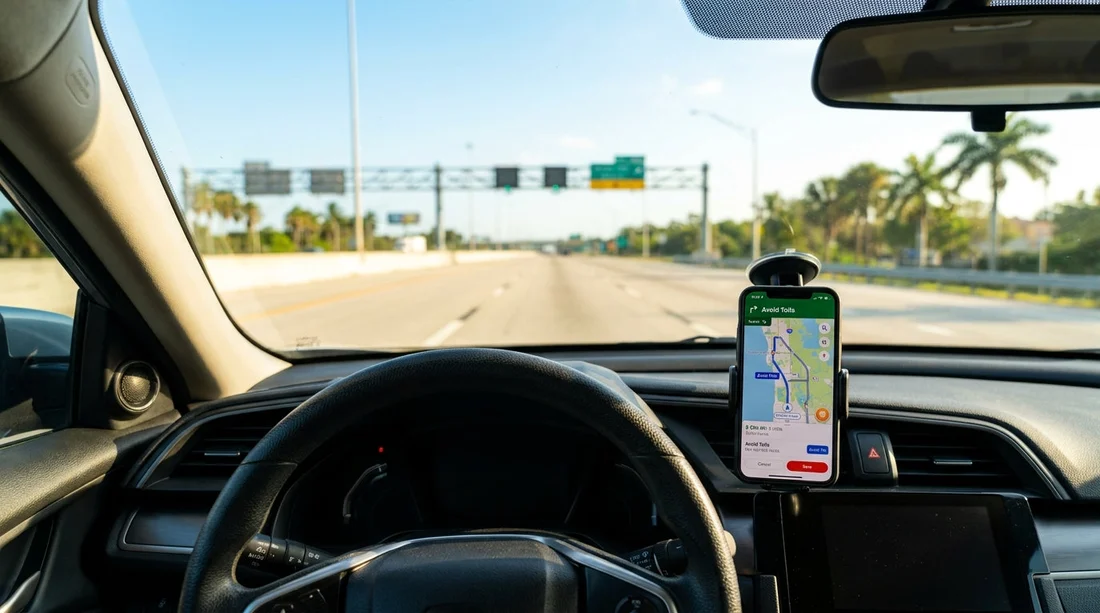
Quick Summary:
- Switch on Avoid Tolls in iPhone settings before your Florida trip.
- Compare each route option and avoid any with toll symbols.
- Add a waypoint on a parallel road to force toll-free routing.
- Screenshot the chosen route steps in case mobile signal drops.
If you are planning car hire in Florida, tolls can be one of the easiest ways for costs to creep up, especially around Miami, Fort Lauderdale, and Orlando. The good news is that Apple Maps can be set up before you collect your rental car, so you have a clear, repeatable process for minimising toll exposure. This matters because many Florida toll roads use cashless systems, and your rental agreement may apply admin fees if the car passes through toll points.
The aim is not to promise zero tolls in every situation, because some crossings and express lanes are hard to avoid without major detours. Instead, this guide focuses on controlling the decision before you arrive at the pick-up desk, so you already know the toll-free route options and the trade-offs in time.
Step 1: Turn on “Avoid Tolls” in iPhone settings
Apple Maps route preferences are controlled from Settings, not only inside the Maps app. Do this on your iPhone before your flight, ideally while you have reliable Wi-Fi.
Steps: Open Settings, scroll to Maps, select Driving, then switch on Avoid Tolls. Also consider switching on Avoid Highways only if you specifically want scenic local routes, because it can add a lot of time in Florida and may not reduce tolls by itself.
Once you enable Avoid Tolls, Apple Maps will attempt to route you around tolled segments automatically. Still, you should confirm each route, because Florida has complex networks where a partial toll section can slip in, particularly with express lanes.
Step 2: Set up your pick-up and first destination before you travel
A common mistake is waiting until you are standing at the rental counter, then quickly typing an address. Instead, set up your most likely first trip while you are still at home, then repeat it after you land.
Start by deciding where you are picking up. If your car hire is near Fort Lauderdale, you can preview routes to your accommodation using the Fort Lauderdale location page as a reference for the area. If you are collecting around Orlando International Airport, plan your first drive using the Orlando MCO page to ground your starting point.
Then add your first destination, for example your hotel, a meeting address, or a family home. Use an exact street address where possible, not only a venue name. A precise destination makes it easier to spot when Apple Maps chooses a tolled express route as the fastest.
Step 3: Check route options and read the small toll indicators
With Avoid Tolls enabled, Apple Maps often shows a toll-free option by default, but you should still open the route list and compare alternatives. On many Florida drives, Apple Maps will display multiple routes, sometimes with a small toll icon and an estimated toll amount.
What to do each time: After you enter your destination, tap Routes, review each option, and avoid any route showing a toll symbol or a toll estimate. If every option includes a toll, you can still reduce exposure by avoiding express lanes, choosing different bridge crossings, or adding a waypoint that forces a non-toll corridor.
Be especially alert for short tolled segments that look harmless. A route can be mostly free but still include a single toll gantry that triggers rental toll processing.
Step 4: Use a waypoint to force a no-toll corridor
Apple Maps does not always provide a clean toll-free path between two points if the fastest corridors are tolled. In those cases, add a waypoint that sits on a parallel non-toll road, which nudges Apple Maps to build a route around toll segments.
How: Search for a landmark along the non-toll road you want, for example a petrol station, supermarket, or park, then tap Add Stop. Place it before your final destination. Re-check the route list and confirm the toll symbol disappears.
In South Florida, this technique can help you stay on more local arterials instead of being pulled onto tolled expressways. If your trip starts near Miami, planning around the Miami area page can help you visualise the main corridors and decide where a waypoint makes sense.
Step 5: Preview the approach to your pick-up location
Even before you have the keys, it is worth checking how you will enter and exit the rental area without accidentally taking a tolled ramp. Some airport road systems have clearly signed toll routes and non-toll routes that diverge quickly.
Use Look Around where available, or zoom in on the first few turns. Pay attention to wording like Express, Toll, or Turnpike, and remember that express lanes can appear in the middle of a motorway. If Apple Maps offers lane guidance, read it, because staying in the wrong lane can push you onto a tolled spur.
If you are collecting around Coral Gables or nearby neighbourhoods, you can also familiarise yourself with surrounding roads using the Coral Gables page as a starting point for area research.
Step 6: Understand Florida tolling so you can spot risk
Florida uses many electronic toll roads, meaning tolls can be collected by transponder or by licence plate recognition. When driving a rental, tolls and related processing are often handled after the fact, which is exactly what many travellers prefer to avoid or control.
The practical takeaway is that Avoid Tolls is a filter, not a guarantee. Your own route checks are what keep your car hire costs predictable.
Step 7: Build a simple pre-pick-up checklist
Use this repeatable checklist the day before travel, then again while waiting for baggage. It keeps your decisions consistent, even when you are tired after a flight.
Checklist: confirm Avoid Tolls is on, test the route from pick-up to your first destination, compare at least two route options, add a waypoint if a toll appears, and take a screenshot of the chosen route steps. If you expect patchy signal, save the key turns in a note along with the screenshot, because Apple Maps does not offer full offline navigation everywhere.
Also consider adding your rental location to Favourites. When you return the car, you can run the same toll-minimisation process in reverse.
Step 8: Choose timing that reduces the temptation of toll shortcuts
Even if you intend to avoid tolls, heavy traffic can tempt you into a quick tolled express option. Planning travel times reduces that pressure. In Florida, peak congestion can be significant around commuter hours and weekend beach traffic.
If you can, schedule your first drive outside the busiest periods. A toll-free route that is 10 minutes slower at quiet times can become 40 minutes slower in gridlock, which makes mistakes more likely.
Step 9: Confirm rental toll policy, then align it with your plan
Even with careful Apple Maps planning, you might still encounter a necessary toll, for example when an incident forces a diversion. Review the rental toll policy so you understand what happens if a toll is triggered.
If you know you will be staying in a toll-heavy area, you may decide that occasional tolls are acceptable. If your aim is strict cost control, the Apple Maps methods above, especially the waypoint trick and route comparison, help you keep toll exposure close to zero in many everyday Florida journeys.
FAQ
Q: Where is the “Avoid Tolls” setting for Apple Maps on iPhone?
A: Open Settings, tap Maps, tap Driving, then switch on Avoid Tolls. It applies to future routes you plan in Apple Maps.
Q: If I turn on “Avoid Tolls”, will Apple Maps guarantee a toll-free route in Florida?
A: No. It will try to avoid tolled segments, but some routes may still include tolls or offer only tolled options. Always review the route options for toll symbols.
Q: How can I stop Apple Maps sending me into tolled express lanes?
A: Keep Avoid Tolls enabled, watch lane guidance closely, and zoom in on interchanges. If needed, add a waypoint on a parallel non-toll road to force a different corridor.
Q: What should I do before car hire pick-up to minimise toll mistakes?
A: Plan your first route in advance, compare at least two alternatives, and save a screenshot of the chosen no-toll route so you can follow it even with weak signal.
Q: Are toll roads common near Miami, Fort Lauderdale, and Orlando?
A: Yes. These areas have toll roads, toll bridges, and tolled express lanes. Planning with Apple Maps before you collect the car helps you avoid accidental toll segments.





























































































