


Quick Summary:
- Confirm you have an iPhone 5 or newer with recent iOS.
- Check whether the rental supports wired or wireless Apple CarPlay.
- Bring the correct cable or adapter for your iPhone’s port.
- Test CarPlay in Park, allow permissions, then troubleshoot Bluetooth and USB.
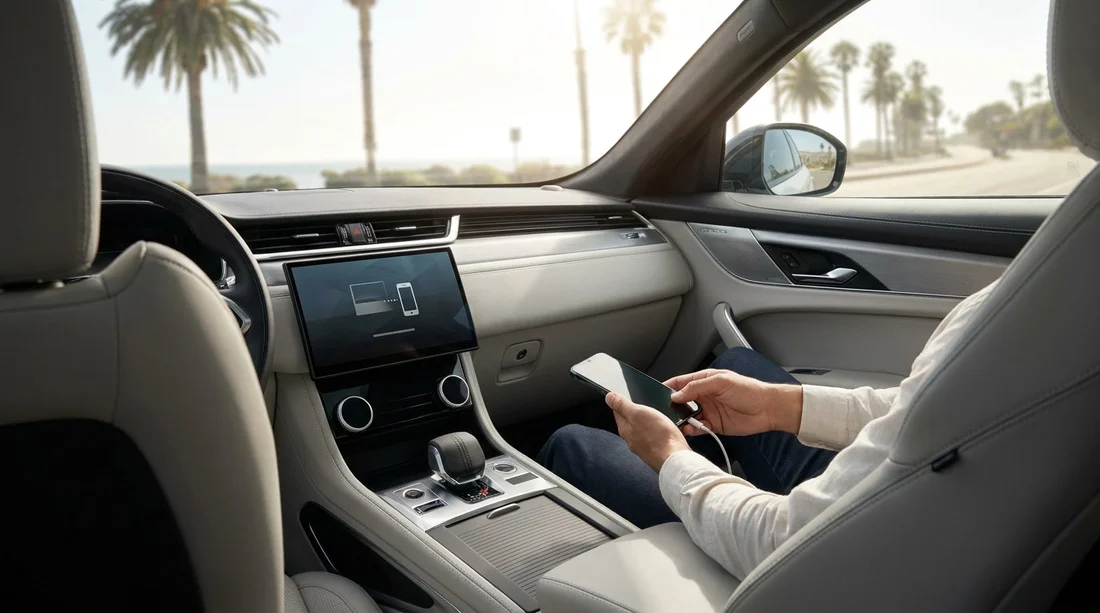
When you pick up a car hire in California, Apple CarPlay can make unfamiliar routes and hands-free communication far easier. Compatibility, though, depends on two things working together, your iPhone setup and the rental car’s infotainment system. The fastest way to avoid frustration is to check your phone, check the car, then do a quick test before you leave the car park.
Below is a practical checklist you can run through in minutes, plus a few common issues that show up with rental vehicles, multiple drivers, and different USB ports.
1) Confirm your iPhone model and iOS version
Apple CarPlay requires an iPhone and a supported iOS version. In practice, most iPhones from iPhone 5 onwards can use CarPlay, but you will have a better experience on newer devices running an up-to-date iOS.
To check quickly, go to Settings, then General, then About, and note your model name and iOS version. If you are several updates behind, CarPlay can be less reliable, especially with newer rental vehicles. Update iOS before you travel if possible, using Wi‑Fi and enough battery. Updating in the airport queue can be slow and may interrupt setup.
If you are arranging a car hire for a group, remember only iPhones support Apple CarPlay. Android phones use Android Auto, which is separate and not interchangeable.
2) Check whether the rental car has CarPlay and whether it is wired or wireless
Not every trim level includes CarPlay, even within the same model. The most reliable check is the car’s infotainment home screen, where you might see a CarPlay icon, a Phone Projection menu, or a settings option mentioning Apple CarPlay.
Ask the desk agent or lot attendant whether the specific vehicle supports Apple CarPlay, and whether it connects via USB (wired) or over Wi‑Fi and Bluetooth (wireless). This matters because you may need the right cable, and because wireless CarPlay can behave differently if the car has stored previous drivers’ profiles.
If you are comparing vehicle types for California driving, larger vehicles can have different infotainment packages. For instance, people choosing a people carrier often assume premium tech is included, but it varies by fleet and model year. If you are looking at options like minivan hire in California (LAX), it is still worth confirming CarPlay details for the exact vehicle you are assigned.
3) Bring the right cable or adapter for your iPhone
Wired CarPlay is still common in rental fleets. The connection usually requires a data-capable cable, not just a charging lead. Bring a known-good cable you have used for data transfer before.
Match the cable to your iPhone port. Older iPhones use Lightning, newer models use USB‑C. On the car side, you may find USB‑A or USB‑C ports. A USB‑C to USB‑C cable will not help if the car only offers USB‑A, so consider packing a spare or an adapter.
Also note that some vehicles have multiple USB ports, but only one supports phone projection. If CarPlay does not appear, try the other port before you assume incompatibility.
4) Review key iPhone settings that block CarPlay
Even with the right phone and cable, a few iPhone settings can stop CarPlay from launching:
CarPlay allowed while locked: Go to Settings, then General, then CarPlay, choose the vehicle (once it appears), and ensure Allow CarPlay While Locked is enabled. This prevents repeated prompts every time the screen locks.
Siri enabled: CarPlay relies on Siri for voice control. Check Settings, then Siri, and make sure Listen for “Siri” or press side button options are enabled, depending on your model.
Screen Time restrictions: If Screen Time is on, confirm that CarPlay is allowed. Restrictions can quietly block CarPlay without obvious error messages.
Bluetooth and Wi‑Fi: Wireless CarPlay needs both. If you are using wired CarPlay, Bluetooth can still be involved for calls and initial pairing, so keep it on during setup.
5) Do a two-minute test before you drive away
The simplest compatibility check is an on-the-spot test. With the car in Park and the parking brake applied, follow these steps:
First, start the car fully (not accessory mode if possible). Next, connect the iPhone with your cable to the USB port labelled for phone projection, or begin pairing if the car advertises wireless CarPlay. When prompted on your phone, tap Allow for CarPlay permissions and contacts access as needed.
Within 10 to 30 seconds, you should see the CarPlay interface appear on the car screen. If you only see charging, or the car says the device is unsupported, move to the troubleshooting section below. Completing this test at the pick-up point saves time compared with pulling over later in California traffic.
6) Troubleshoot common rental-car CarPlay problems
CarPlay does not show up, but the phone charges: The cable may be charge-only, the port may be power-only, or the car may require you to enable CarPlay in its settings menu. Try a different port and a different cable first.
The car connects to someone else’s phone: Rental cars often retain paired devices. On the car screen, go to phone or Bluetooth settings and delete old devices. On your iPhone, go to Settings, then Bluetooth, tap the info icon next to the car, and choose Forget This Device, then pair again.
Wireless CarPlay is flaky: Toggle Airplane Mode on and off, then ensure Wi‑Fi and Bluetooth are back on. Restart the iPhone. If the car supports wired CarPlay, switching to wired can stabilise the connection for long drives.
Audio or calls route incorrectly: In iPhone Control Centre, check the audio output and switch to CarPlay. Also confirm the car’s infotainment is not set to a different audio source.
Maps lag or freeze: Close heavy apps on your iPhone, and consider using a single navigation app at a time. If the car has multiple user profiles, select the default or guest profile to reduce conflicts.
7) Check compatibility before your trip, when planning car hire
If CarPlay is important for your itinerary, add it to your pre-travel checklist. When you compare pick-up points and vehicle categories, ask whether the fleet commonly includes CarPlay, and whether it is wired or wireless. This is particularly useful if you are flying in and heading straight onto highways with complicated interchanges.
Hola Car Rentals publishes location pages that can help you compare options and plan logistics. If you are coordinating a multi-stop US trip, you might also be looking beyond California, for example car rental at Chicago O’Hare (ORD) or National car rental in Phoenix (PHX). Even then, the same CarPlay checks apply, confirm phone, confirm car support, then test before departure.
For travellers who start or end on the East Coast, it can be helpful to plan around your arrival terminal and timing, as quicker pick-ups mean more time to sort phone setup calmly. Pages like car rental at Miami Airport (MIA) can be useful when you are mapping out a broader route and want a consistent approach to in-car tech across different airports.
8) A quick compatibility checklist you can save
Before you collect your car hire in California, run through this short list: iPhone model supports CarPlay, iOS is up to date, Siri and CarPlay permissions are enabled, and you have a data-capable cable matching both ports. At pick-up, confirm the car has CarPlay and whether it is wired or wireless, then test in Park before leaving.
Doing these checks makes CarPlay far more likely to work first time, and helps you avoid distractions once you are on the road.
FAQ
Do all rental cars in California have Apple CarPlay? No. CarPlay availability depends on the vehicle’s trim level, model year, and fleet specification. Always verify on the infotainment screen or with staff for your specific vehicle.
What iPhone do I need for Apple CarPlay? You generally need an iPhone 5 or newer, with a compatible iOS version. Newer iPhones with updated iOS tend to connect more reliably, especially with newer infotainment systems.
Will CarPlay work if I only have a charging cable? Not always. Many charging cables are power-only and do not carry data reliably. For wired CarPlay, use a data-capable cable and plug into the USB port intended for phone projection.
Why does the rental car keep connecting to someone else’s phone? The car may still have previous renters’ devices paired. Delete old phones in the car’s Bluetooth or phone settings, then forget the car on your iPhone and pair again.
Is wireless CarPlay better than wired in a rental? Wireless can be convenient, but it may be less stable if the car has stored multiple devices. Wired CarPlay is often the simplest, most consistent option for a rental, especially on long drives.





























































































