


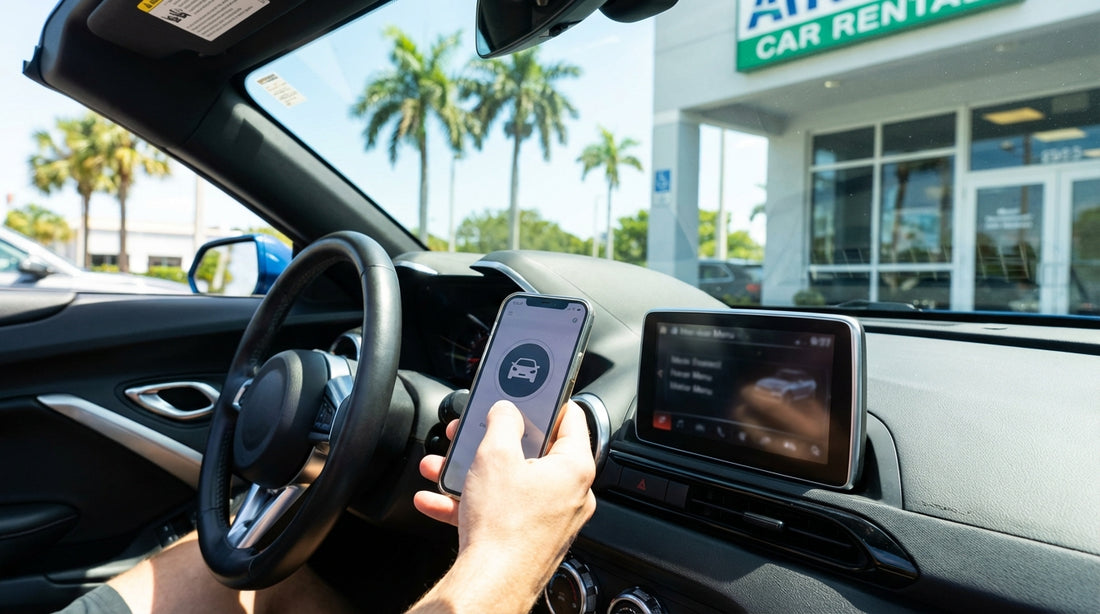
Quick Summary:
- Ask staff for Wireless CarPlay confirmation, then verify in the infotainment settings.
- In the car park, toggle Bluetooth and Wi-Fi, then attempt CarPlay pairing.
- Check the USB ports, cable type, and CarPlay prompt for wired-only systems.
- If wireless fails, update iPhone settings, reboot the unit, or swap vehicles.
Wireless Apple CarPlay is one of those small features that makes driving in Miami feel effortless. You get maps, calls, and music on the car screen without plugging in every time, which is useful when you are hopping between South Beach, Brickell, and the airport. The challenge is that many vehicles support CarPlay, but only some support it wirelessly. Even within the same make and model, trim level and model year can change what you get.
This guide is a quick, counter-to-car checklist you can run at pick-up to confirm wireless CarPlay availability, plus what to do when the system is wired-only. It is written for Miami pick-ups where you typically have limited time at the counter and want certainty before leaving the car park.
Before you reach the counter: set yourself up for a fast test
You can save minutes by preparing your iPhone in advance. Wireless CarPlay relies on Bluetooth for initial handshake and Wi-Fi for the data connection, so both must be on.
Do this before you queue: enable Bluetooth and Wi-Fi, and ensure Airplane Mode is off. In iPhone Settings, go to General, then CarPlay, and remove old rentals from “My Cars” if you have a long list. That prevents your phone trying to connect to a previous vehicle while you are testing the new one. Also check you know your iPhone passcode, some head units prompt for it after pairing.
Bring a Lightning or USB-C cable anyway. Even if you plan to use wireless, a cable is the quickest fallback for navigation if wireless pairing fails, and it confirms whether the car supports wired CarPlay at minimum.
At the counter in Miami: questions that get clear answers
At many Miami locations, the agent can see vehicle class rather than exact trim. The most effective approach is to ask questions that force a yes or no, or trigger a check in their notes.
Ask: “Does this specific car have Wireless Apple CarPlay, not just CarPlay?” If they are unsure, ask whether the car has “Wireless projection” or “Wireless smartphone integration” in the infotainment features list. If they can provide the exact vehicle registration or stock number, you can confirm on the car itself in the car park using the steps below.
If you are picking up near Brickell and want a smoother handover process, the location details and pickup flow can differ by branch. Here are relevant Hola pages that help you understand where you will be collecting and how to plan time for checks: car hire Airport Brickell and National car hire Florida MIA.
The counter-to-car checklist: confirm wireless CarPlay in under five minutes
Once you have the keys, do not leave the car park until you have run a simple, repeatable test. The goal is to confirm three things: the car supports wireless CarPlay, your phone can initiate it, and the connection is stable.
Step 1: find the right menu on the head unit
Start the vehicle (or press the ignition button without pressing the brake if you only need accessory power). On the infotainment screen, look for one of these menus: “Phone”, “Connections”, “Bluetooth”, “Wi-Fi”, “Device Manager”, “Apple CarPlay”, or “Projection”.
Signs wireless might be supported include options like “Add device”, “Connect new device”, “Wireless CarPlay”, “Use Wi-Fi for CarPlay”, or a Wi-Fi settings page that lists a hotspot name for the car. Some systems show both “Apple CarPlay” and “Android Auto” with a wireless icon next to them.
If the only instruction you see is “Connect via USB”, or the CarPlay page does not appear until a cable is plugged in, assume wired-only unless the next steps prove otherwise.
Step 2: attempt wireless pairing the correct way
Wireless CarPlay pairing usually starts in one of two ways:
Method A: on the car screen, choose “Add phone” or “Add device”, then select iPhone or Apple CarPlay. The car will display a Bluetooth pairing request or a code.
Method B: hold the voice command button on the steering wheel for a few seconds. Some vehicles trigger the CarPlay pairing prompt when you do this.
On your iPhone, go to Settings, then Bluetooth, and tap the car when it appears. Accept pairing and any contacts permissions. If the car requests you also join a Wi-Fi network, accept it. That Wi-Fi connection is the key indicator that you are truly on wireless CarPlay rather than Bluetooth audio.
When it works, you should see the CarPlay interface on the car screen without plugging in a cable. Confirm the connection is wireless by briefly unplugging any cable and checking that CarPlay stays active.
Step 3: confirm stability, audio, and navigation
Wireless CarPlay can appear to work but then drop after a minute if there is a previous device saved or the car is in a restricted mode. Take sixty seconds to test:
Open Maps or your preferred navigation app, start a short route, and check voice guidance plays through the speakers. Make a quick test call or play music. If audio is delayed or glitchy, restart the head unit (often a power button long-press) and try again.
If you are collecting around Miami Beach, you may have heavier wireless interference in busy garages. A stable connection in the pick-up lot is still a good sign, but it is worth doing one extra check outside the immediate building if possible before committing to a long drive.
Step 4: look for “wired-only” clues before you drive away
Some vehicles support CarPlay but require the correct USB port. Others have multiple ports where only one is data-enabled. Use these checks:
Look for a USB port marked with a phone icon or “USB data”. If you plug in and the car only charges the phone without showing CarPlay, try the other USB port. Also check the cable, many older cables charge but do not carry reliable data.
If the car immediately launches CarPlay only after connecting the cable, and there is no Wi-Fi join step, it is almost certainly wired-only. That is not a problem if you are comfortable using a cable, but it is different from the convenience of wireless.
If wireless CarPlay is not working: fast fixes that solve most issues
Before you request a different vehicle, try the most common solutions. They are quick and often fix a false “wired-only” impression caused by settings.
1) Forget the car and pair again. On iPhone Settings, Bluetooth, tap the “i” next to the car and choose “Forget This Device”. Also remove it from Settings, General, CarPlay if it appears. On the car, delete the phone from the device list. Pair again from scratch.
2) Check CarPlay restrictions. On the iPhone, go to Settings, Screen Time, Content and Privacy Restrictions. Ensure CarPlay is allowed. Also check you are not in Low Power Mode, which can sometimes reduce background behaviour.
3) Reboot iPhone and head unit. A full restart clears stuck Bluetooth states. Many head units reboot with a long press of the power or volume knob, or via a settings menu.
4) Disable VPN and disconnect from other Wi-Fi. Wireless CarPlay can fail if the phone tries to stay on a known Wi-Fi network. Turn off Wi-Fi, turn it back on, then attempt pairing so it can join the car’s Wi-Fi. Temporarily disabling a VPN can also help with initial handshake.
5) Make sure you are not exceeding device limits. Some cars only remember a few devices. If the car is full of previous pairings, delete old devices from the car menu.
What to do if the car is wired-only (or wireless is unavailable)
If your test confirms the car is wired-only, you have three practical options, depending on how important wireless is to you and how long you will be driving.
Option 1: use wired CarPlay correctly. Identify the correct data USB port, use a high-quality cable, and keep a spare in the glove box. Wired CarPlay is often more stable than wireless and keeps your phone charged, which is useful in Miami traffic with navigation running.
Option 2: ask for a vehicle swap, politely and quickly. If wireless CarPlay is essential, raise it before leaving the lot, while the agent can still reassign a car class or check another vehicle. Mention that you tested and the system is wired-only, and you need a car with wireless CarPlay capability. Availability varies, so treat it as a feature request rather than a guarantee.
Option 3: consider a different category next time. Wireless CarPlay is more common on newer model years and higher trims, as well as some premium SUVs. If you regularly need wireless connectivity for work calls, it can be worth selecting a category more likely to include updated infotainment.
If you are collecting outside central Miami, branch differences matter. These pages can help you understand nearby pickup areas and vehicle types often associated with them: car rental Doral and Thrifty car hire Miami Beach.
Extra checks specific to Miami pick-ups
Miami car parks can be busy, loud, and time-pressured. A few local habits make your wireless CarPlay check easier:
Do the test in a safe, stationary spot. Some vehicles disable pairing while moving. Even rolling slowly in a garage can block setup screens.
Watch for valet-style quick handovers. If the car is delivered to a kerbside pickup, you may have less time to explore menus. Ask for a moment to verify Bluetooth and CarPlay before you merge into traffic.
Plan for glare and language settings. Bright sun makes screens hard to read, and some infotainment systems may start in Spanish. Use the settings cog icon to change language if needed, because menu labels differ and you may miss the “Connections” section.
Keep your own cable accessible. If wireless drops on the causeway or during a heavy rainstorm, plugging in is the fastest recovery.
Wireless CarPlay confirmation checklist (printable in your head)
If you only remember one sequence, use this:
1) In the car menu, find Connections or Apple CarPlay settings. 2) Start pairing from the car, not just the phone. 3) Accept Bluetooth pairing, then accept joining the car’s Wi-Fi. 4) Confirm CarPlay runs without a cable for at least one minute. 5) If it only appears after USB, treat it as wired-only and decide your next step before leaving.
FAQ
How can I tell quickly if CarPlay is wireless without deep menus? If CarPlay launches and stays on after you unplug the cable, it is wireless. If it only appears after USB connection, it is wired-only.
Why does the car say it has CarPlay, but my iPhone will not connect wirelessly? Many cars have CarPlay but only support it via USB. If wireless is supported, pairing usually requires both Bluetooth and the car’s Wi-Fi connection to be accepted.
Will wireless CarPlay work if my phone is already connected to another Wi-Fi network? Sometimes no. Wireless CarPlay typically needs your iPhone to switch to the car’s Wi-Fi during use, so disconnecting from other Wi-Fi can help initial setup.
What should I do at pick-up if wireless CarPlay is essential for my trip? Test it in the car park before you leave. If it is wired-only, ask staff whether another available vehicle supports wireless CarPlay.
Is wired CarPlay a downgrade for long drives around Miami? Not necessarily. Wired CarPlay is often more stable and charges your phone, which can be useful for navigation-heavy driving in Miami.





























































































