


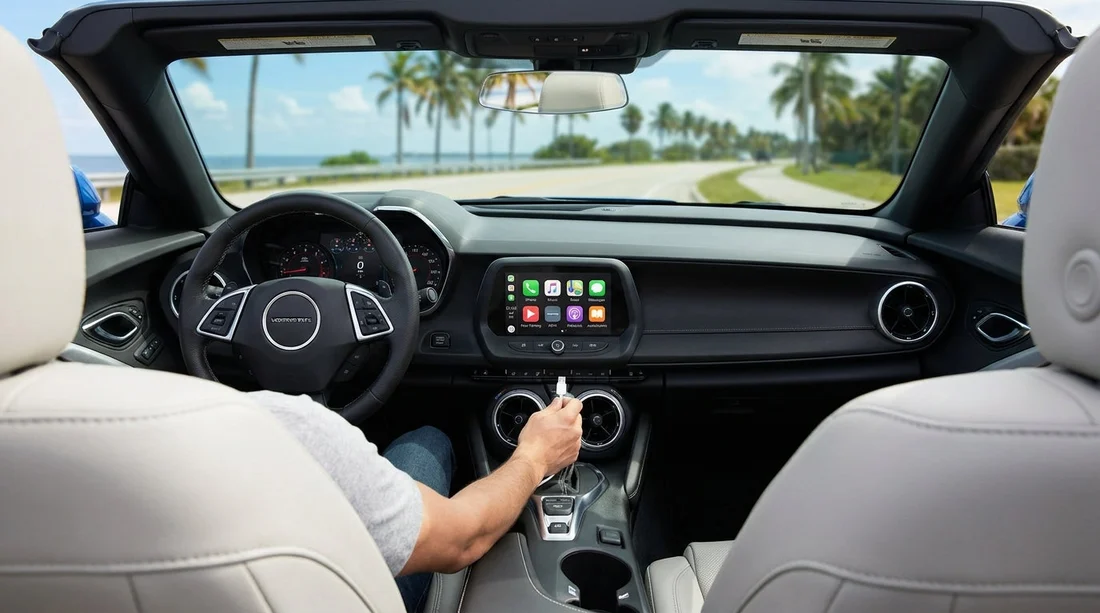
Quick Summary:
- Expect wired CarPlay most often, wireless depends on trim and model year.
- Pack a USB-C to Lightning cable, plus USB-A adapter for older ports.
- At pick-up, test CarPlay in Park, and approve Bluetooth prompts.
- If wireless fails, switch to USB connection and enable CarPlay in Settings.
When you pick up a car hire in Florida, Apple CarPlay can feel like a coin toss. Some cars connect instantly without a cable, others need a wired connection, and a few require a specific USB port that is easy to miss. The good news is that most issues are predictable once you know how US rental fleets are typically configured and what to pack.
Florida rentals turn over frequently, so you might get anything from a recent model with wireless CarPlay to a reliable older sedan that only supports wired. Even within the same model, different trim levels can change whether CarPlay is wireless, which ports are fitted, and whether the system uses USB-A or USB-C. That is why the best strategy is to arrive prepared for both.
Wireless vs wired CarPlay, what is most common in Florida rentals?
In many US rental fleets, wired Apple CarPlay is still the most common set-up. It works across more model years and keeps things consistent for high turnover vehicles. Wireless CarPlay is increasingly available, particularly in newer SUVs and higher trims, but it is not guaranteed even if the car is fairly new.
As a rule of thumb, expect wired CarPlay unless the screen or head unit explicitly offers a wireless pairing option. If you are collecting at a busy hub like Orlando Airport (MCO) or Miami Airport (MIA), the priority is often fast turnarounds, which means you should plan for the simplest, most universal connection method, a cable.
How to tell at pick-up whether CarPlay is wireless
You do not need to dig through manuals. Once seated, put the car in Park, start the engine, and check the infotainment home screen. Look for a “Phone”, “Projection”, “CarPlay”, or “Smartphone” tile. If it offers “Add Phone” and immediately asks for Bluetooth pairing, it may support wireless CarPlay, but not always.
Here are quick indicators:
Likely wireless: The screen shows “Apple CarPlay” as an available wireless connection after Bluetooth pairing, or there is a Wi‑Fi prompt on your iPhone once you approve initial pairing.
Likely wired: The system only offers CarPlay after you connect a cable, or it shows CarPlay greyed out until USB is connected.
Mixed set-up: Some cars support wireless, but only after one initial wired connection to complete pairing. Rentals can also have settings reset between hires, so you might need to re-enable it.
Which USB port works, and why some cables “do nothing”
A very common frustration in a rental car hire is plugging in and seeing only charging, no CarPlay. This often happens because only one USB port is data-enabled. The car might have several ports, including ones for rear passengers, but only a single front port supports CarPlay.
Check these locations in order:
Centre console front panel: Often the correct port, sometimes labelled with a smartphone icon.
Inside the centre armrest: Common in SUVs, the data port may be hidden inside.
Dash cubby or under the climate controls: Some cars place the data port low down.
If the port is USB-C and your cable is USB-A to Lightning, it will not plug in. If the port is USB-A and you only packed USB-C to Lightning, you will need an adapter. This is why packing for both USB types saves time at the pick-up bay.
What to pack for Apple CarPlay in Florida car hire
To connect quickly, pack a small kit that covers both wired and wireless scenarios. You do not need anything bulky, just the right connectors.
1) USB-C to Lightning cable (reliable, good length)
Many newer US rentals have USB-C ports. A quality cable helps avoid dropouts that can look like “CarPlay is broken” when it is really intermittent data.
2) USB-A to USB-C adapter or USB-A to Lightning cable
Older models and some fleet trims still use USB-A. An adapter makes your main cable usable in either port type.
3) A 12V car charger with USB-C and USB-A (optional)
This does not create CarPlay, but it keeps passengers charged if the data port is occupied for CarPlay.
4) Wireless CarPlay adapter (optional, not essential)
If you strongly prefer wireless, a third-party adapter can convert wired-only systems to wireless. However, it adds one more device to pair, and some cars can be fussy. For most travellers, a cable is still the fastest, most dependable option.
Fast set-up steps at the rental lot
When you are eager to leave the airport and get moving, follow a repeatable routine.
Step 1: Prep the iPhone
Enable Bluetooth and Wi‑Fi. Check that Airplane Mode is off. Go to Settings, General, CarPlay, and confirm CarPlay is allowed.
Step 2: Start with the cable
Even in cars that support wireless, plugging in first often speeds up detection and permissions. Use the data-enabled USB port, usually in the front console area.
Step 3: Approve prompts immediately
Accept “Allow CarPlay while phone is locked” and any contact or notification prompts. Declining can limit functionality and can look like a connection problem.
Step 4: If wireless is desired, switch after it works
Once wired CarPlay appears, you can disconnect and see whether the system offers wireless reconnection. If it does, it will typically reconnect automatically on later drives.
Step 5: If it fails, do a quick reset
On your iPhone, forget the vehicle under Settings, Bluetooth, and delete it from Settings, General, CarPlay. Then reconnect with the cable. In many rentals, the head unit has a “Forget device” option too.
Common rental-car quirks in the US, and how to handle them
Multiple driver phones stored: Some cars still have old devices listed. Remove them from the car’s device list if it refuses to connect.
Valet or guest profile modes: Driver profiles can limit pairing or keep settings locked. Switch to a primary profile if available.
Privacy resets between hires: Some fleets wipe connections. Expect to pair as if it is the first time, even if the car model is familiar.
Spotty wireless performance: Wireless CarPlay can drop in busy areas. In large metro corridors near Miami or Orlando, interference and constant handoffs can make wired more stable.
Does vehicle type change the odds of wireless CarPlay?
Yes, a bit. Larger, newer vehicles and higher trims are more likely to include wireless CarPlay, but there are plenty of exceptions. For example, an SUV could still be fleet-spec with wired-only CarPlay, while a newer compact might have wireless.
If you are choosing between categories, it can help to browse options that skew newer, such as an SUV rental for Disney in Orlando or a larger people mover like a van rental in Miami, where model years in rotation are often recent. Still, the best preparation remains the same, bring the right cable and adapter so the exact vehicle does not matter.
Tips for quick, stress-free navigation after pick-up
CarPlay is most useful when it gets you out of the airport loop and onto the right highway without delays. Before you pull off, set your destination while stationary and let Maps download the route. If you will be driving across Florida with variable mobile signal, download offline maps in your preferred app in advance.
Also check that the car’s clock and time zone are correct, and that audio is set to play through CarPlay. If you hear silence, raise the media volume (not just ringer volume) and confirm the source is CarPlay rather than FM or SiriusXM.
Finally, if you are picking up through a Florida-focused supplier page such as car hire in Florida (MIA area), remember that the vehicle you receive can vary by availability. Your connection kit is what makes the experience consistent.
FAQ
Is Apple CarPlay usually wireless or wired in a Florida rental car?
Most Florida rental cars still support wired Apple CarPlay as the default. Wireless CarPlay is increasingly common in newer models, but it varies by trim and fleet specification.
What cable should I bring for car hire in Florida?
Bring a USB-C to Lightning cable and a USB-A adapter, or also pack a USB-A to Lightning cable. This covers the two most common port types you will encounter.
Why does my iPhone charge but CarPlay does not start?
You may be using a charge-only cable or the wrong USB port. Try another front USB port, especially one marked with a smartphone icon, and use a known data-capable cable.
Can I make wired-only CarPlay wireless in a rental?
A third-party wireless CarPlay adapter can work, but compatibility varies and it adds pairing steps. For the quickest, most reliable set-up in a rental, a direct USB connection is usually best.
How do I remove a previous renter’s phone from CarPlay?
In the car’s phone or connections menu, select the old device and choose “Forget” or “Delete”. On your iPhone, remove the car under Bluetooth and under Settings, General, CarPlay.































































































