


Quick Summary:
- Enable Bluetooth and Wi-Fi on your iPhone before starting the engine.
- Delete old CarPlay pairings on both phone and car head unit.
- Accept CarPlay prompts, allow contacts, and set Siri for hands-free control.
- Test calls, maps audio, and steering controls while still at pick-up.
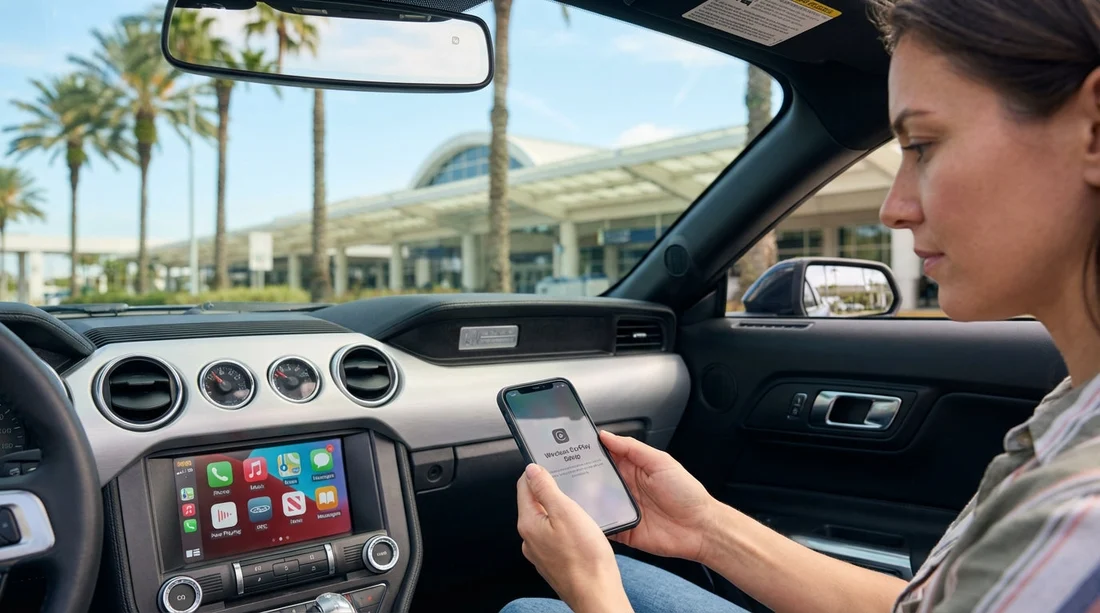
Wireless Apple CarPlay is one of the fastest ways to feel settled in a new car hire at Orlando Airport, especially when you want familiar maps, music, and hands-free calling before you hit the 528, I-4, or the resort roads. The key is to do a short, repeatable checklist while you are still in the pick-up area, with good mobile signal, time to read prompts, and staff nearby if the head unit needs a reset.
If you are collecting a vehicle through Orlando MCO car rental, plan an extra five minutes in the driver’s seat before leaving the bay. That time is usually enough to confirm the car supports wireless CarPlay, complete pairing, and verify audio routing so you do not lose directions mid-journey.
Before you pair, confirm the car supports wireless CarPlay
Not every CarPlay-equipped car supports wireless CarPlay. Some vehicles only work with a USB cable, even when they show a CarPlay icon. Before you start changing settings, check the infotainment screen for wording such as “Apple CarPlay Wireless”, “Phone Projection”, or a QR-style pairing prompt. If the screen only offers “USB CarPlay” or “Connect via cable”, you may need a Lightning cable instead.
It also helps to know that rentals can vary by trim level. Two cars that look identical on the outside can have different head units. If you prefer a larger cabin that often includes higher-spec infotainment, you might notice different behaviour across categories like SUV rental at Orlando MCO or a people carrier.
Quick pre-drive checklist at the pick-up bay
Work through the steps in order. They minimise “phantom” issues caused by old pairings, half-approved permissions, or the iPhone choosing the wrong audio output.
1) Prepare your iPhone. Turn on Bluetooth and Wi-Fi. Keep Airplane Mode off. Go to Settings, General, CarPlay, and remove any old vehicles you no longer use. If you are using a VPN, pause it for setup because some head units time out during the first handshake. Ensure Siri is enabled in Settings, Siri and Search, because many cars require Siri for CarPlay to activate.
2) Prepare the car head unit. On the infotainment screen, open Phone, Bluetooth, or Connections. If you see a list of previous phones, delete them, or at least remove any that are not yours. Rental cars often keep prior drivers saved, which can cause the car to try to reconnect to a phone that is no longer nearby.
3) Start pairing from the car screen. Choose Add Device, Pair Phone, or Apple CarPlay. Follow the on-screen prompt. If the car asks whether to use CarPlay, confirm. If your iPhone shows a Bluetooth pairing request, tap Pair and allow your contacts and favourites if asked. That permission improves caller ID and recent calls, which matters when you are navigating unfamiliar roads around Orlando.
4) Approve the wireless CarPlay prompt on iPhone. Many iPhones will show “Use CarPlay with [Car Name]?” Tap Use CarPlay. Then allow CarPlay while locked, so the connection does not drop when your phone screen turns off in a pocket or bag.
5) Wait for the Wi-Fi handover. Wireless CarPlay typically pairs by Bluetooth, then switches to a Wi-Fi Direct connection for the actual CarPlay session. If you see CarPlay connect, then disconnect once, that can be normal during the first setup. Give it 30 to 60 seconds before trying again.
Common wireless CarPlay fixes while you are still at pick-up
If CarPlay fails, use this order of fixes. Each step is quick, and you can stop as soon as it works.
Fix 1: Toggle Bluetooth and Wi-Fi on the iPhone. Switch both off for five seconds, then on again. Open the car’s phone menu and try reconnecting.
Fix 2: Forget and re-pair. On iPhone, Settings, Bluetooth, tap the “i” next to the car and choose Forget This Device. Also remove the phone from the car’s remembered devices. Pair again from the car screen, not from the iPhone, as many head units prefer to initiate.
Fix 3: Restart the iPhone. A quick reboot clears stuck wireless services. This is especially effective if you arrived after using Bluetooth headphones or a portable hotspot.
Fix 4: Reboot the head unit. Some systems have a physical power or volume button you can hold for about 10 seconds to reboot. If you cannot find it, turning the car fully off, opening and closing the driver door, and waiting a minute can force a reset.
Fix 5: Try wired CarPlay as a fallback. Even if you want wireless, confirm whether a cable works. If wired CarPlay works but wireless does not, you still have navigation and calling, and you can troubleshoot wireless later when parked.
Audio and microphone checks before leaving Orlando Airport
Once CarPlay appears, do two quick tests. They prevent the most annoying mid-drive surprises.
Test navigation voice: Open Apple Maps or your preferred maps app, start a short route, and confirm you can hear spoken directions. If directions are silent, check the car volume while the voice is speaking. Also check that audio is not routing to the iPhone speaker or another paired device.
Test a call: Make a short call or use a voicemail menu to confirm the microphone works and the call audio is through the car. If callers cannot hear you, check if the car is using “handset” mode or if the call is still on the iPhone. Switching the audio source to “CarPlay” or “Bluetooth” during the call often fixes it.
Battery, roaming, and data tips for a smooth first drive
Wireless CarPlay uses more battery than wired. If you are heading to a theme park area or doing a longer drive, use the car’s USB port for charging even if CarPlay is wireless. Also confirm your phone plan data settings, especially if you have just landed and are using roaming. Maps streaming and music can consume data quickly.
If you have chosen a larger vehicle for family luggage, you may also have multiple USB ports available. In categories such as van hire at Orlando MCO, it is worth checking that rear passengers’ charging does not occupy the single port you planned to use up front.
What to do if the car keeps reconnecting to someone else
In a busy airport environment, wireless signals are noisy, and a car that still has previous pairings saved may try to connect to a nearby phone with the same name, or to a device the last driver left in range. The fix is to purge the car’s paired device list and rename your iPhone temporarily to something unique, like “YourName Orlando”. After you leave the airport, you can change it back.
On iPhone, you can rename it in Settings, General, About, Name. Then re-pair. This can be particularly helpful when collecting from high-turnover desks where cars are rotated quickly, including options you might see through car hire at Orlando MCO.
Keep it safe and legal once you are on the move
Set your destination and audio before pulling out. Use Siri for changes while driving, and avoid handling the phone even if it disconnects. If CarPlay drops on the road, keep driving safely, then pull into a safe, legal spot to reconnect. In Orlando, it is normal to pass through areas with heavy wireless congestion where connections can briefly stutter, especially around major interchanges.
For travellers combining airport arrival with a resort transfer, it can help to have your first address saved in Apple Maps favourites before your flight. That way, even if you need to re-pair, you can start navigation quickly once it reconnects. If you are collecting near the terminals and heading towards Disney-area hotels, you may also find pickup notes useful on pages like car hire from Orlando Airport to Disney.
FAQ
Why won’t wireless CarPlay connect even though Bluetooth pairing worked? Wireless CarPlay usually needs both Bluetooth and Wi-Fi. If Wi-Fi is off, or a VPN blocks the handshake, CarPlay may never switch into the full session. Turn on Wi-Fi, pause VPN, then reconnect.
Do I need mobile data for Apple CarPlay to work in Orlando? CarPlay itself does not require data, but maps traffic, streaming music, and messaging features do. Download offline maps where possible, and check roaming settings if you are visiting from the UK.
Can two iPhones use CarPlay in the same rental car? Most cars can store multiple phones, but only one will run CarPlay at a time. Decide the primary driver phone, delete old pairings, and keep the second phone’s Bluetooth off during setup to avoid confusion.
What if the car only offers wired CarPlay? Use a Lightning cable and confirm the port supports data, not just charging. If the cable connection is stable, you still get navigation and calls, and you can charge at the same time.































































































