


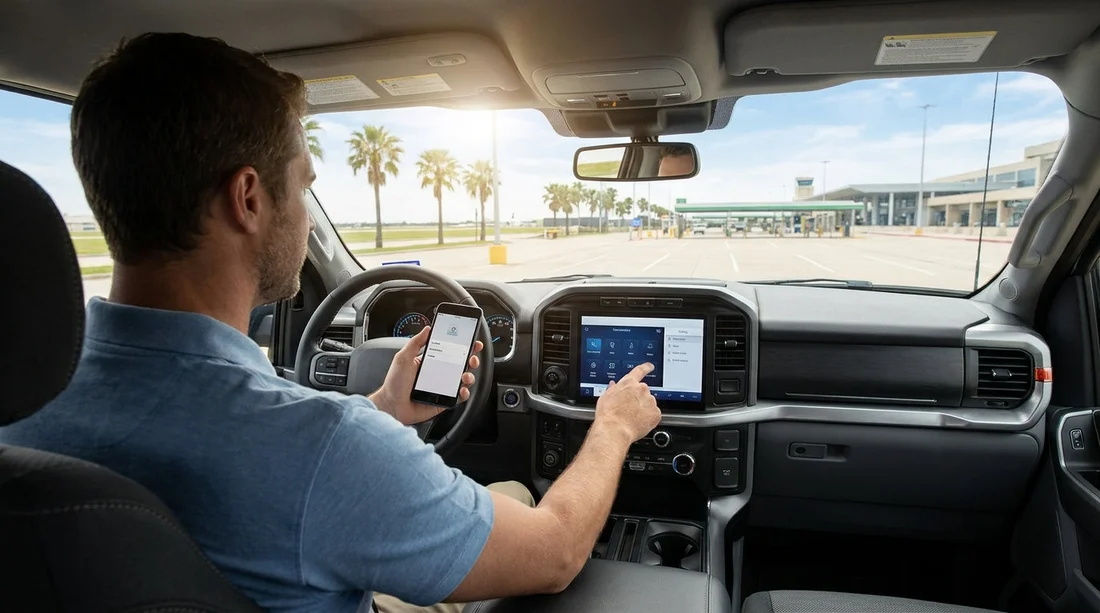
Quick Summary:
- Confirm the car supports wireless Android Auto, and enable Bluetooth and Wi-Fi.
- Pair using the car’s phone menu, accept prompts, then approve permissions.
- Set Android Auto as default projection, then test audio, calls, and maps.
- Delete your phone and clear personal data before returning the car.
Setting up wireless Android Auto at a Texas rental car pick-up is best done before you leave the lot. It takes a few minutes, but it helps you avoid fumbling with settings in traffic, and it lets you confirm that calls, navigation, and audio all work with your particular car hire. Because rental fleets rotate vehicles, trims, and head units, you will sometimes find that one car supports wireless Android Auto while another needs a USB cable, even within the same model.
Below is a practical, pick-up friendly routine you can run while the vehicle is parked. The steps are Android-first, but they also account for what you will see on most infotainment systems used in the US.
1) Do a quick compatibility check while still parked
Start with two questions, does the car support Android Auto, and does it support it wirelessly. Look for an “Android Auto” or “Phone Projection” tile on the home screen, or a “Connected devices” menu. If you only see “Bluetooth audio” and “Phone calls” with no projection options, the car may not have Android Auto enabled, or it may require a USB connection.
On your phone, confirm you have a recent Android Auto build and that Bluetooth and Wi-Fi are switched on. Wireless Android Auto uses Bluetooth for the initial handshake and Wi-Fi (often Wi-Fi Direct) for the high bandwidth connection, so both must be enabled even if you do not intend to join a hotspot.
If you are comparing providers for future trips, Hola Car Rentals publishes location pages that can help you review pick-up logistics and vehicle types, such as Avis car hire Arizona PHX and Hertz car rental Boston BOS.
2) Prepare the phone before you touch the car’s screen
Do these phone steps first, it reduces permission pop-ups later.
Check that your phone is unlocked and that you know your screen lock method. During pairing, Android may require you to unlock the device or confirm a pairing code. If your phone is in a bag, on battery saver, or in a restricted mode, the connection can fail and look like the car is at fault.
Then open Android Auto settings and confirm it is allowed to run while the screen is locked. On many phones you can find this under Android Auto, then “Start Android Auto while locked”. Also make sure location is enabled, because Maps and other navigation apps can appear but fail to route correctly without location permission.
3) Pair the phone to the car using the in-car menu
With the car in Park, turn the ignition fully on so the infotainment system does not go into accessory sleep. Go to the vehicle’s phone or connectivity menu, then choose “Add phone”, “Pair device”, or similar.
On your phone, open Bluetooth settings and select the car. You should see a pairing code on both screens, confirm it matches, then accept. If the car asks for access to contacts and call history, allow it if you want caller ID and hands-free calling to work smoothly.
Next, you should see an Android Auto prompt either on the car’s screen or the phone. Accept the terms, then approve permissions for contacts, phone, microphone, and location. If you deny microphone access, Google Assistant and voice texting will not work, which is a common complaint that is actually just a permission setting.
4) Switch from “paired” to “projecting” wirelessly
Bluetooth pairing alone is not Android Auto. You need the projection session. If the head unit supports wireless Android Auto, it will typically offer a “Use Android Auto” toggle, or it will automatically switch after the first successful Bluetooth pairing.
If you do not see it, check for an “Android Auto” tile, then select your device. Some systems also have a setting that lets you choose a default, for example “Always launch Android Auto when this phone connects.” Enable that, so it starts automatically each time you re-enter the car during your Texas trip.
Wireless sessions can take 10 to 30 seconds to initialise the first time. Keep the phone awake, and stay within the front seats. If the connection drops, forget the car in your phone’s Bluetooth list, delete the phone from the car’s device list, then restart both and try again. Doing the reset at pick-up is far easier than doing it at a petrol station later.
5) Confirm audio routing, calls, and navigation before leaving
Run a short checklist.
Audio, play a track and confirm it is coming through the car speakers, not the phone. If audio is silent, check the car’s source is set to Android Auto, not FM or Bluetooth audio. Also raise volume while the track is playing, because some cars keep separate volume levels for media, calls, and navigation prompts.
Calls, place a quick test call to voicemail or a known contact. Confirm the microphone works and that you can hear the other side clearly. If the other party cannot hear you, verify microphone permissions on the phone and look for an in-car mute button.
Maps, open your preferred navigation app and start a short route, even if it is just to the nearest major road. Confirm GPS updates smoothly and that turn prompts play. In Texas, you may face complex frontage roads and multi-lane interchanges, so crisp prompts matter.
6) Protect your privacy in a rental car
Wireless Android Auto is convenient, but rental cars are shared devices. Avoid saving more data than necessary. If the car asks to download your contacts to the vehicle, you can choose not to, because Android Auto can still show contacts from the phone.
Also check whether the car offers a driver profile that stores your connected accounts or navigation history. Use “Guest” if available. If you sign into any in-car apps, log out before you return the vehicle.
If you are planning multiple city stops and comparing options across locations, you can browse Hola pages like car hire Chicago ORD and car rental Portland PDX to see how pick-up environments can differ.
7) Troubleshooting quick fixes at the pick-up bay
If wireless Android Auto will not start, try these in order.
First, confirm Wi-Fi is on, and disable aeroplane mode. Second, restart the phone, it clears stuck Bluetooth sessions. Third, remove the car from Bluetooth paired devices, then add it again. Fourth, reset the head unit connection list if you see many previous phones, because some systems have a device limit.
If wireless still fails, ask the agent whether the vehicle supports wireless projection, and switch to USB for this trip if needed. A reliable wired Android Auto session is better than an unstable wireless one, especially when you are learning a new area.
When you return the car, remember to delete your phone from the head unit and clear any saved addresses. This takes less than a minute and protects your privacy for the next driver, while also reducing connection issues for you if you rent again.
Getting wireless Android Auto working at pick-up is a small step that makes a big difference to comfort and confidence. For any car hire, especially in busy Texas driving conditions, a calm setup in the car park can prevent distraction later.
FAQ
Does every rental car in Texas support wireless Android Auto?
No. Many vehicles support Android Auto, but some require a USB cable, and some trims do not include projection. Check the infotainment menu for “Android Auto” and “wireless” options before leaving.
Why does it connect on Bluetooth but Android Auto does not launch?
Bluetooth pairing only handles calls and audio. Wireless Android Auto also needs Wi-Fi, permissions, and a projection setting enabled in the car. Turn on Wi-Fi, accept Android Auto prompts, and set it to launch automatically.
What permissions should I allow for Android Auto in a rental car?
Allow phone, contacts, microphone, and location if you want calls, voice control, and navigation to work properly. You can keep notifications limited to reduce distractions.
How can I stop my details staying in the car after my trip?
Before returning the vehicle, remove the phone from the car’s device list and forget the car in your phone’s Bluetooth settings. Log out of any in-car accounts and clear recent destinations if shown.
Is wireless Android Auto safe to use while driving?
It is safer than holding a phone, but it still requires discipline. Set your route while parked, rely on voice controls, and keep notifications minimal so you are not tempted to look at the screen.






























































































