


Quick Summary:
- Ask whether Android Auto is USB-only or supports wireless pairing.
- Use a data-capable USB cable, then approve prompts on phone.
- Enable Bluetooth, Wi‑Fi, and location, then allow Android Auto permissions.
- Test Maps, calls, and music, then fix issues before leaving.
Setting up Android Auto at pick-up is one of the quickest ways to make a Florida car hire feel familiar, but it is worth doing before you leave the car park. Different vehicles support different connection types, and a few simple checks can prevent a stressful first drive in traffic, especially around busy areas like Miami.
This guide covers what to check at the counter and in the car, the key permissions on your Android phone, and fast troubleshooting steps you can run through in minutes. The goal is simple, confirm you can navigate, take calls hands-free, and play audio reliably before you pull out.
Before you sit down, confirm what the car supports
Start by checking whether the vehicle supports Android Auto at all, and if it is wired, wireless, or both. Many newer models support wireless Android Auto, but plenty of fleet cars still require a USB connection. If you are collecting near Miami, vehicle types can vary by location and supplier, so it helps to verify early. If you are arranging car hire around the city, details can vary across pick-up points such as Miami Airport and Downtown or Miami Beach.
Next, look for the correct USB port. Some cars have multiple ports, not all of them support data. A port marked with a phone icon or labelled “data” is more likely to work for Android Auto than a charge-only port. If the vehicle has USB-C ports and your cable is USB-A, you may need an adaptor or a different cable.
Bring the right cable, and why it matters
For wired Android Auto, a high-quality data cable is the difference between a stable connection and constant dropouts. A cheap charge-only lead will often power the phone but fail to pass data, which can look like Android Auto is broken. Ideally use the original cable that came with your phone or a reputable data-rated cable. Keep it short, long cables are more prone to interference and disconnects when you hit bumps.
If your Florida car hire is an SUV or larger vehicle, the infotainment screen can be further from the driver and you may be tempted to use a long lead. Try a shorter cable first, then route it neatly so it does not tug when you change gear or adjust the seat. If you are travelling with family and lots of devices, larger vehicles are common choices, including options like SUV hire in Doral or a people carrier from minivan rental in Miami Beach.
Step-by-step, set up Android Auto before leaving the bay
1) Start the car fully. Some systems do not initialise Android Auto until the car is fully on, not just in accessory mode. Buckle in, start the engine, and wait for the infotainment system to finish loading.
2) Clear old pairings if needed. Rental cars sometimes keep previous drivers’ Bluetooth profiles. If you see unfamiliar devices, remove them from the car’s Bluetooth menu. On your phone, forget the car in Bluetooth settings if it has been paired before and was problematic.
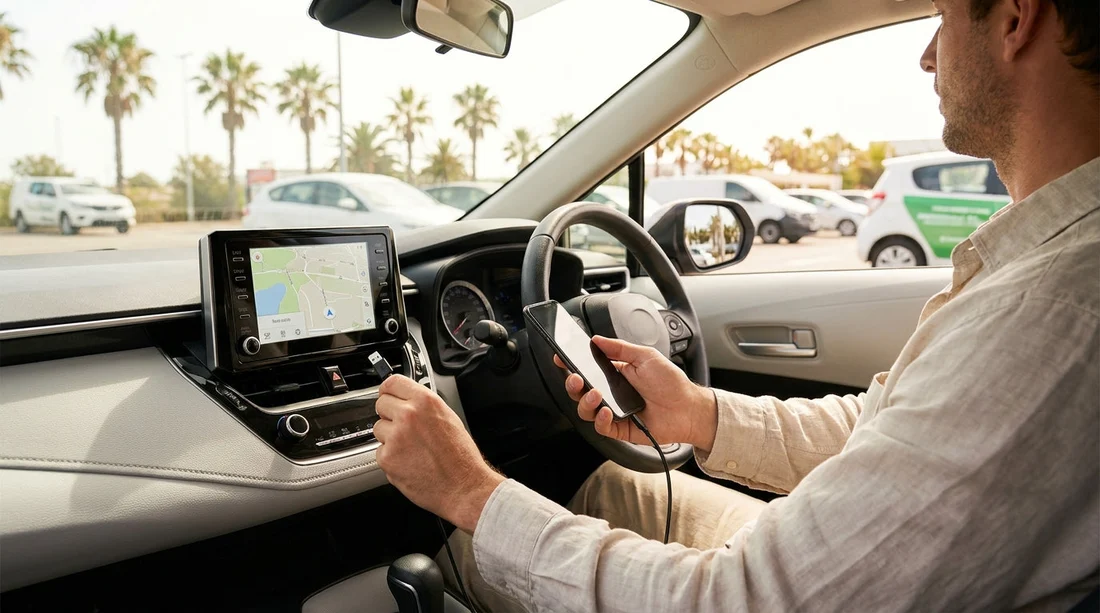
3) Wired setup (most reliable). Plug your phone into the data USB port. The car screen should prompt to start Android Auto. On your phone, you will likely see permission requests and a safety confirmation. Accept them while parked.
4) Wireless setup (if supported). Wireless Android Auto usually needs Bluetooth and Wi‑Fi working together. Pair your phone via Bluetooth first, then follow the on-screen prompt to enable Android Auto wirelessly. Keep your phone unlocked for the first connection.
5) Choose the right apps. Open Google Maps or Waze, pick a simple destination, and confirm it shows on the car screen. Then test a short music track and a phone call to confirm the microphone and audio routing are correct. Do this before you leave so you are not handling the phone on Florida roads.
Permissions to check on your Android phone
Most “it will not connect” issues are actually permission blocks. Android Auto needs several permissions to function properly. If you deny one in a hurry, you may get a blank screen, no audio, or broken navigation voice guidance.
Key permissions and toggles: allow Android Auto access to location (for navigation), contacts (for calling), microphone (for voice commands), and notifications (so messages can be read aloud). If you use wireless Android Auto, ensure Wi‑Fi and Bluetooth are enabled, and turn off aeroplane mode.
Background restrictions: some phones restrict background activity to save battery. If Android Auto disconnects when the screen locks, check battery optimisation settings and allow Android Auto and Google Play services to run in the background.
Data and roaming: if you are visiting from abroad, confirm your data plan works in Florida before relying on live traffic. Offline maps can be a useful backup, but download them before you arrive if possible. Even with offline maps, Android Auto still needs a stable connection between phone and car.
Quick troubleshooting you can do in two minutes
If Android Auto does not appear on the screen, work through these quick checks while you are still parked at the pick-up area.
Swap the USB port. Try another port, especially if one is charge-only. If the car has a centre console port and a dash port, the dash port is often the data one.
Swap the cable. If you have a second cable, test it. If not, unplug and replug firmly at both ends. A slightly loose connection can cause repeated disconnects.
Restart both sides. Reboot your phone. On many cars you can also reboot the infotainment system by holding the power or volume knob for several seconds, then waiting for it to reload.
Check the car’s Android Auto toggle. Some systems have Android Auto disabled in settings. Look under “Connections”, “Smartphone”, or “Projection”. Enable Android Auto and accept any safety messages.
Fix audio routing. If Maps shows but you cannot hear directions, check the car volume while the navigation voice is speaking. Some vehicles separate media volume and guidance volume. Also confirm your phone is not set to silent or “Do Not Disturb” in a way that blocks spoken guidance.
Wireless problems. If wireless Android Auto fails, do a wired connection first. Many systems use the first wired session to establish trust, after which wireless works. Also make sure the phone is not connected to another Wi‑Fi network at the same time.
What to check before you drive off
Once Android Auto is connected, take 30 seconds to confirm the essentials.
Navigation: set your first stop, zoom the map, and confirm GPS position updates correctly. If the position drifts or freezes, location permission or battery optimisation is often the cause.
Calls and microphone: make a quick call to voicemail or a travel partner. If they cannot hear you, the car may be using a different microphone source or the call may still be routed through the handset speaker.
Music and podcasts: play audio from your preferred app. If the sound is thin or too quiet, check the car’s equaliser and audio source, and confirm it is playing through “Android Auto” and not plain Bluetooth.
Charging: ensure the phone is charging, particularly if you will rely on navigation for a long drive. Wireless Android Auto can drain battery quickly, so consider a wired setup even if wireless is available.
Doing these checks at pick-up saves time later, whether you are heading to the beach, downtown, or out towards Doral. If you are comparing pick-up points for car hire, you may see different vehicle mixes at locations like Downtown Miami or National Car Rental in Downtown Miami, which can influence whether you get wireless support or a wired-only system.
FAQ
Q: Do all rental cars in Florida have Android Auto?
A: No. Many do, but it depends on the vehicle and trim level. Check the infotainment menu for “Android Auto” or “Phone projection”, or ask staff before you leave.
Q: Why does my phone charge but Android Auto will not start?
A: The cable or USB port may be charge-only. Try a different port, use a known data-capable cable, and ensure the phone is unlocked to accept the first permission prompts.
Q: Can I use wireless Android Auto without a cable?
A: Only if the car supports wireless Android Auto. You will still need Bluetooth and Wi‑Fi enabled, and some cars require an initial wired setup to authorise the device.
Q: Why is Google Maps showing but there is no voice guidance?
A: Check guidance volume while the voice is speaking, confirm media is not muted, and allow microphone and notification permissions. Also review “Do Not Disturb” settings on the phone.
Q: Is it safe to set Android Auto up while I am in the exit lane?
A: No. Complete setup while parked in the pick-up bay. Confirm navigation and audio first, then start driving once everything works hands-free.






























































































