


Quick Summary:
- Bring a data-capable USB cable, connect first, then unlock your phone.
- Approve permissions for calls, contacts, location, and notifications during setup.
- Confirm Bluetooth pairing, then test navigation audio and a quick call.
- Remove old devices, use guest mode, and clear profiles before return.
When you collect a rental at Miami Airport, the quickest way to avoid wrong turns and missed calls is to set up Android Auto while you are still in the bay. Many modern cars support wireless Android Auto, but a wired connection is still the most reliable in unfamiliar vehicles, and it is often required for the first pairing. The aim is simple: get Google Maps (or your preferred navigation) on the infotainment screen, confirm you can place and receive calls hands-free, and make sure your personal data is not left behind when you return the car.
If you arranged your Miami car hire through a specific pickup point, you may be collecting from the main terminal area or a nearby hub. In either case, allow five to ten minutes before pulling away so you can do the steps calmly, with the engine running if needed for the screen to stay on. For general pickup details and what to expect on arrival, see Miami Airport car rental.
Before you plug in: a 60-second checklist at the bay
1) Have the right cable. Use a short, good-quality USB-A to USB-C (or USB-C to USB-C) cable that supports data, not just charging. If Android Auto does not appear, the cable is the first thing to swap.
2) Unlock your phone and keep it unlocked. Many cars will not complete the handshake if the phone is locked, especially on first connection.
3) Turn on key phone settings. Enable Bluetooth, Location, and Mobile data. If you plan to use wireless Android Auto, Wi-Fi must be on too.
4) Identify the correct USB port. In some vehicles only one port supports Android Auto, usually marked with a phone or screen icon. Centre-console ports sometimes charge only.
Wired setup: the fastest dependable method
For most rental drivers at Miami Airport, wired Android Auto is the quickest path to working navigation and calling.
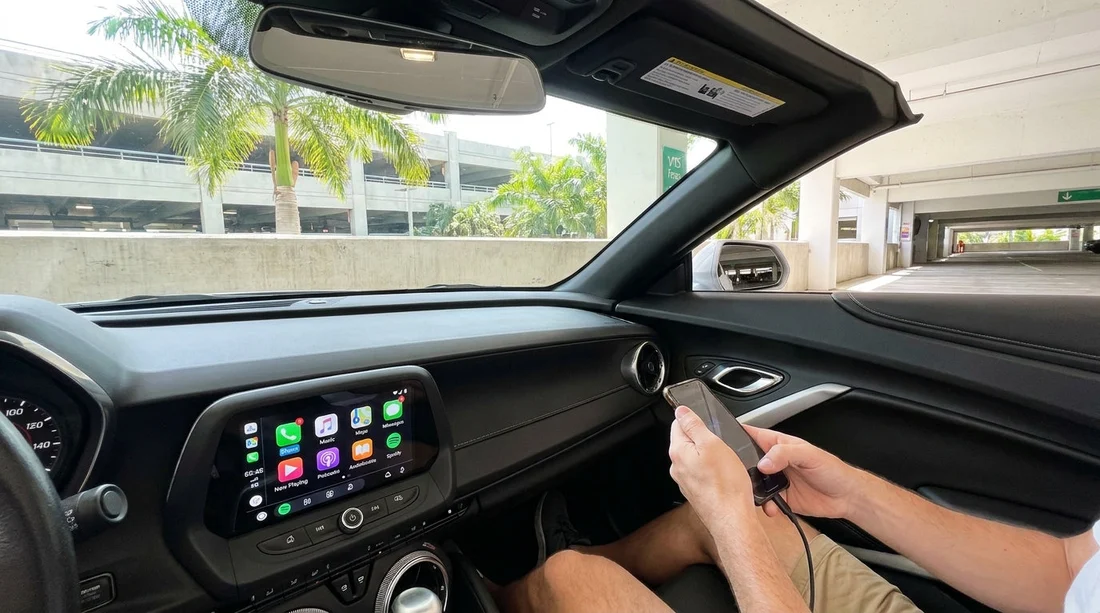
Step 1: Start the car, then connect the cable. With the infotainment system fully booted, plug the cable into the Android Auto compatible USB port, then connect your phone. Keep the phone unlocked.
Step 2: Accept the prompts on both screens. On the car screen, select Android Auto if asked. On your phone, approve Android Auto access requests. You may see multiple prompts, including “Allow Android Auto to access your contacts”, “Allow phone calls”, “Allow location”, and “Allow notifications”. Approve what you need for navigation and calls to function smoothly.
Step 3: Confirm navigation audio routing. Open Google Maps in Android Auto and start a test route, even if it is just to the airport exit. Make sure guidance plays through the car speakers, and that voice volume is not set to zero.
Step 4: Test a call. Ask the system to call a voicemail number or a contact you can safely ring. Confirm the microphone works and that the call audio plays through the car, not the phone speaker.
If you are comparing pickup options across the area, the wider Miami and Florida pages can help you understand what fleets and systems you might encounter. See Florida car hire information for context on local options.
Wireless setup: when the car supports it
Wireless Android Auto can be convenient, but it varies by manufacturer, and it can be slower to pair the first time. In rentals, wireless can also be affected by previous device pairings that were not cleared.
Step 1: Enable Wi-Fi and Bluetooth on the phone. Wireless Android Auto uses both. Keep Location on as well.
Step 2: Add the phone from the car’s “Phone” or “Connections” menu. Choose “Add device” and select your phone. Accept the pairing code on both devices.
Step 3: Approve Android Auto wireless prompts. Your phone may ask to allow wireless projection or to set Android Auto to start automatically in this car. Allow it if you want seamless reconnects during your trip.
Common “it won’t connect” fixes in a rental car
Rental vehicles often have multiple prior devices saved, which can cause connection conflicts. Run through these fixes in order, stopping when it works.
1) Swap the cable and USB port. Use a known data cable. Try the other port if the car has two.
2) Restart the phone. A quick reboot clears stuck USB or Bluetooth states.
3) Forget the car on your phone. In Bluetooth settings, find the car and tap “Forget”. Then reconnect.
4) Remove old phones from the car. On the infotainment system, delete previous devices. This is one of the most effective rental-specific fixes.
Fleet make and model can differ depending on provider. If you are picking up a specific brand through Hola Car Rentals, browsing provider pages can help you anticipate typical infotainment systems in that fleet. For example, see Enterprise car rental Florida or Avis car hire Florida.
Privacy and clean-up: what to reset before and after your trip
Android Auto itself mainly runs on your phone, but the car can store call history, contacts, navigation favourites, and paired-device data. Protect your privacy with two habits: a mini reset before driving off, and a proper clean-up when returning the vehicle.
Before you drive off: Check the car is not signed into someone else’s profile. If the infotainment system shows an existing user profile, guest mode, or personalised home screen, switch to “Guest” or create a temporary profile if available. Remove any pre-saved phone entries that could auto-connect and steal audio routing.
When you return the car: Delete your phone from the car’s Bluetooth list, remove your Android Auto projection entry if the car lists it separately, and clear recent destinations on the car’s own navigation system.
These steps are especially important with car hire vehicles, because the next driver may see recent calls or suggested destinations if profiles are not cleared.
FAQ
Q: Do I need a USB cable for Android Auto in a Miami Airport rental car? A: Often yes, especially for the first connection. Even if wireless is supported, wired setup is usually quicker and more reliable at the pickup bay.
Q: Why does Android Auto connect, but I cannot make or hear calls? A: This is usually a Bluetooth or permission issue. Ensure Bluetooth is on, the car is the default device for calls, and Phone, Contacts, and Microphone permissions are allowed.
Q: The car keeps trying to connect to someone else’s phone, what should I do? A: Delete old paired phones from the car’s device list, then forget the car in your phone’s Bluetooth settings and pair again. This is common in rental fleets.
Q: Can the rental car see my texts and contacts through Android Auto? A: Only if you grant those permissions. Android Auto mainly uses your phone data, but the car may store recent call entries or device names, so remove your device at drop-off.
Q: What is the quickest way to reset everything before I hand the car back? A: Remove your phone from the car’s Bluetooth and projection lists, clear recent destinations in the car’s navigation, and use Android Auto “Forget all cars” if you prefer a clean slate.






























































































