


Quick Summary:
- Remove old Bluetooth devices, then briefly toggle Bluetooth off and on.
- Clear call history, recent contacts, and disable message notifications.
- Delete navigation recents, favourites, and any saved Home or Work.
- Sign out of apps and forget all saved Wi-Fi networks.
When you collect a car hire in Los Angeles, the infotainment screen can feel like part of the car, but it often holds personal traces from previous drivers. Pairing your phone via Bluetooth, using Apple CarPlay or Android Auto, and typing an address into navigation can leave call logs, contacts shortcuts, favourite locations, Wi-Fi hotspots, and app sign-ins behind. The good news is that most of this can be cleared in a couple of minutes before you drive off.
This quick checklist is designed for the pick-up moment, sat in the driver’s seat, while you are still in the rental area and can take your time. Do it before you connect your own phone, and again at the end of your trip, so the next driver does not inherit your data.
Before you start: take 60 seconds to identify the system
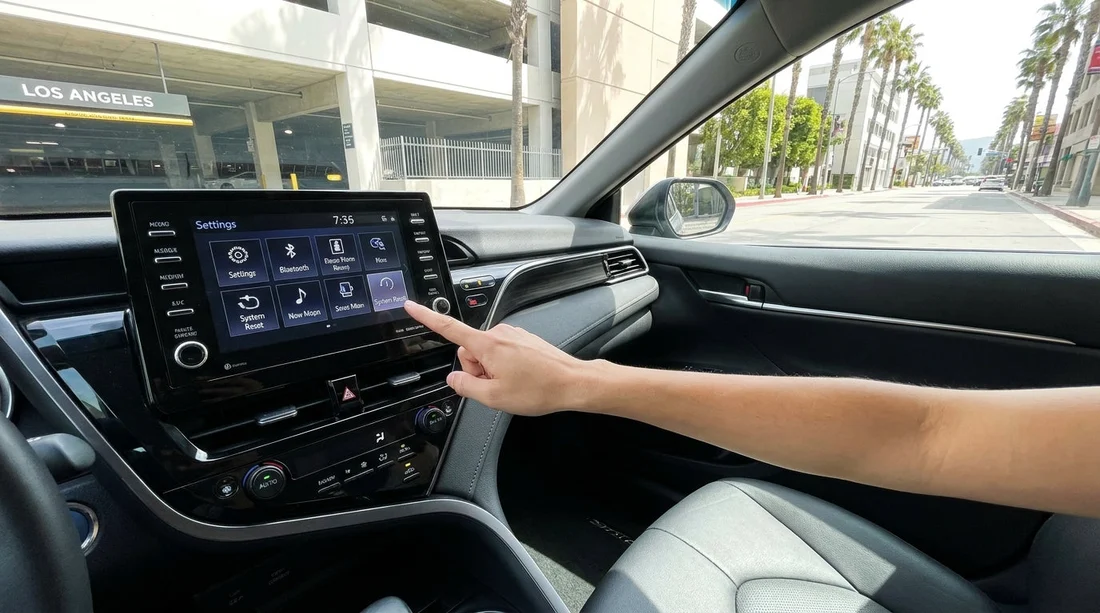
Different rental fleets in Los Angeles use different infotainment systems, so the menu names vary. Start by identifying what you have: a manufacturer system (Toyota, Ford, Chevrolet), a branded system (Uconnect, SYNC), or an aftermarket head unit. Look for the main Settings icon, plus Phone, Bluetooth, Navigation, and Apps.
If you are picking up around LAX, you may see quick-turnover vehicles where multiple phones have been paired recently. That is common around busy hubs like Los Angeles Airport (LAX), so it is worth checking for saved devices even if you have not connected anything yet.
Step 1: Remove previously paired phones (Bluetooth)
Go to Settings then Bluetooth or Phone. You are looking for a list called Paired devices, Device list, or Bluetooth devices. Remove anything that is not yours. Then, once you have removed old devices, remove your own device if you already paired it during set-up.
Practical tip: some systems keep two separate lists, one under Bluetooth and another under Phone. Check both, and delete from both if needed.
If the car displays prompts like “Allow contacts and favourites sync”, say no unless you need it. Contact sync is the main reason strangers’ names appear on the screen later.
Finally, toggle Bluetooth off for ten seconds and back on. This helps some systems fully drop stored pairing sessions.
Step 2: Clear call logs, recent contacts, and messages prompts
Open the Phone menu. Many systems store Recent calls, Missed calls, and Dialled calls even after a device is removed. Look for a submenu such as Recents or Call history, then choose Clear, Delete, or a bin icon.
Also check Contacts or Favourites. If contacts were imported, there may be a setting like Delete downloaded contacts. Some units only remove contacts when you remove the device, but others keep a cached list, so confirm it is blank.
For vehicles that support text display, check for Messages settings and disable message notifications. Even if messages are not stored, notifications can reveal private sender names on the screen.
Step 3: Delete navigation history and saved places
Navigation is the biggest privacy giveaway because it can reveal where you are staying in Los Angeles. If the car has built-in navigation (not just phone mirroring), open Navigation then Destinations or Search. Look for:
Recent destinations, clear the list fully.
Saved places or Favourites, delete anything saved.
Home and Work, ensure these are not set at all.
Some systems also store Previous routes or Trip history. If you see a privacy or history section, clear it.
If you only used Apple CarPlay or Android Auto for navigation, the car usually does not store your destinations. However, the car may still display recent destinations if built-in navigation was used by a prior driver. Clearing built-in navigation history helps you avoid accidental disclosure on the screen later.
Step 4: Sign out of apps and remove accounts
Modern vehicles often have an Apps menu or built-in services. If you signed into anything, sign out. Focus on music and voice assistants, as they may display your profile name.
Check these areas:
Streaming apps, sign out and remove account profiles.
Voice assistant settings, disable personal results where available.
Connected services, remove any user profile created during set-up.
If there is a User profiles menu, delete the profile you created, or switch to a guest profile and then delete yours.
Step 5: Forget Wi-Fi hotspots and clear connectivity settings
Even if you never joined Wi-Fi, a previous driver may have. In Settings, look for Wi-Fi, Connections, or Network. Choose Known networks and use Forget or Delete on all entries.
This matters because saved hotspots often include a personal name or phone number. It also prevents the car trying to auto-connect to someone else’s hotspot later.
Step 6: Use a full infotainment reset only when appropriate
Many vehicles include options like Factory reset, Reset infotainment, or Clear personal data. This is the fastest, most thorough approach, but it can also remove radio presets and language settings. Use it when the menu clearly states it will remove personal data, and when you are comfortable redoing basic settings.
In a rental context, a full reset can be reasonable if you see many prior devices, contacts, or addresses that do not clear easily.
A quick “before you drive” privacy check
After clearing, do this simple verification before leaving the car park:
Open Phone, confirm no devices and no recent calls.
Open Navigation, confirm recent destinations list is empty.
Open Settings then Wi-Fi, confirm no known networks.
Open Apps, confirm you are signed out and no profile name shows.
Then connect your phone using CarPlay or Android Auto if you want the convenience without importing contacts. For many drivers, using a USB connection for phone mirroring gives navigation and music while keeping the car’s internal storage cleaner.
Where this matters most in Los Angeles driving
Los Angeles trips often involve multiple stops, hotel drop-offs, and long days, so it is common to punch in an address quickly and forget it is stored. If you are driving between airports and coastal areas, it is worth being especially careful with saved places. For travellers combining LAX with Orange County, rental locations around California car hire options near LAX and nearby hubs can see rapid vehicle turnover, which makes leftover device lists more common.
If your itinerary includes pick-up or drop-off outside central LA, you may also encounter different vehicle models at other Southern California airports. For example, vehicles associated with Santa Ana (SNA) rentals can have different head units, so the same checklist still applies even if the menus look slightly different. Likewise, fleet mixes vary by supplier, including options like Avis car hire in California at LAX, which may include models with user-profile features that need an extra sign-out step.
End-of-trip: do the same checklist again
On the final fuel stop or once parked for return, take two minutes to remove your device, clear recents, and delete navigation history. Make sure your phone is removed from the car’s Bluetooth list before you hand over the keys, otherwise the next driver could see your device name and sometimes your call history shortcuts.
FAQ
Will clearing Bluetooth also delete my phone’s data?
No. Removing a paired device deletes the car’s connection record, not the data on your phone. If contacts were imported to the car, you may need to delete downloaded contacts separately.
Is Apple CarPlay or Android Auto safer for privacy than built-in Bluetooth?
Often, yes. Phone mirroring usually keeps navigation and messages on your handset. Still, the car can store a paired-device name and some recents, so remove the device at the end.
What if the infotainment screen has no clear option for history?
Start by removing all paired devices, then look for a “clear personal data” or “reset” option in settings. If only individual deletes exist, prioritise navigation recents and call history.
Can the next driver see my exact destinations?
If you used built-in navigation and did not clear recents, yes, they may see recent destinations and favourites. If you used only CarPlay or Android Auto, destinations usually stay on your phone.
Should I ask staff to reset the system before I leave?
You can, but it is quicker to do it yourself while parked, and you can verify the results. If the system looks locked or unusually complex, staff can advise on the model’s reset menu.






























































































