


Quick Summary:
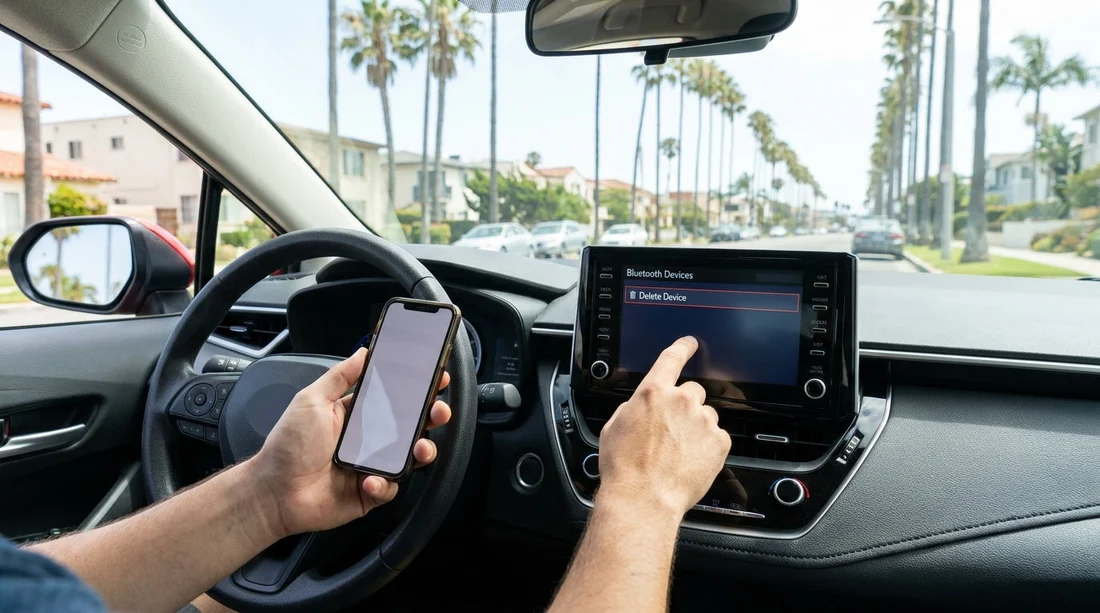
- Before leaving the lot, delete paired phones from the Bluetooth devices list.
- Remove synced contacts, call history, and messages from infotainment profiles.
- Reset CarPlay or Android Auto permissions, then reconnect only your device.
- Test hands-free calling and audio, then confirm auto-connect is correct.
When you collect a car hire in California, the infotainment system can still remember previous drivers. That can mean old phones auto-connecting, names appearing in Bluetooth lists, and sometimes contacts or call logs lingering in the system memory. Clearing old pairings before you drive off is a quick privacy win, and it also prevents awkward interruptions when your phone refuses to connect.
The steps below work for most rental vehicles, whether you are picking up at car hire Los Angeles LAX, arriving via car hire San Francisco SFO, or collecting near Orange County with car hire airport Santa Ana SNA. Menus vary by brand, but the same privacy checks apply.
Do this before you put the car in gear
Parked on the pick-up bay, take two minutes to confirm you have time to set up Bluetooth safely. Keep the car in Park with the handbrake on. If the agent is explaining features, you can still do these checks while listening.
On your phone, make sure Bluetooth is on and your device name is recognisable. If you are travelling with a partner, decide whose phone will be the primary hands-free device, because many cars prioritise the last connected phone.
Step 1: Find the Bluetooth device list and remove old phones
Start on the car’s main screen and look for a path like Settings, Connections, Phone, Bluetooth, or Devices. You are aiming for a list that shows paired or saved devices, often with phone model names.
In that list, remove anything that is not yours. Look for buttons labelled Delete, Forget, Remove device, Unpair, or a bin icon. If you see multiple profiles that look similar, delete them all and start fresh.
If you are in a hurry, at minimum remove every phone except yours. However, the cleanest approach is to clear the list entirely, then pair again. This prevents the system from trying to auto-connect to a ghost profile that still has priority.
Step 2: Clear synced contacts, recent calls, and messaging data
Even after unpairing, some infotainment systems keep cached phonebook entries or recent calls. Navigate to Phone settings and look for options such as Clear personal data, Delete phonebook, Clear call history, or Reset phone app.
If you find toggles for contact download, message access, or call history sync, turn them off until you are paired and confident the system is fresh. When you do enable these features later, enable only what you actually want for the trip. For example, many drivers only need call audio and music, not message reading.
Step 3: Reset Apple CarPlay and Android Auto connections
CarPlay and Android Auto can retain trusted devices separately from basic Bluetooth pairing. Look for CarPlay settings or Smartphone projection settings. You may see a list of “Available cars” on your phone too.
In the car, remove any previously connected phones from the CarPlay or Android Auto list. On iPhone, you can also go to Settings, General, CarPlay and remove the vehicle if it appears from a prior rental. On Android, look under Connected devices or Android Auto and forget the car if needed.
Then connect your own device with the method you prefer. A cable connection is often more reliable for navigation and charging, while wireless is convenient if the car supports it. Either way, pairing after clearing old entries reduces the chance of unexpected prompts and failed connections.
Step 4: Pair your phone properly, then check permissions
Return to the car’s Bluetooth menu and choose Add device or Pair new device. On your phone, select the car name and confirm any pairing code shown on both screens. Accept contacts and message permissions only if you are comfortable with them, and only if you need them.
If your phone asks whether to allow access “while connected” or “always”, choose the most limited option that still works for your trip. This matters if you later connect to another vehicle, because some permissions can persist.
For music streaming, confirm the car is set to use Bluetooth audio or the projection system you selected. If you are travelling through California cities with complex interchanges, get navigation audio working before you leave the rental area.
Step 5: Run a quick privacy and auto-connect test
With your phone connected, do three fast checks.
First, turn Bluetooth off on your phone and back on. The car should reconnect only to your device, not attempt to connect to an unfamiliar phone. If it tries, you missed an old pairing, so return to the devices list and delete it.
Second, open the phone screen on the infotainment system and ensure there is no visible call history or contacts from another person. If there is, look for a clear history option and consider doing a broader reset described below.
Third, place a test call to your voicemail or a trusted number, then confirm microphone quality and steering wheel controls work. This prevents you discovering a pairing issue when you are already on the freeway.
When you should do a full infotainment reset
If you cannot remove devices individually, or you still see old names and data after deleting pairings, use the system reset. The wording varies, but look for Factory reset, Master reset, Reset settings, or Clear all personal data.
Be aware that a full reset can remove radio presets, navigation favourites, and sometimes language settings. In a car hire, that is usually fine, and it is often the quickest way to guarantee privacy. After the reset, pair your phone again and re-check audio.
If you are collecting a larger vehicle, such as a people carrier where more than one driver will connect, it helps to decide a pairing order. For example, the main driver pairs first for calls and navigation, and a passenger pairs second for music. This can be particularly useful when travelling with extra passengers and luggage in a minivan hire Santa Ana SNA.
Extra privacy tips for California road trips
Bluetooth is only one part of the data trail. If you enter your home address into built-in navigation, delete it before return. If you sign into any apps on the infotainment screen, such as streaming audio, sign out. If the car offers a WiFi hotspot and you connect, remove your device from the hotspot list if that option exists.
Also check the glovebox and centre console for paperwork that might show your details, then keep it with you. Finally, at drop-off, repeat a quick device deletion so the next driver cannot see your phone name, and so your phone does not try to reconnect as you walk away.
FAQ
Will deleting old Bluetooth phones remove their contacts from the car? Not always. Unpairing removes the connection, but some systems keep cached phonebook and call history. Use “clear personal data” or a full reset if you still see names.
What if the car keeps asking to connect to an unknown phone? That usually means another device is still saved with priority. Go back to the paired devices list and delete everything, then pair your phone again from scratch.
Is it safe to allow message access for hands-free texting? It can be convenient, but it shares more data with the car. If you do not need it, decline message permissions and use calls plus audio only.
Should I use Bluetooth or CarPlay/Android Auto in a rental? For navigation and reliable audio, CarPlay or Android Auto is often better, especially with a cable. Bluetooth is fine for basic calling and music, but clear old pairings either way.
Do I need to clear anything on my phone after returning the car? It is wise to forget the car in your phone’s Bluetooth list and remove it from CarPlay or Android Auto settings. This prevents auto-connection prompts in future rentals.






























































































