


Quick Summary:
- Bring the correct cable, USB-A or USB-C, plus a backup.
- Enable Bluetooth, Wi-Fi, and Siri, then accept CarPlay permissions promptly.
- Adjust privacy settings, limit notifications, and disable message previews before driving.
- Test maps, calls, and audio while parked, then save settings.
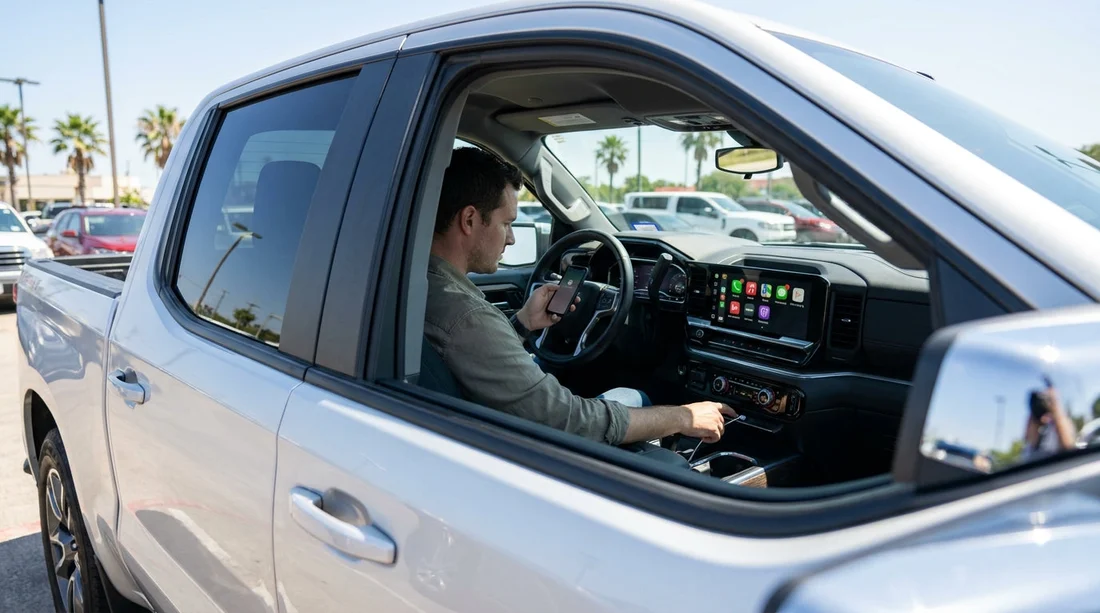
When you pick up a car hire in Texas, you usually want to leave the lot quickly, not spend ten minutes tapping through prompts. Apple CarPlay is designed to be fast, but rental cars vary by model year, USB ports, and whether CarPlay runs via cable or wirelessly. The simplest approach is to run a short, repeatable checklist while you are still parked at the pick-up area.
This guide focuses on three things that make or break a smooth CarPlay setup: the cable and port, the iPhone permissions, and the privacy settings that stop personal data lingering in a vehicle you will hand back. If you are collecting from a major airport location such as Dallas DFW car rental or Houston IAH car rental, these steps are especially useful because you can complete them before joining busy exit queues.
Before you start, confirm the car supports CarPlay
Most newer vehicles include CarPlay, but not every trim level does. Look for an icon on the infotainment home screen that says CarPlay, Projection, Smartphone, or Phone. Some systems hide CarPlay under Settings, Connections, or Apps. If the screen is off, start the engine or press the power knob, then accept any initial safety message.
Next, identify the correct USB port. Many cars have several ports, but only one handles data. The data port is often labelled with a phone or CarPlay symbol. Ports inside the centre console can work, but the glovebox or rear-seat ports often charge only. If you see both USB-A and USB-C, choose the one that matches your cable, but prioritise the port with the phone icon.
Pick-up-ready cable checklist for Texas car hire
For the fastest setup, assume you will use wired CarPlay even if the car can do wireless. Wired is more reliable, avoids pairing issues, and charges your phone while you set navigation.
Use an Apple-certified Lightning cable or a high-quality USB-C cable if you have an iPhone 15 or newer. Cheap cables are the number one cause of “device not recognised” errors. If you are travelling with others, pack a spare cable to avoid losing time if one fails. Consider a short cable so it is less likely to snag the gear selector or steering controls.
Plug the cable into the suspected data port, then connect your phone. If the phone only charges and nothing appears on the screen within 10 to 20 seconds, move to the next port. If the screen prompts you to enable CarPlay, you have the right port.
iPhone settings to confirm before connecting
Many CarPlay delays come from iPhone settings that block prompts. Before plugging in, open your iPhone Control Centre and confirm Bluetooth and Wi-Fi are on. Even for wired CarPlay, some vehicles use Bluetooth for phone calls and initial handshakes.
Siri: Go to Settings, Siri, and ensure “Listen for ‘Siri’” and “Allow Siri When Locked” are enabled.
Screen Time restrictions: If CarPlay does not appear, check Settings, Screen Time, Content and Privacy Restrictions. If restrictions are on, ensure CarPlay is allowed.
VPN and security apps: Some VPN profiles and device management tools interfere with pairing. If you cannot connect and it is not required, pause the VPN, connect, then re-enable it.
Connect in minutes: a step-by-step process that works
Step 1, park and prepare: Stay parked, set the handbrake, and keep your phone unlocked.
Step 2, plug in: Connect the phone using the confirmed data port. On the iPhone, tap “Allow” when asked to enable CarPlay.
Step 3, accept vehicle prompts: Some systems display a pairing code or ask to enable Apple CarPlay. Confirm the code matches, then accept.
Step 4, test essentials while stationary: Open Maps, start a short route, and check audio directions. Start music or a podcast to confirm volume balance.
Privacy and data: what to change before you drive away
A car hire is a shared environment. Treat the infotainment system like a public device and minimise what you sync. These settings take less than a minute and can prevent accidental data exposure.
Disable message previews: Go to Settings, Notifications, Messages, Show Previews, and choose “When Unlocked” or “Never”.
Limit contact sharing: If the car asks to sync contacts and favourites, you can select “Don’t Allow” and still use voice to call recent numbers.
Control app access: On your iPhone, go to Settings, General, CarPlay, select the car name, and customise the app list.
Use Focus mode for driving: Enable Driving Focus to silence non-essential alerts, which reduces distraction on Texas highways.
Returning the car: remove your data in under a minute
Before you hand back your Texas car hire, spend 60 seconds clearing personal information. On your iPhone, go to Settings, General, CarPlay, select the vehicle, and tap “Forget This Car”. In the vehicle menu, remove your phone from paired devices and delete any downloaded contacts or call history if the option exists.
If you used navigation, clear recent destinations in your maps app if you do not want them visible. Finally, unplug your cable and check the cabin for adapters. This matters whether you collected at Austin AUS car hire or are dropping off near San Antonio SAT Hertz rentals, because quick turnarounds are common and your device name can remain on the screen if you leave it paired.
FAQ
Q: What is the fastest way to set up Apple CarPlay in a rental car?
A: Use wired CarPlay first. Plug into the USB port marked for phone or CarPlay, unlock your iPhone, tap “Allow” on prompts, then test maps and audio while parked.
Q: Do I need to enable Bluetooth for wired CarPlay?
A: Often yes. Many vehicles use Bluetooth for calls and initial pairing even when CarPlay runs through the cable, so turning Bluetooth on avoids connection delays.
Q: How do I stop my messages showing on the car screen?
A: Set Message previews to “When Unlocked” or “Never”, and use Driving Focus to reduce notifications. You can also decline contact syncing when prompted.
Q: What should I do before returning the car hire to protect my privacy?
A: Forget the vehicle in iPhone CarPlay settings, delete the phone from the car’s paired devices, and remove any synced contacts or call history if the car provides that option.




























































































