


Quick Summary:
- Connect with USB first and decline any contact syncing prompts.
- Switch off auto-download contacts in the car’s Bluetooth settings.
- Use maps, music, and Siri without importing your address book.
- At return, forget the car on iPhone and delete phone pairing.
CarPlay is handy on a California road trip, but many drivers worry that a rental vehicle will pull in their address book, call history, or messages. The good news is you can use CarPlay for navigation, music, and hands-free calling while keeping your contacts off the car’s system. The key is to treat setup like a privacy task at pick-up, not something to figure out later at a red light.
This guide gives a practical car hire checklist you can run through at the kerb. It focuses on which prompts to decline, and how to disconnect properly so the next driver cannot see anything you left behind.
If you are collecting in different parts of the state, the approach is the same whether you pick up near San Francisco Airport (SFO) or drive out from Southern California locations like San Diego. CarPlay behaviour is mainly controlled by your iPhone and the vehicle’s infotainment settings.
Pick-up checklist: privacy-friendly CarPlay setup in the car park
Once you are in the vehicle, treat setup like part of your walk-around inspection. Put the car in Park, keep the engine off if possible, and take one minute to connect safely.
Step 1: Check the infotainment menu for “Phone” and “Bluetooth” options. Some head units default to importing contacts when a phone is paired, even before CarPlay launches. If you see settings such as “Auto download contacts” or “Phonebook access”, switch them off before you pair.
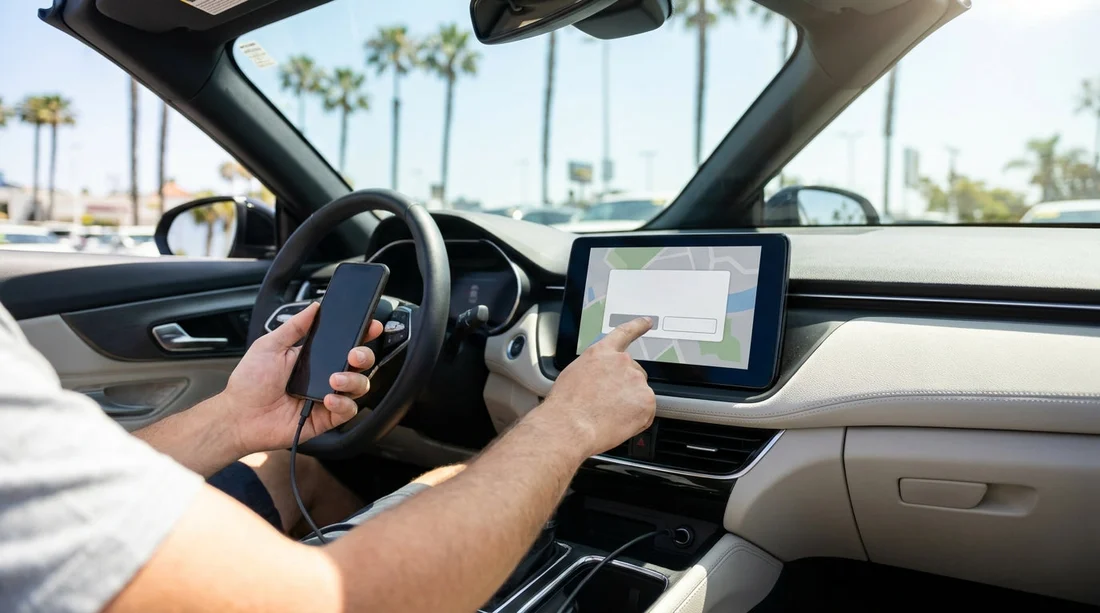
Step 2: Connect via USB first. Plug your iPhone into the CarPlay USB port. When the iPhone prompt appears, avoid accepting any option that mentions sharing contacts, favourites, or recent calls. If you see a prompt such as “Allow CarPlay while locked?”, that is separate from contact syncing.
Step 3: Decline contact access prompts. The key moment is when the car requests access to contacts. On iPhone, any prompt like “Allow contacts to be accessed” should be set to “Don’t Allow” if your goal is zero contact syncing. If you accidentally allowed it, you can revoke it immediately in Settings, then reconnect.
Step 4: Verify what the car can see. Before driving off, open the car’s Phone app. If you see your full contacts list, something was granted. Stop and fix it, do not assume it will clear later.
These steps are relevant whether you are picking up a compact car, an SUV, or a people carrier. For larger group trips, you might be comparing vehicle types such as minivan hire in San Diego or other options, but the privacy approach stays the same: one phone connected, minimal permissions, verify visibility.
Permissions to avoid during car hire
To use CarPlay, you do not need to hand over everything on your phone. Here are the permissions and features that commonly leak more data than drivers expect.
Contact syncing and favourites. Many cars store downloaded contacts locally, which can remain even after you disconnect. If the head unit offers a “download phonebook” toggle, turn it off. If the iPhone asks for access to contacts, choose “Don’t Allow”.
Message previews. CarPlay can show incoming message notifications. Even if you do not open them, previews can appear on screen. Adjust iPhone notification preview settings if you are privacy-minded or driving with others.
Wireless pairing persistence. Wireless CarPlay and Bluetooth are designed to reconnect automatically. That convenience can become a privacy issue if you return the car and your phone reconnects while you are still nearby, or if you forget to forget the vehicle on your iPhone.
Before you drive off: confirm you can disconnect cleanly
Part of a good car hire routine is knowing how you will disconnect before you even leave the lot. A quick check now saves stress at drop-off.
Find the “Forget device” option on the head unit. Many systems let you remove a paired phone in Settings, Connections, Bluetooth devices, or Phone. If you can locate it at pick-up, you will not be hunting through menus later when you are late for a flight.
Look for a “Clear personal data” or “Reset” menu. Some cars offer a one-tap deletion of user data. It may be labelled “Delete personal data”, “Factory reset”, or “Clear Bluetooth devices”. Knowing where it is helps you leave nothing behind at return time.
If you are picking up near major hubs with quick turnarounds, like Orange County, being able to disconnect quickly matters. This is helpful whether you are collecting via Santa Ana (SNA) or arriving at a larger terminal where staff rotate cars rapidly.
Drop-off and handover: the proper CarPlay disconnect sequence
Use this order to minimise what remains in the vehicle, even if you allowed more than you intended earlier.
1) Unplug USB and end the session. If you used wireless CarPlay, toggle Bluetooth off briefly on your iPhone to stop reconnection while you clean up.
2) Remove the car from iPhone CarPlay. On iPhone, Settings, General, CarPlay, select the vehicle, then tap “Forget This Car”. This prevents auto-reconnect if you walk past the vehicle later at the return area.
3) Delete your phone from the car’s Bluetooth list. On the head unit, remove or forget your device. If there is an option to delete downloaded contacts, run it even if you think you never synced.
4) Final check in the Phone app. Open the car’s Phone screen and confirm your name, contact list, and recents are gone. This takes ten seconds and can prevent an awkward privacy leak.
Doing this consistently makes privacy a habit, not a worry. It also keeps the in-car system tidy for the next driver, which is helpful during high-traffic California return windows. If you need a larger vehicle with straightforward connectivity, options like van hire in Los Angeles (LAX) can be worth comparing.
FAQ
Can I use CarPlay in a rental car without giving it my contacts? Yes. Use CarPlay for maps and audio, and decline any contact or phonebook access prompts on your iPhone and the car’s infotainment system.
What should I tap if the car asks to download my phonebook? Choose the option that denies access, such as “Don’t Allow” or disabling “Auto download contacts” in the car’s Bluetooth or phone settings.
If I accidentally allowed contacts, how do I fix it quickly? Disconnect, then revoke access in iPhone Settings, forget the car in Settings, General, CarPlay, and remove your phone from the car’s Bluetooth list.
Does wired CarPlay protect privacy better than wireless? Wired is easier to manage because it does not auto-reconnect later. Wireless can be fine, but you must remember to forget the car at drop-off.
What is the safest way to leave no data behind at return? Forget the vehicle on your iPhone, delete your device from the car, and clear any downloaded contacts or navigation history in the head unit settings.




























































































