


Quick Summary:
- Bring a known-good data USB cable and unlock your phone before plugging.
- Enable Bluetooth, Location, and Android Auto permissions to avoid blank screens.
- Confirm the car’s USB port supports data, not charge-only, at pick-up.
- Test maps, calls, and music in Park, then save the setup.
When you collect a car hire in Orlando, the fastest way to avoid delays is to treat Android Auto like a pre-drive safety check. Rental vehicles often have different infotainment systems, USB ports, and privacy settings than your own car, so a methodical setup helps you leave the car park with navigation, calls, and music working properly.
If you are collecting at the airport, build a few extra minutes into your handover so you can connect before you join traffic. Hola Car Rentals has several Orlando pick-up options worth reviewing ahead of time, including car hire at Orlando MCO airport and car hire Orlando MCO, so you can plan where to do your setup calmly.
Before you reach the counter: a 3-minute phone prep
Do these steps while you are still on terminal WiFi or before you enter the garage. They reduce the most common Android Auto failures, especially permission prompts that appear only after you start moving.
1) Update and restart. Check for updates to Android Auto, Google Maps, and your preferred music app. Then restart your phone. A fresh restart clears stuck Bluetooth states and helps the car recognise your device.
2) Pack the right cable. Bring a short, high-quality USB cable that supports data, not just charging. Many problems in rental cars come down to charge-only cables or worn connectors. If you have USB-C, pack USB-C to USB-A and USB-C to USB-C if possible, because the vehicle could have either port type.
3) Enable key connections. Turn on Bluetooth, Location, and mobile data. If you use a VPN, consider pausing it for the initial connection, because some head units struggle with first-time pairing while a VPN is active.
4) Set your privacy and lock settings. In Android Auto settings, allow notifications and contacts if you want hands-free calling and messaging. Ensure your phone can be used while locked, at least for Android Auto, otherwise you may get repeated prompts asking you to unlock.
At pick-up: identify the right port and screen controls
Before you plug anything in, take 30 seconds to locate the controls. In many cars, only one USB port supports Android Auto, and other ports are charge-only. Look near the centre console, under the climate controls, or inside the armrest. If there are multiple ports, the correct one often has a smartphone or data icon.
Next, identify the head unit controls: a Home button, a Back button, a volume knob, and a menu/settings button. Knowing these will speed up troubleshooting if Android Auto does not appear immediately.
If you are collecting a specific category, the infotainment experience can differ by fleet and trim. For example, people comparing options for car rental at Orlando MCO versus a larger vehicle may notice different port locations and screen sizes, so a quick scan of the cabin pays off.
Step-by-step: connect Android Auto in under five minutes
Step 1: Start the car and keep it in Park. Some vehicles limit pairing actions while driving. Stay stationary until the connection is complete.
Step 2: Pair Bluetooth first (if prompted). Even with wired Android Auto, many systems want an initial Bluetooth pairing for calls. On the car screen, choose Phone, Add device, or Bluetooth. On your phone, select the car name and confirm the PIN matches on both displays.
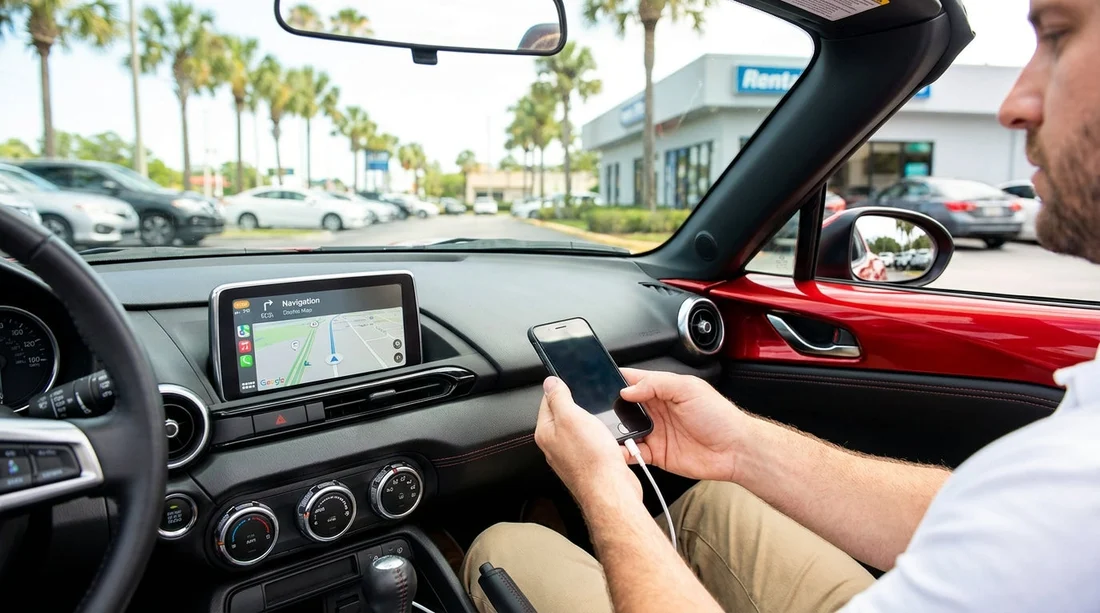
Step 3: Plug into the correct USB data port. Unlock your phone, then connect the cable. If your phone asks “Allow access to data” or “Start Android Auto?”, tap Allow/OK. If you see a USB mode prompt, choose File transfer/Android Auto rather than Charge only.
Step 4: Accept Android Auto permissions. Grant permissions for Contacts, Phone, Location, and Notifications if you want the full experience. If you decline Contacts, calls may still work, but recent contacts and voice-dial can be limited.
Step 5: Verify the essentials quickly. Open Maps and start a short test route, then cancel it. Make a quick test call to confirm audio routing. Start one song or podcast and confirm the steering wheel buttons work. This takes less than a minute and prevents surprises once you leave the garage.
Step 6: Set audio and voice defaults. If audio is too quiet, turn the volume knob while Google Assistant is speaking, as some cars store a separate voice volume. In Google Assistant settings, ensure the correct language and voice model are enabled for “Hey Google” if you use hands-free voice control.
Common pick-up problems and fast fixes
Android Auto does not appear at all. First, switch USB ports, then swap cables. Charge-only ports are common in rear seats and sometimes inside the armrest. If the phone only charges and nothing else happens, it is usually the port or cable.
Connection loops or keeps disconnecting. Check the cable fit at both ends and remove any bulky case that prevents full insertion. Restart the phone, then reboot the head unit by holding the power or volume button for several seconds, if the car supports it.
Permissions pop-ups keep reappearing. Open Android Auto settings on your phone and review Permissions and Connected cars. Remove the car from the list, then reconnect and accept prompts once, carefully.
Maps works but there is no audio. Confirm the car audio source is set to Android Auto, not Bluetooth Audio or Radio. Also check the phone’s media volume and the car’s media volume separately.
Wireless Android Auto is missing. Some cars require wired setup the first time, even if wireless is supported later. Do the initial wired connection, then look for a prompt to enable wireless projection. If the vehicle does not support wireless, wired will still be stable and often faster.
A rental car privacy checklist for Android Auto
A car hire vehicle may be used by many drivers, so take a moment to protect your data.
1) Do not enable “Sync messages” unless you want them visible. Message previews can appear on the car screen. If you prefer privacy, disable message notifications for Android Auto.
2) Avoid saving your home address in the car. Save favourites in your phone’s Maps account rather than the vehicle’s built-in system.
3) Clear your connection before returning the car. At drop-off, remove the car from your phone’s Bluetooth list and remove your phone from the car’s device list. This prevents auto-connection for the next driver and reduces personal data retention.
Pick-up timing in Orlando: where to do your setup
Orlando airport roads can be busy and confusing for first-time visitors, so it helps to complete Android Auto configuration before you reach the exit lanes. Do your setup in a marked bay, not in moving queues. Once navigation is running, you can focus on signage and lane choices rather than fumbling with prompts.
If you are heading to the parks with more passengers and luggage, you may be comparing standard cars with larger options such as van hire for Disney Orlando MCO. Larger cabins sometimes have extra USB ports, but only one may support Android Auto. Use the same approach: find the data port first, then connect and test.
For travellers who prefer knowing the brand ahead of time, fleet details vary. If you are browsing options like Avis car hire Orlando MCO, it is still wise to bring your own cable and follow the same permission checklist, because trim levels and head units can differ within the same brand.
FAQ
Q: Do I need a USB cable for Android Auto in a rental car in Orlando?
A: Often yes. Many vehicles support Android Auto only via USB, and a data-capable cable is essential. Even in cars with wireless support, initial setup may require a wired connection.
Q: Which permissions should I allow to make Android Auto work properly?
A: Allow Phone, Contacts, Location, and Notifications for the smoothest experience. If you decline Contacts or Notifications, you may still get maps and music, but calling and message handling can be limited.
Q: Android Auto connects but keeps disconnecting, what should I do first?
A: Swap to a known-good data cable and ensure the connector seats fully, removing bulky phone cases if needed. Then restart your phone and try a different USB port to rule out a charge-only socket.
Q: How can I stop my phone auto-connecting after I return the rental car?
A: Before drop-off, remove the car from your phone’s Bluetooth and Android Auto “Connected cars” list. Also delete your phone from the vehicle’s paired devices menu.
Q: Can I use Android Auto without mobile data while driving around Orlando?
A: Some features need data, but you can download offline maps in Google Maps beforehand. Music apps may still require data unless you download playlists for offline listening.




























































































