


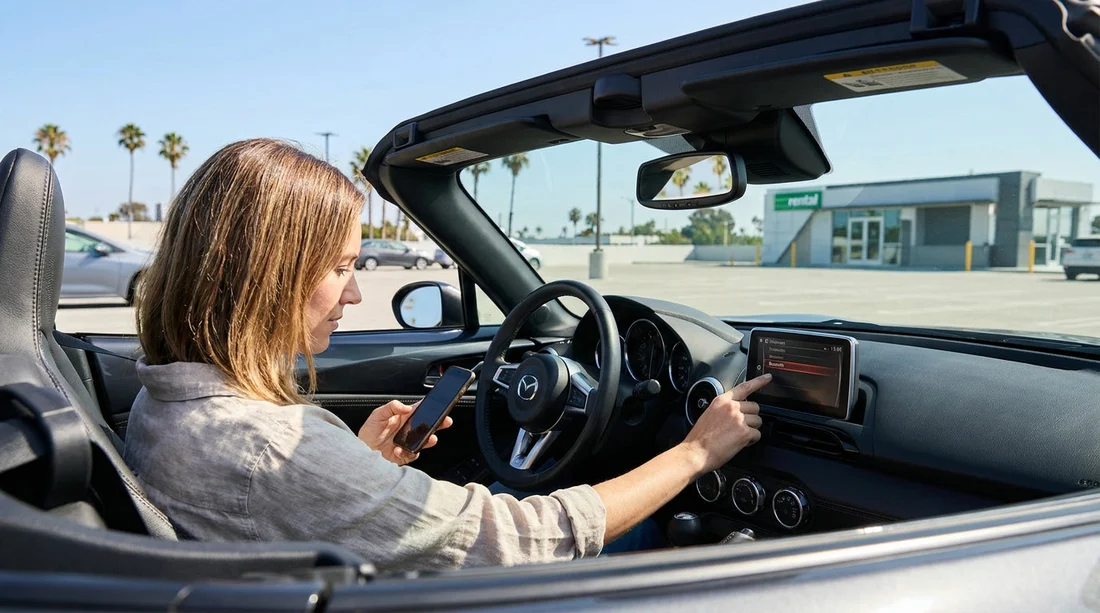
Quick Summary:
- Ask staff to open Bluetooth settings before leaving the rental bay.
- Delete previous devices, then remove the car from your phone list.
- Reset connection settings only, not factory settings, unless staff instruct you.
- Test calls, audio, and navigation with the car in Park.
Rental car Bluetooth should feel like a fresh start, but many vehicles keep a list of previous phones. In California, where you may drive straight from an airport queue into fast traffic, it is worth taking two minutes at the counter and three minutes in the car to clear old pairings and set up your phone cleanly. This prevents awkward auto-connecting to someone else, missing audio prompts, or call privacy issues. The aim is simple, remove stored phones, reset the connection menus if needed, then pair your device once and confirm it works before you pull away.
This guide is written for typical hire cars with Apple CarPlay, Android Auto, or standard Bluetooth hands-free systems. The screens vary by make, but the workflow stays the same. If you are collecting near major hubs, the same checklist applies whether you are picking up near Los Angeles or Orange County. For location-specific collection information, see car hire at Los Angeles LAX and car hire at Santa Ana SNA.
Counter checklist, do these before you reach the exit barrier
1) Ask what head unit you have and whether it supports CarPlay or Android Auto. Knowing whether you will pair via Bluetooth only, or via CarPlay/Android Auto, helps you choose the right menus. Many systems store phones separately for Bluetooth, phone projection, and Wi-Fi. If you are unsure, ask staff to show you where “Phone”, “Bluetooth”, or “Connections” lives on that screen.
2) Confirm you are allowed to reset connection settings. Some fleets prefer you only delete devices, not perform a full factory reset. A full reset can wipe radio presets, language, driver-assistance preferences, or user profiles. Ask for the “Bluetooth reset” or “connections reset” option rather than “factory reset”.
3) Note any PIN rules. Most modern cars use a confirmation code on screen, but some older systems require a default PIN such as 0000 or 1234. It is easier to learn this at the counter than on a kerb with traffic behind you.
4) Decide on a clean approach, Bluetooth only or CarPlay/Android Auto. If you mainly want maps and music, CarPlay/Android Auto is usually simpler and more stable. You can still keep Bluetooth enabled for calls, but avoid duplicating connections that fight each other.
In-car checklist, clear old phones safely
Do these steps with the car stationary, ideally in Park, with the parking brake applied if available. Keep your attention on the screen, not on the road. If you are in a hurry, prioritise deleting devices and testing a call, then fine-tune once parked later.
Step 1: Turn on Bluetooth on your phone, but do not pair yet. First, stop your phone from auto-connecting to the vehicle before you have cleared the old entries. If your phone immediately offers to connect, decline for the moment.
Step 2: On the car screen, open Bluetooth or Connections. Look for menus labelled “Phone”, “Bluetooth”, “Device list”, “Paired devices”, “Connections”, or “Settings”. Some cars bury the device list under a gear icon.
Step 3: Delete previous devices from the car. You may see names like “iPhone”, “Galaxy”, or a person’s name. Select each one and choose “Delete”, “Remove device”, “Forget”, or the bin icon. If there is an option “Delete all devices”, that is ideal for a rental car, but only use it if staff have confirmed it is acceptable.
Step 4: Reset only connection settings if the menu offers it. Many systems include “Reset network settings”, “Reset Bluetooth”, “Clear personal data”, or “Reset connections”. Prefer the narrowest reset that removes pairings and phone projection history. Avoid “Factory reset” unless staff instruct you to use it, because it can change safety settings and take time to reconfigure.
Step 5: Remove the car from your phone too. On iPhone, go to Settings, Bluetooth, find the car name, tap the info icon, then “Forget This Device”. On Android, go to Connected devices or Bluetooth, tap the gear next to the car, then “Forget” or “Unpair”. This prevents your phone from clinging to an old pairing record that no longer matches the car’s cleared list.
Step 6: Pair again, then grant permissions thoughtfully. Start pairing from the car screen or your phone, whichever the system requests. Confirm the code matches on both. When asked for permissions, consider privacy. Allow contacts and recent calls only if you want hands-free calling. For a short trip, you can deny contacts yet still use audio streaming and CarPlay/Android Auto.
Step 7: If using CarPlay or Android Auto, check the projection settings. Some systems remember a previous driver’s phone for CarPlay or Android Auto, even after Bluetooth is cleared. In “Projection”, “Smartphone”, or “Apps”, remove old phones there too. Then connect your phone via USB, or approve wireless projection if available.
Step 8: Confirm audio routing. Play a track and check it comes through the car speakers. If you hear music on your phone but not the car, check the car source is set to Bluetooth Audio, USB, CarPlay, or Android Auto correctly. If calls connect but music does not, the phone might be connected for “calls only”. Edit the device settings and enable media audio.
Quick functional test before you drive away
Run a 30-second test so you do not discover problems on the freeway.
Hands-free call test: Place a short call to voicemail or a trusted contact, confirm microphone pickup and speaker volume. Adjust call volume separately, because call volume often differs from music volume.
Navigation prompt test: Start a route and confirm you hear spoken directions. If prompts are silent, check phone mute switches, in-app volume, and whether the car is prioritising another audio source.
Steering wheel controls: Try volume, track skip, and voice assistant buttons. If a voice button triggers the car’s assistant instead of Siri or Google Assistant, look for a setting like “Voice assistant preference”.
If you are collecting from a busy location, it helps to do this in the pick-up bay before joining traffic. This is especially useful when collecting a family vehicle, where multiple phones may compete for connection, such as a minivan hire at San Jose SJC.
Troubleshooting common pairing problems in rental cars
The car keeps reconnecting to an unknown phone: There is likely another paired device still stored in a different menu, often under CarPlay/Android Auto, user profiles, or Wi-Fi. Go back through Connections and remove devices everywhere you see a list.
Pairing succeeds, but calls sound muffled or echo: Check that the phone is not simultaneously connected to another Bluetooth device, like earbuds. Turn off nearby devices, then restart Bluetooth on the phone and the car. Also reduce cabin noise by closing windows during the call.
CarPlay or Android Auto will not launch: Try a different USB cable, ideally a high-quality data cable. If wireless projection is enabled, toggle it off then on. Confirm the phone is unlocked for first-time approval prompts.
The Bluetooth menu is greyed out or locked: Some cars disable pairing while moving. Stop fully, shift to Park, and try again. If still locked, ask staff, as some fleet settings restrict changes.
You want privacy after the trip: Before returning the vehicle, repeat the deletion steps, remove your phone from the car, and remove the car from your phone. This reduces the chance your contact list, call history, or messages previews remain accessible to the next driver.
This is useful for road trips that start at airports and quickly span long distances. You can check local collection details through car rental at San Diego Airport SAN, and if you are collecting a specific supplier vehicle in the area, National car rental in San Diego SAN pages may help you set expectations for the car class.
FAQ
How long does it take to clear previous Bluetooth phones in a rental car? Usually two to five minutes if you can find the paired-device list, and a little longer if you also reset projection settings for CarPlay or Android Auto.
Should I do a factory reset on the infotainment system? Normally no. Prefer deleting paired devices or using a “reset connections” option, because a factory reset may change vehicle settings and take longer to restore.
Why should I remove the car from my phone as well? Your phone stores pairing keys too. If only the car is cleared, your phone may try to reconnect using old records, causing failed pairing, missing audio, or repeated prompts.
What if the system will not let me delete old devices? Some cars restrict changes unless fully in Park, or they may require an admin PIN. If menus are locked, return to the booth and ask staff to clear the device list.
Will clearing Bluetooth delete my navigation history? Deleting Bluetooth devices usually does not erase navigation history, but a broader “clear personal data” or factory reset might. Choose the narrowest reset that removes pairings.




























































































