Quick Summary:
- Scan the listing for “Apple CarPlay” and whether it is wired.
- Confirm the exact vehicle category, trim and model year, not photos.
- Ask for written confirmation on the voucher or booking notes.
- Pack the right cable and plan offline maps, just in case.
Apple CarPlay can make Florida driving simpler, especially if you are relying on familiar maps, podcasts and hands-free calling while navigating busy interstates or theme park routes. The tricky part is that CarPlay is not guaranteed across every trim, model year, or “or similar” vehicle you might receive with car hire. Photos can be generic, and listings sometimes bundle features under broad headings like “Bluetooth” or “multimedia”.
This guide explains what to look for before you commit, what to get confirmed in writing, and how to plan your cables, data and navigation so pick-up day is smooth.
1) Start with the listing, but read it like a spec sheet
Begin by checking the vehicle details section, not just the headline name. Some listings will explicitly state “Apple CarPlay” or “Smartphone integration”. If you see only “Bluetooth” or “USB”, treat that as a separate feature, Bluetooth does not automatically mean CarPlay.
Also look for wording that hints at how it works. “Apple CarPlay (wired)” suggests you need a cable, while “wireless Apple CarPlay” suggests pairing via Bluetooth and Wi‑Fi. If the listing does not specify wired versus wireless, plan for wired because it is more common in mainstream fleets and more consistent across iPhone models.
If you are arranging pick-up in a high-volume location such as Orlando Airport (MCO) car hire, remember that fleet mix can change daily. That makes the written description and category confirmation more important than a single photo.
2) Treat images as illustrative unless they are clearly labelled
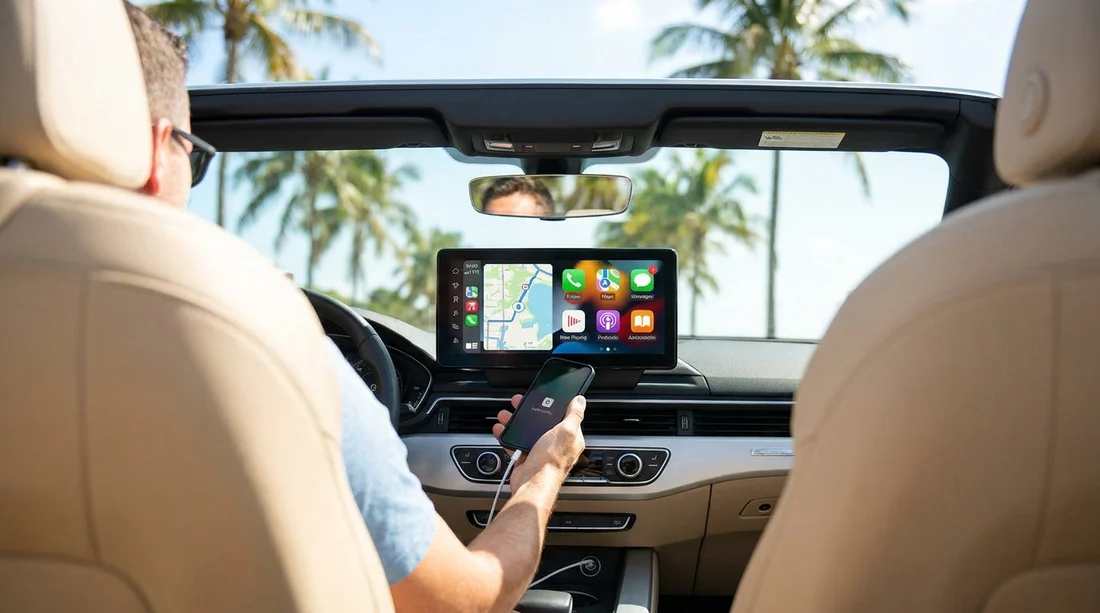
Car hire pages frequently use stock images. Even when the picture shows a CarPlay screen, the vehicle you receive may be the same class but a different trim without it. Unless the photo is tied to a specific VIN or exact model year, assume it is representative only.
A good reality check is to compare the listing’s stated features with what is visible. For instance, a screen does not confirm CarPlay. Many vehicles have a touchscreen but only support basic Bluetooth audio. Look for a “projection” icon, a CarPlay logo on the infotainment home screen, or a menu item like “Phone projection”, but again only treat this as supporting evidence, not proof.
3) Focus on category codes, model years and trims
The most reliable way to predict Apple CarPlay availability is to narrow down the vehicle type as much as possible. If your confirmation only says something broad like “Intermediate” or “SUV”, you may get several possible models, not all with CarPlay.
When you can, confirm:
Vehicle category, such as compact, intermediate, full-size, SUV, minivan, or passenger van.
Model year range, because a 2018 version might not match a 2023 refresh.
Trim level, because base trims sometimes omit smartphone integration or require an optional package.
If you need seating for a family and are comparing larger vehicles, note that minivans and people carriers often include CarPlay, but it still varies by year and trim. If you are reviewing options around Fort Lauderdale (FLL) minivan rental, verify CarPlay rather than assuming it comes as standard.
4) Look for explicit wording in the booking confirmation
Listings are helpful, but the document that matters is what you receive after paying, your confirmation email, voucher, or rental summary. Search within it for “Apple CarPlay”, “CarPlay”, “Android Auto”, or “smartphone integration”. If it is not written there, it is harder to rely on it at the desk.
Some systems show features under “Included equipment” or “Vehicle specification”. If CarPlay is important to you, ask for it to be added to booking notes or to receive an updated confirmation that mentions it. Written notes are not a perfect guarantee, but they significantly reduce misunderstandings.
If you are organising car hire for a city stay, for example near Brickell car hire, pay attention to where the confirmation says you collect the car. Downtown branches may have different fleet mix compared with airport depots, which can affect feature availability.
5) Ask the right question, and be specific about wired versus wireless
If you contact support, avoid asking only “Does it have CarPlay?” Instead, ask two parts:
Is Apple CarPlay included for the vehicle category I have booked?
Is it wired or wireless, and which USB port is used?
This matters because many Florida visitors arrive with USB‑C to Lightning, USB‑A to Lightning, or USB‑C only chargers. Some cars still have USB‑A ports for CarPlay even when they also provide USB‑C for charging. If it is wireless CarPlay, you still may want a cable for charging because navigation and streaming can drain battery quickly.
6) Plan your cables, mounts and power like a backup system
Even if CarPlay is confirmed, bring a practical setup:
Cable: Pack at least one reliable data cable, not a power-only cable. For iPhone 14 and earlier, that is usually Lightning. For iPhone 15 and later, USB‑C. If you are unsure about the car’s port type, carry one adapter so you can connect to USB‑A or USB‑C.
Power: A fast charger is useful because Florida driving often includes long stretches between stops. Some vehicles have weak USB ports that charge slowly while running CarPlay.
Mount: If you are comfortable using the built-in screen with CarPlay, you may not need a phone mount. Without CarPlay, a mount can make navigation safer and more convenient.
Offline maps: Download offline areas in Apple Maps or your preferred app before you fly. This helps if you hit patchy coverage in rural areas or if your data plan is limited.
7) Think about data, roaming and navigation before pick-up
CarPlay mirrors apps from your iPhone, it does not provide data on its own. If you are visiting Florida from abroad, check whether your UK plan includes US roaming at a sensible rate. If not, consider an eSIM or local SIM so mapping stays responsive.
Also note that some vehicles offer built-in navigation, but it may require a subscription or might be less updated than phone-based maps. If CarPlay is your plan for navigation to attractions, outlets, beaches, or multiple hotel stops, data planning is as important as feature confirmation.
8) On collection day, check CarPlay before leaving the lot
Even with preparation, do a quick test while stationary at the pick-up location:
1) Start the car and locate the USB ports. Try the port marked with a phone icon if available.
2) Connect your cable and unlock your iPhone. The first connection may prompt “Allow CarPlay while locked”.
3) Confirm the CarPlay screen appears. If it does not, check the infotainment menu for “Phone projection” or “Apple CarPlay”.
4) Test audio and microphone. Place a short call or use voice control to ensure hands-free works.
If CarPlay is missing and it was a key requirement, raise it immediately while you are still at the branch. In high-demand areas, switching within the same class may be possible, but availability depends on what has just returned.
9) If CarPlay is not available, use a safe alternative
If you end up without CarPlay, you can still drive confidently by combining offline maps, a secure mount, and Bluetooth audio. Keep your phone cool, Florida heat can cause iPhones to dim screens or throttle performance during navigation. Using an air vent mount can help, provided it does not block visibility.
For larger groups where you may be weighing up people carriers, check how many USB ports are available too. If you are comparing options such as van hire in Brickell, ask about charging points as well as CarPlay so everyone’s devices stay powered on longer drives.
FAQ
Does “Bluetooth” in a listing mean the car has Apple CarPlay? No. Bluetooth usually covers calling and audio streaming only. CarPlay is a separate infotainment feature and should be listed explicitly.
Is Apple CarPlay standard on all rental cars in Florida? No. Many newer cars have it, but availability varies by model year, trim level and fleet changes. Always confirm for your specific car hire category.
How can I tell whether CarPlay will be wired or wireless? The best way is for the listing or confirmation to state it. If it does not, assume wired and bring a compatible data cable and an adapter.
What should I check at pick-up to avoid surprises? Before leaving, connect your phone, confirm the CarPlay interface appears, and test audio and microphone. Fixing it on the spot is easier than later.
What if my iPhone connects, but CarPlay does not show up? Try a different USB port, swap to a known data cable, and check the infotainment menu for CarPlay or phone projection settings. Restarting the phone can also help.