


Quick Summary:
- Many Texas rentals need a USB connection for first setup.
- Check whether the vehicle has USB-A, USB-C, or both ports.
- Bring a data cable, not charge-only, plus the right adaptor.
- Test CarPlay or Android Auto at pick-up before leaving.
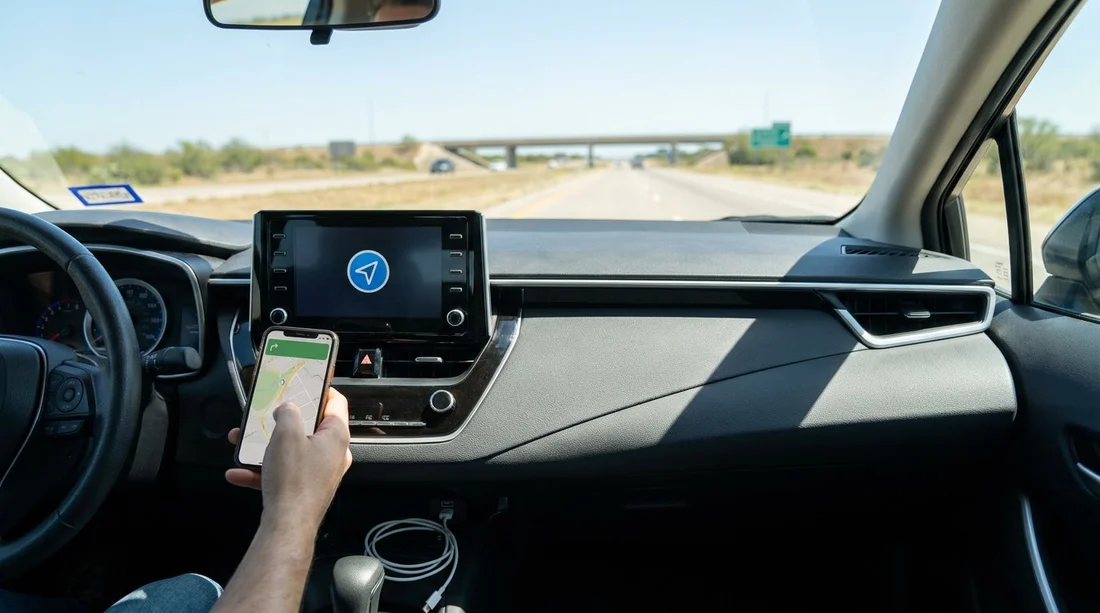
In Texas, whether you need a USB cable for Apple CarPlay or Android Auto in a rental car depends on the vehicle’s infotainment system and the exact phone you’re using. Some cars support fully wireless CarPlay or wireless Android Auto, but many still require a USB connection for the first pairing, or they only support the wired version. With car hire, it’s best to assume you may need a cable, then confirm the ports and run a quick connection test at pick-up.
The main reason this catches people out is that modern cabins often include multiple USB sockets, but only one is “data-capable” for CarPlay or Android Auto. Others are power-only, intended for charging. In addition, Texas rental fleets range from brand-new models to older trims where wireless features are limited, even if the screen looks modern.
Wired vs wireless, what actually determines if you need a cable
Apple CarPlay and Android Auto can work in two broad ways: wired (USB) and wireless (Wi-Fi and Bluetooth). Wired is more common across a wide mix of rental vehicles because it is reliable and easier for manufacturers to support. Wireless is increasingly common, but can be inconsistent across trims and model years.
Even if a car supports wireless, you may still need a USB cable at least once. Some systems require an initial USB handshake to enable wireless CarPlay or Android Auto. Others allow full wireless pairing from the first connection, but only after you enable the right toggle in the head-unit menu. With car hire, the quickest path is to try USB first if you have the correct cable, then switch to wireless after it is confirmed working.
If you are collecting from a major airport location, vehicle turnover is quick and settings can be left in odd states by previous drivers. If you are arranging car hire at Dallas DFW or car rental at Houston IAH, build two minutes into your pick-up routine to test connectivity while you are still in the lot, with staff nearby if you need a reset.
Which USB ports work, and why “charge-only” ports are a problem
Rental cars often have multiple ports, for example one in the centre stack, one in the centre console, and rear-seat ports. Only one or two may support data for CarPlay or Android Auto. The rest may be charging-only, and plugging into them will do nothing beyond charging.
Signs you have found the correct port include a small phone or CarPlay icon beside the socket, or the infotainment prompt appearing within a few seconds of plugging in. If nothing happens, move to the other port near the main screen. Rear USBs almost never support CarPlay or Android Auto data.
Also check the port type. Many newer models have USB-C, while many travellers still carry USB-A cables. If your phone uses USB-C (common on Android, and iPhone 15 onwards), you may need USB-C to USB-C, or USB-A to USB-C depending on the car. If your iPhone uses Lightning, you may need USB-A to Lightning or USB-C to Lightning. The key detail is that the cable must support data, not just charging.
What cable to bring for Texas car hire
A safe approach is to bring one high-quality data cable you trust, plus a small adaptor if your phone connector and the car’s port may not match. Rental counters do not always have spare cables, and convenience-store cables can be unreliable.
For iPhone users, an Apple-certified cable or reputable equivalent reduces dropouts. For Android users, use a cable that you have successfully used for data transfer, not a thin charging lead. If you rely on wireless CarPlay or Android Auto at home, still pack a cable.
If you are picking up in Austin, it is worth doing the test in the car park before leaving the airport area. This is especially helpful when arranging car hire at Austin AUS, as you may head straight onto fast roads where pulling over to troubleshoot is inconvenient.
Quick checks to do at pick-up before you drive off
Use this simple sequence to confirm everything is working while the engine is on and the car is in Park.
1) Identify the data port. Plug into the front USB port closest to the screen first. If there are two front ports, try both. Wait 10 to 15 seconds for a prompt.
2) Approve the permissions on your phone. CarPlay may ask you to allow it while locked, and Android Auto may request access to contacts, location, or notifications. If you dismiss these prompts, the connection can look broken even though the car is fine.
3) Check the infotainment settings. Look for a “Phone”, “Projection”, “Connections”, or “Apps” menu. Some systems let you disable smartphone projection, and it can be off from a previous renter.
4) Confirm audio and navigation. Play any audio and start navigation. Ensure sound comes through the car speakers and the microphone works for calls. If audio stays on your handset, check the car’s audio source and the phone’s output selection.
5) If you want wireless, enable it after wired works. Once wired works, look for a wireless toggle, then follow prompts to pair Bluetooth and Wi-Fi. After a successful wireless connection, you can unplug if you prefer.
Common issues in rental cars, and fast fixes
Problem: It charges, but CarPlay or Android Auto never appears. This is usually the wrong port or a charge-only cable. Switch ports, then switch to a known data cable.
Problem: The car says it is connected, but apps do not load. Unlock your phone and accept any pending permission prompts. On Android, update Android Auto if possible, and ensure battery optimisation is not restricting it.
Problem: Wireless keeps disconnecting. Use wired for stability. Wireless relies on a clean Wi-Fi link inside a car full of other radios. If you need consistent navigation in busy areas, wired is often better.
Problem: The system is “stuck” on a previous renter’s phone. Delete old devices in the car’s phone list, then on your handset “forget” the car in Bluetooth settings. If the unit still behaves oddly, restart the infotainment system if the vehicle allows it, or turn the car off, open and close the driver door, then restart.
Problem: You are in a van or larger vehicle with different ports. Some vans place the data port lower down or inside a storage bay. If you are organising a larger vehicle such as van hire in Texas via IAH, locate ports before setting off, because the cabin layout can differ from standard cars.
Safety and privacy tips when using phone projection
With car hire, remember that you are pairing your personal device to a vehicle that many others use. When you return the car, remove your phone from the car’s paired device list and clear personal data if the menu offers it. Also disable message previews if you do not want passengers to see notifications on the screen.
For safety, set up destinations and playlists before you join traffic. Texas highways can be fast and multi-lane, and trying to troubleshoot a cable while driving is risky. If you must adjust settings, pull into a safe, legal stopping place.
What to expect across different rental fleets in Texas
If you know you must have working phone projection for your trip, it can help to choose a newer model category, but you should still plan to bring a cable. If you are collecting around Fort Worth, the pick-up process is usually efficient, so doing your connectivity test early helps you avoid returning to the desk later. Relevant location pages include Thrifty car hire Fort Worth DFW and car hire at Fort Worth DFW airport.
FAQ
Do I always need a USB cable for Apple CarPlay in a Texas rental car? No. Some rentals support wireless CarPlay, but many still require USB, especially for first-time setup or older trims.
Can I use any USB cable, or does it have to be a specific type? It needs to be a data-capable cable. Many cheap or thin leads are charge-only, which will power your phone but not launch CarPlay or Android Auto.
Which port should I plug into for CarPlay or Android Auto? Use the front USB port nearest the infotainment screen first. Rear-seat ports are usually for charging only and rarely support data projection.
Why does my phone connect, but audio still plays from the handset? The car may still be set to a different audio source. Select CarPlay, Android Auto, or USB as the source, and confirm your phone’s audio output is set to the car.
How do I remove my phone details before returning the rental? In the car’s phone or connections menu, delete your device and clear paired phones if available. Also remove the car from your phone’s Bluetooth list to prevent auto-connecting later.




























































































