


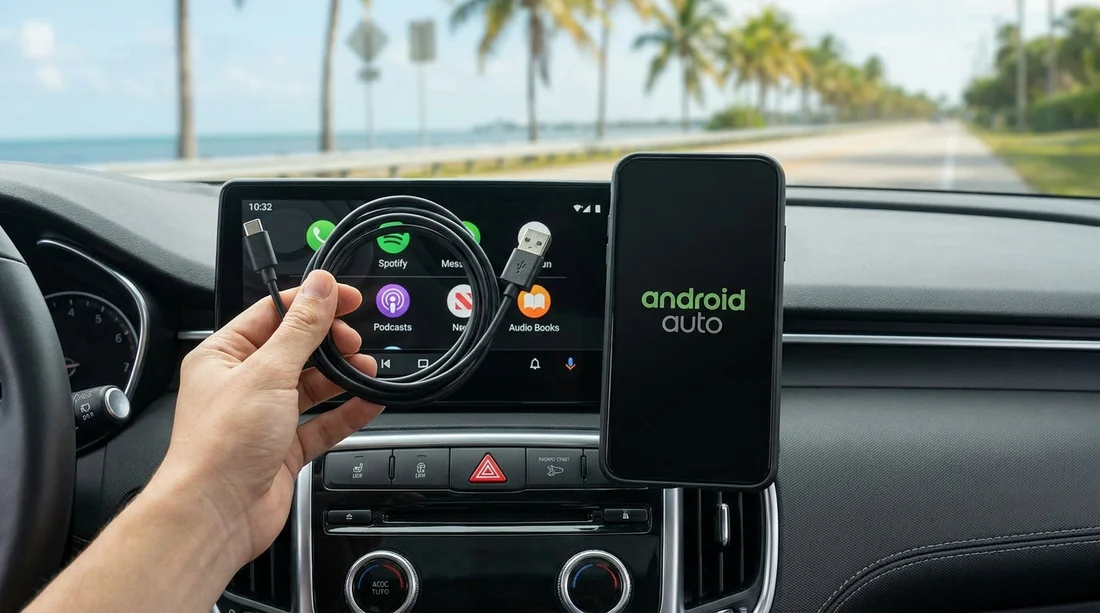
Quick Summary:
- Bring a short, data-rated USB-C cable, plus a tested backup.
- Pack both USB-A to USB-C and USB-C to USB-C cables.
- Add a USB-A to USB-C adapter for older infotainment ports.
- Test Android Auto with your cable before leaving the car park.
Android Auto is one of those small travel comforts that makes navigating Florida far easier, especially when you are juggling unfamiliar exits, toll roads, and busy airport pick-ups. The snag is that rental cars vary hugely in their USB port types, power output, and how fussy the infotainment system is about cables. If you pack the right kit, you can plug in and go within minutes of collecting your car hire, instead of troubleshooting in the queue of cars behind you.
This guide explains the most common USB-A and USB-C setups you will see in Florida rental cars, what cables and adapters to bring, and a quick pick-up checklist to get Android Auto running reliably.
What you are trying to solve at pick-up
Android Auto over USB needs two things, a compatible head unit and a stable data connection. Many charging cables are power only, and even data cables can be unreliable if they are long, worn, or poorly shielded. Rental cars also sometimes have multiple USB ports, but only one supports data for Android Auto. Others may be charge-only, or connected to rear seats.
If you are collecting at a major hub such as Orlando MCO or Tampa TPA, you may be moving quickly through the garage, so the goal is to have a small set of cables that covers the most likely port combinations without guesswork.
Common USB port setups in Florida rental cars
1) USB-A data port (most common in slightly older models)
This is the classic rectangular USB port. Many cars from the last several years support Android Auto through a front USB-A port near the centre console. If your phone uses USB-C (most modern Android phones do), you need a USB-A to USB-C cable, ideally short and high quality.
2) USB-C data port (in newer models)
Increasingly common in newer cars and trims, sometimes alongside USB-A. If your phone is USB-C, a USB-C to USB-C cable is the cleanest solution. If your phone is older micro-USB, you will need USB-C to micro-USB, but micro-USB phones are now uncommon.
3) Mixed ports, but only one supports Android Auto
It is common to see two to four ports, including a mix of USB-A and USB-C. Only one may route data to the infotainment system. The others can be charge-only, especially rear passenger ports. Knowing this helps you troubleshoot quickly, if Android Auto does not appear, try the other front port before changing settings.
4) Wireless Android Auto supported, but still best to have a cable
Some rental cars support wireless Android Auto, but pairing can take time, and it can be less stable in areas with heavy wireless interference. A cable also keeps your phone charged during long drives across Florida. Even with wireless available, a reliable USB cable is the fastest fallback.
The best cable kit to pack for Android Auto
You do not need a bag of electronics. A small, deliberate kit covers nearly every car hire scenario.
1) Primary cable: short, data-rated USB-C to USB-A
This is the most universally useful cable because USB-A is still widespread in rental fleets. Choose a reputable, data-capable cable (often labelled USB 3.0/3.1, or sync and charge). Keep it short, around 0.5 m to 1 m, to reduce connection drops and clutter.
2) Secondary cable: USB-C to USB-C (data-rated)
More new cars are moving to USB-C ports. A dedicated USB-C to USB-C data cable helps you avoid using adapters, which can loosen and cause disconnects over bumps. This is particularly helpful if you are driving longer city routes, for example when collecting around Downtown Miami where stop-start traffic can make frequent reconnects frustrating.
3) One small adapter: USB-A (female) to USB-C (male)
This tiny adapter lets you plug a USB-A cable into a USB-C port. It is not always as reliable as a direct USB-C to USB-C cable, but it is useful if your best cable is USB-A to USB-C and the car only has USB-C. Pick a snug-fitting adapter designed for data transfer, not just charging.
4) Optional: a spare, known-good cable
Cables fail more often than phones or car systems. Bringing a second known-good cable saves time if Android Auto keeps dropping. Keep the spare in your day bag, not buried in luggage, so you can test it at pick-up.
Pick-up checklist, connect reliably in under five minutes
1) Start the car, then unlock your phone
Some cars only initialise Android Auto after the head unit boots fully. Keep the phone unlocked for the first connection, as Android may prompt you to accept permissions.
2) Plug into the correct port
Use the front console port first. If nothing appears, switch to the other front port. Avoid rear-seat ports for initial setup, they are often charge-only.
3) Accept prompts and set Android Auto permissions
You may see prompts for contacts, call history, or location. Approve what you are comfortable with. If you are sharing the car, consider limiting notifications on the car screen in Android Auto settings.
4) If it fails, swap the cable before changing phone settings
A cable swap is faster than diving into developer options. If the second cable works, you have found the issue. If neither works, then restart the phone and try again.
5) Confirm audio route and maps guidance
Play a short audio clip and start navigation to verify guidance voice and volume. Do this before driving off, as some cars default to radio audio even when Android Auto is connected.
Planning your cable kit around your Florida itinerary
If your trip includes airport pick-up and longer drives, reliability matters more than clever gadgets. A simple two-cable kit (USB-A to USB-C, plus USB-C to USB-C) covers most Florida rental vehicles, whether you are starting at Budget at Orlando MCO or collecting in a business district such as Brickell. The small USB-A to USB-C adapter is your insurance policy for edge cases.
Pack the cables in an easy-to-reach pocket so you can test Android Auto before leaving the garage. That single habit saves the most time, because it confirms you have the right port, the right cable, and the right permissions before you are on a busy road.
FAQ
Do I need a special “Android Auto” cable for car hire in Florida?
You do not need a branded Android Auto cable, but you do need a data-capable USB cable. Bring a short, good-quality cable you have already used successfully for Android Auto.
Is USB-C to USB-C always better than USB-A to USB-C?
Not always, it depends on the car’s port. USB-C to USB-C is ideal when the car has a USB-C data port, but many rentals still use USB-A for Android Auto, so carrying both is best.
Why does the car charge my phone but Android Auto does not start?
That usually means the port is charge-only or the cable is power-only. Try a different front USB port and swap to a known data-rated cable.
Can I rely on wireless Android Auto in rental cars?
Sometimes, but it varies by model and can take longer to pair at pick-up. A USB cable is the most reliable way to get Android Auto working quickly and keep your phone charged.
What should I do before returning the rental car?
Remove your phone from the car’s paired devices list and delete saved profiles if the system allows it. It is also sensible to clear recent destinations in your maps app if privacy matters to you.

























































































