


Quick Summary:
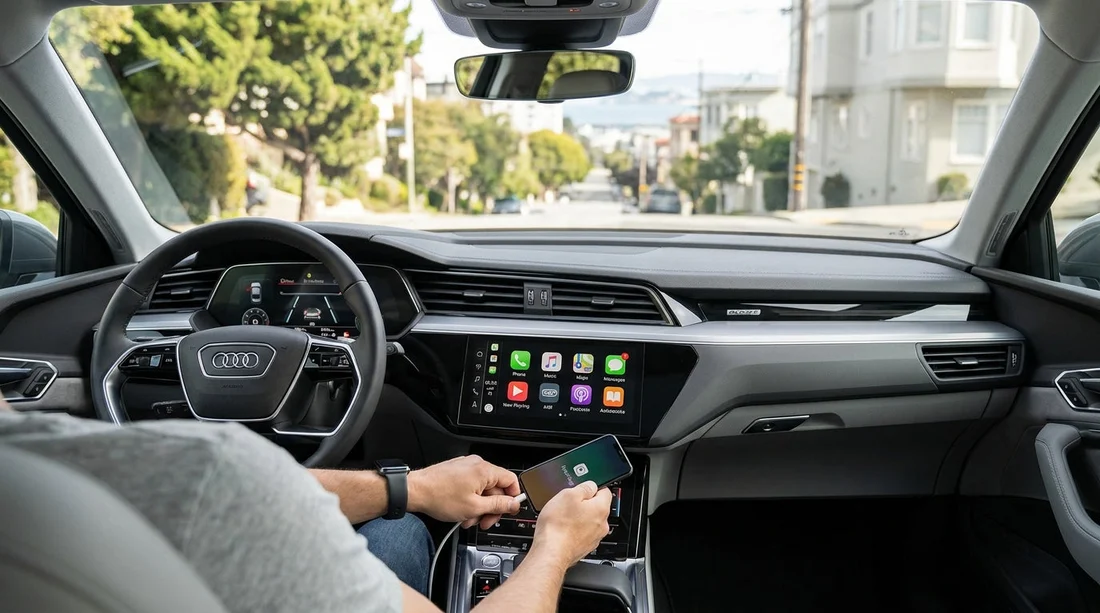
- Check the car supports CarPlay, then locate USB port or pairing menu.
- Use an Apple-certified cable, unlock iPhone, then approve CarPlay permissions.
- For wireless CarPlay, enable Bluetooth and Wi‑Fi, then pair from the car.
- Remove previous phones from the head unit, then test Maps, calls, and audio.
Setting up Apple CarPlay before you drive off is one of the simplest ways to make a San Francisco car hire feel familiar. It helps you navigate freeway interchanges, handle calls safely, and keep your music and podcasts consistent, without learning a new infotainment system under time pressure.
The best moment to do it is while the car is still parked at the pick-up location, with good mobile signal and time to adjust settings. If you are collecting near the airport, doing the setup before joining busy routes like US-101 can save distraction later. If you are arranging a vehicle through San Francisco SFO car rental, build ten minutes into your handover for this check.
Pre-departure CarPlay checklist (San Francisco car hire)
1) Confirm the car actually supports CarPlay
Most modern rentals do, but not all trims have it enabled. Look for a “CarPlay” icon on the home screen, a “Projection” or “Smartphone” menu, or a USB port labelled with a phone icon. If the screen is off, check the ignition mode, some systems only allow setup with the engine on or in accessory mode.
2) Decide wired vs wireless before you start
Wired CarPlay is usually the fastest to set up and the most reliable in a rental, especially when you are learning a new vehicle. Wireless CarPlay is convenient, but it can be fussy if the car is still remembering another device.
As a rule of thumb for a car hire, start wired. Once it works, switch to wireless if the car supports it and you prefer fewer cables.
3) Bring the right cable and use the right port
For wired CarPlay, use an Apple-certified Lightning cable, or USB-C for newer iPhones, depending on your device. Many cars have multiple USB ports, but only one supports data. If CarPlay does not pop up, try a different port, especially the one closest to the screen controls.
Tip: avoid using a charge-only cable. If your phone charges but CarPlay never appears, the cable or port may be power-only.
4) Unlock your iPhone and approve permissions
With the phone unlocked, plug in the cable. You may see prompts on both the phone and the car display. Approve “Allow CarPlay while locked” if you want it to reconnect automatically later. Also accept prompts for contacts and notifications, these power caller ID, messaging readouts, and hands-free calling.
If you do not want personal message previews on a shared journey, you can still allow CarPlay but restrict notifications later under iPhone Settings.
5) For wireless CarPlay, enable Bluetooth and Wi‑Fi
Wireless CarPlay typically uses Bluetooth for the initial handshake and Wi‑Fi for the ongoing connection. On your iPhone, ensure both are on. In the car, open the phone pairing menu and select the option that mentions CarPlay, not just “Bluetooth audio”.
When prompted on your iPhone, tap the vehicle name and confirm the pairing code matches. Approve CarPlay permissions. If the car asks to use Wi‑Fi, accept it, otherwise wireless CarPlay may not complete.
6) Remove previous phones from the infotainment system
Rental cars can retain prior drivers’ profiles. This can cause auto-connection to someone else’s phone, or prevent wireless CarPlay from appearing. In the car’s settings, look for “Paired Devices”, “Bluetooth Devices”, or “Phone List”, then delete unfamiliar entries. Some systems require deleting from both Bluetooth and CarPlay sections.
If you cannot delete entries yourself, ask the desk or garage staff to clear devices, it is a normal request for a car hire handover.
7) Set your iPhone’s CarPlay settings for a rental
On your iPhone, go to Settings, General, CarPlay, then select the vehicle once paired. Consider these quick tweaks:
Dashboard layout to see maps and audio together.
Arrange apps so Maps, Phone, Messages, and your audio app are on the first page.
Siri suggestions if you want quick shortcuts, or disable if you prefer a cleaner display.
8) Test the essentials before you roll
Before leaving the pick-up area, run these checks with the car in Park:
Navigation, open Apple Maps or Google Maps on CarPlay, confirm GPS lock and route preview.
Audio, start a track and adjust volume. Some cars have separate volume levels for navigation prompts vs media.
Calls, make a short test call or check the microphone indicator. Confirm caller audio is through the car speakers.
Steering controls, test voice button for Siri and track skip.
These checks matter in San Francisco because you may immediately encounter complex junctions or dense streets where you want hands-free reliability.
Troubleshooting quick fixes (common in rentals)
CarPlay does not appear at all
Try a different USB port, try a different cable, and reboot the iPhone. Also check Screen Time restrictions: Settings, Screen Time, Content and Privacy Restrictions, Allowed Apps, ensure CarPlay is enabled.
Wireless CarPlay keeps failing
Delete the car from iPhone Settings, General, CarPlay, then forget the device in the car’s Bluetooth list. Restart the phone and try pairing again. Clearing old devices in the car often solves this.
No sound or low sound
Check the car’s audio source is set to CarPlay, not radio. Raise volume while a navigation prompt is speaking, some systems store that level separately.
Maps location seems wrong
On the iPhone, check Location Services: Settings, Privacy and Security, Location Services, ensure it is on. Then verify the maps app has location permission set to “While Using”.
Privacy and “handover hygiene” for a car hire
Because a rental vehicle is shared, think about what you leave behind. CarPlay itself runs from your iPhone, but the head unit may retain call history, contacts cache, or the pairing profile.
Before returning the car, remove the vehicle from your iPhone (Settings, General, CarPlay) and delete your phone from the car’s paired device list. If you used wireless CarPlay, also ensure the car is not set to auto-connect to your device.
If you are picking up outside San Francisco, the same routine applies. For example, travellers collecting in the South Bay through San Jose SJC car rental or San Jose Airport car rental will find similar infotainment menus and the same privacy steps.
San Francisco-specific tips for using CarPlay smoothly
Plan your first route while parked
Set your destination before moving, especially if you are heading to a hotel with a tricky entrance or parking garage. In busy areas, voice control can mishear street names, so verifying the route on-screen first helps.
Download offline maps if you expect weak signal
Some garages and parts of the city can be patchy for mobile data. If you rely on Google Maps, consider downloading an offline area ahead of time, then use CarPlay for display and prompts.
Keep a charger available even with wireless
Wireless CarPlay uses more battery. If you are doing multiple stops, cable charging can keep your phone topped up. This is particularly useful if you are running navigation plus music all day.
Choose a vehicle that suits your passenger and cable needs
If you are travelling with family and multiple devices, extra USB ports can matter as much as boot space. Depending on your plans, an SUV or people carrier can make device management easier. Options like SUV hire at San Francisco SFO or minivan hire at San Francisco SFO can be handy for longer days out of the city.
FAQ
Do I need mobile data for Apple CarPlay in San Francisco? CarPlay itself does not require data, but most navigation and streaming apps do. If data is limited, use offline maps and downloaded playlists.
Is wired CarPlay better than wireless in a rental car? Wired is usually more reliable and faster to set up in a car hire, especially if the car has old devices saved. Wireless is convenient once pairing is stable.
How do I clear another driver’s phone from the rental car? Open the car’s Bluetooth or device settings, find the paired device list, and delete unfamiliar phones. Some cars also have a separate CarPlay device list to clear.
Will CarPlay show my messages to passengers? It can display message notifications depending on your iPhone settings. You can disable message previews or notifications for CarPlay in your iPhone’s notification settings.
What should I do with CarPlay settings before returning the car? Remove the car from iPhone Settings, General, CarPlay, and delete your phone from the car’s paired device list to protect privacy for the next driver.

























































































