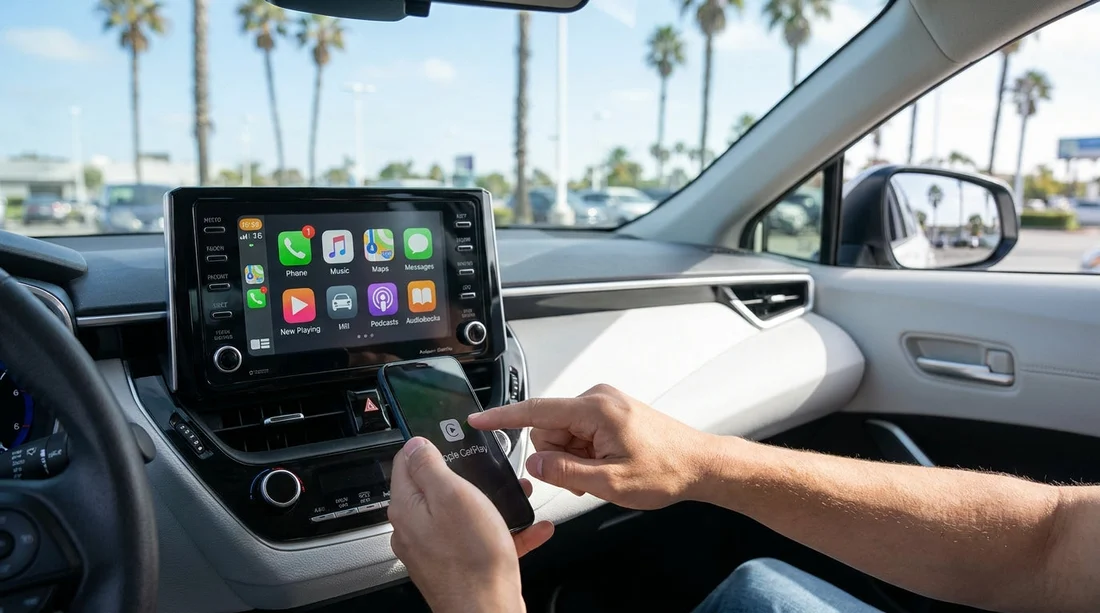
Quick Summary:
- Bring a certified Lightning or USB-C cable and a simple adapter.
- Enable Bluetooth, Wi-Fi and Siri, then keep your iPhone unlocked.
- Approve CarPlay prompts, allow contacts access, and select the right audio.
- Test route guidance and a hands-free call before leaving the car park.
When you pick up a car hire in California, the last thing you want is to stop at the kerb trying to make navigation work. Apple CarPlay is usually quick to set up, but rental vehicles can have different USB ports, infotainment menus, and privacy settings left behind by previous drivers. Use the steps below while you are still parked at the car hire location so you can drive off with maps, music, and hands-free calling working properly.
Before you start, do a 60-second kit and settings check
Start with your phone and cable, because most CarPlay issues come down to power and permissions.
1) Use the right cable. If your iPhone uses Lightning, a certified Lightning to USB cable is the safest bet. If you have a USB-C iPhone, bring a USB-C cable. Many rental cars still have USB-A sockets, so a small USB-C to USB-A adapter can save time.
2) Update and unlock. CarPlay can be picky about permissions, so unlock your iPhone and keep it awake during setup. If you have just landed, switch off Low Power Mode if it is restricting background activity.
3) Turn on the essentials. On iPhone, ensure Bluetooth and Wi-Fi are on, and Siri is enabled. CarPlay uses Bluetooth and sometimes Wi-Fi even when you connect by cable, and Siri is needed for hands-free messaging and calling.
Step-by-step: wired Apple CarPlay setup in a California rental
Wired CarPlay is the most common in car hire fleets and is generally more reliable.
Step 1: Locate the correct USB port. Not every USB port supports data. In many cars, only one front port is labelled with a smartphone icon or “CarPlay”. If you see multiple ports, try the one nearest the infotainment screen controls first. Avoid charge-only ports in the rear seats.
Step 2: Start the car, then plug in. Turn the ignition on fully, then connect your iPhone to the USB port. Keep the phone unlocked. If nothing happens after 10 to 15 seconds, try a different port or your backup cable.
Step 3: Approve prompts on iPhone and the car screen. On your iPhone, tap “Allow” when asked if you want to use CarPlay with this car. You may also see “Allow CarPlay While Locked”, select this if you want navigation and calls to work when the phone screen is off.
Step 4: Select CarPlay on the infotainment display. Some vehicles auto-launch CarPlay, others require you to press a “Phone”, “Apps”, or “Projection” button first. If the screen offers Android Auto and CarPlay, choose CarPlay.
Step 5: Set the audio source correctly. Open the car’s audio menu and make sure the source is CarPlay or iPhone, not FM radio. If you later find calls are silent, this audio routing step is often the fix.
If you are collecting at a busy terminal such as San Francisco SFO or arriving via an international desk like car hire at SFO, completing these steps before you leave the bay helps you avoid pulling over immediately after exiting the car park.
Wireless CarPlay: how to pair it cleanly
Some California rentals support wireless CarPlay, but previous pairings can interfere.
1) Clear old pairings if needed. On the car’s Bluetooth devices list, delete any old phones you do not recognise. If the car prompts that maximum devices are reached, you will need to remove one.
2) Pair Bluetooth first. On iPhone, open Bluetooth settings and select the car. Confirm the pairing code matches on both screens.
3) Accept the CarPlay request. The car may ask to enable CarPlay for this device. Accept, then wait for CarPlay to appear. Wireless CarPlay may take 30 to 60 seconds the first time.
4) Keep Wi-Fi on. Many systems create a direct Wi-Fi connection for wireless CarPlay. If you disable Wi-Fi, CarPlay can drop even though Bluetooth remains connected.
What to check when CarPlay will not appear
If the screen does not show CarPlay, work through these quick checks in order.
Try a different cable and port. A worn cable may still charge the phone but fail data transfer. Swap the cable first, then swap ports.
Check CarPlay restrictions. On iPhone, go to Screen Time and ensure CarPlay is allowed. If it is blocked, it will never show on the vehicle display.
Forget the car, then reconnect. On iPhone, go to Settings, General, CarPlay, select the vehicle, and choose “Forget This Car”. Then reconnect with the cable or re-pair wirelessly.
Restart the iPhone. A quick restart resolves many “connected but blank” situations, especially after flights, eSIM changes, or switching time zones.
In high-turnover locations like Santa Ana SNA, you may encounter cars where the previous driver left unusual audio or privacy settings. A clean reconnect and audio-source check usually fixes it within a minute or two.
Make navigation reliable before leaving the car hire location
Once CarPlay appears, confirm that navigation will actually guide you.
Open Apple Maps or your preferred navigation app. Enter your destination and start guidance while still parked. Check that you hear spoken directions through the car speakers.
Confirm location accuracy. If the map arrow drifts, check that Location Services are enabled and that your phone has a signal. Underground pick-up areas and multi-storey car parks can affect GPS briefly, and it should stabilise once you reach open sky.
Set the correct units and avoid surprises. California road signs use miles. If your navigation is set to kilometres, change it in the app settings so voice prompts match what you see.
Hands-free calling: the fast functional test
Do a quick call test before you exit the car park, it confirms microphone, speakers, and permissions.
1) Ask Siri to call a contact. Hold the voice button on the steering wheel or tap the CarPlay Siri icon and say “Call” followed by a contact name.
2) Check microphone pickup. If the other person cannot hear you, look for an infotainment microphone mute option, or switch the call audio source between CarPlay and the car system.
3) Allow contacts access if prompted. If your call list is empty, you may have tapped “Don’t Allow” earlier. On iPhone, enable Contacts access for CarPlay, then reconnect.
Privacy and safety checks in a rental vehicle
Because this is a car hire vehicle, take a moment to protect your data.
Do not save the car as a trusted vehicle unless needed. Allowing CarPlay while locked is convenient, but if you do not want your phone to connect automatically in future rentals, you can leave it off and simply unlock the phone when you connect.
Remove your device at drop-off. Before returning the car, forget the vehicle in your iPhone CarPlay settings and delete your phone from the car’s Bluetooth list. This prevents the next driver seeing your name or recent call history.
Keep setup tasks for stationary moments. In California, distracted driving laws are strict. Pair and test everything while parked, then rely on voice control once moving.
If you are travelling with more passengers or lots of luggage, you might be in a larger vehicle from a location such as van hire in Sacramento SMF. For airport pick-ups, you can also compare desks like Budget at Santa Ana SNA before you finalise your booking.
FAQ
Do I need mobile data for Apple CarPlay to work in California? CarPlay itself works without data, but live navigation, traffic, and streaming audio usually require a connection. Offline maps can help if reception is poor.
Why does my iPhone charge but CarPlay will not start? The cable may be charge-only, damaged, or plugged into a power-only USB port. Try a certified cable and a different port labelled for CarPlay or smartphone projection.
How do I switch from Bluetooth-only to CarPlay in a rental car? Plug in via the correct USB data port or enable wireless CarPlay in the car’s phone or projection menu. Then approve the prompts on your iPhone and select CarPlay as the audio source.
Can I use Apple CarPlay if the car screen is already paired to another phone? Sometimes yes, but many systems limit active connections. Remove the old device from the car’s Bluetooth list, then connect your iPhone and set it as the primary phone.