


Quick Summary:
- Confirm the USB data port location and plug in before leaving.
- Use a short, data-capable cable, not charge-only or worn out.
- Accept Android Auto prompts and allow location for reliable navigation.
- Test Maps audio, voice commands, and steering wheel buttons while parked.
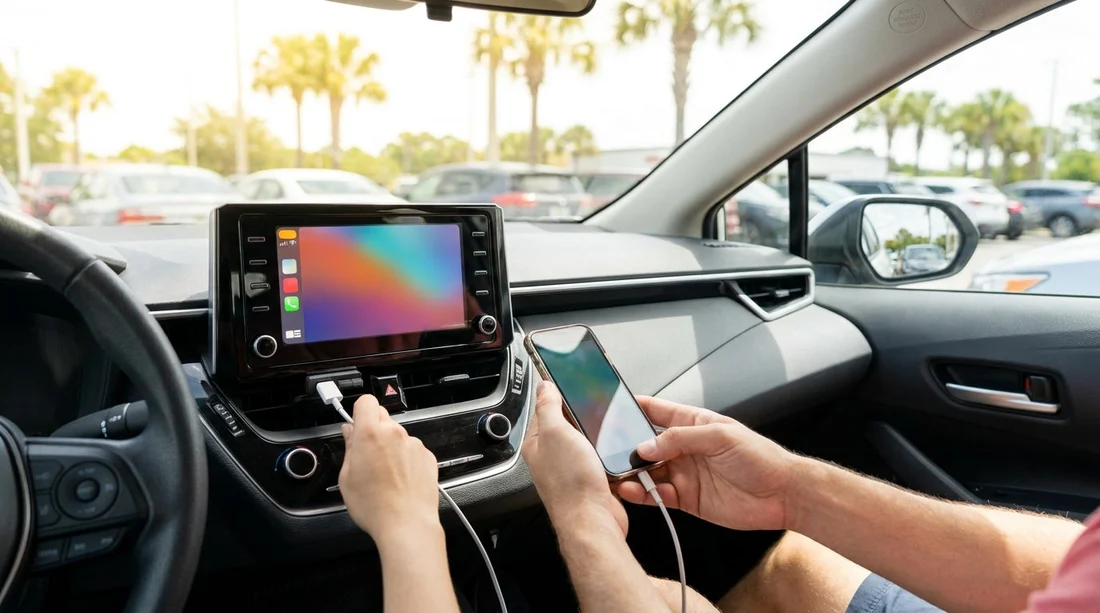
When you collect a car hire in Orlando, it is worth spending two minutes in the driver’s seat to make sure wired Android Auto works. The goal is simple, confirm the car’s USB data port, connect with a proper cable, approve the right prompts on your phone, and run a quick navigation test before you drive off.
If you are picking up at Orlando International Airport, the rental fleet can include multiple trims of the same model, and USB layouts vary. Some vehicles have one port for data and another for charging only, and the icons are not always clear.
If you want to compare pick-up options for Orlando Airport, see Orlando MCO car rental information. UK travellers often look for “car hire” listings in particular, and car hire at Orlando Airport (MCO) is a useful starting point for what to expect at the desk.
Before you reach the counter: set your phone up for success
Before you arrive, update Android Auto and Google Maps, and make sure Bluetooth and Location are on. If you have repeated disconnects, disable aggressive battery optimisation for Android Auto and Google Play services.
At the counter: what to ask so you are not guessing in the car park
Ask which USB port supports Android Auto, because many cars have multiple ports and only one is wired for data. Also ask whether smartphone projection is enabled in the infotainment settings for that model.
For travellers collecting a car hire aimed at theme park driving, this can be especially helpful when you have passengers and luggage to manage. Information for larger vehicles is covered on SUV rental for Disney Orlando MCO, and a broader overview appears on SUV rental in Orlando MCO.
In the driver’s seat: confirm the correct USB port and cable
Identify the data port by looking for a USB icon, “data” marking, or a smartphone projection symbol, and try each port only while stationary. Use a short, sturdy data cable you trust, because charge-only or worn cables are the most common reason Android Auto will not launch.
If the connector feels loose and the phone disconnects with small movements, reposition the cable so it is not under tension. Also check your phone’s charging port for lint, which can prevent a firm data connection.
Permissions and prompts: what to accept and why it matters
When you connect, watch both your phone screen and the infotainment display and accept first-time prompts. Allow location permission for navigation accuracy, and enable calls or notifications only if you want hands-free calling and messaging.
If the car asks whether to “Enable Android Auto” or “Start projection”, accept. In a rental, choose the most temporary option offered and avoid saving personal profiles unless you plan to remove them later.
Do a 60-second navigation test before leaving the bay
Open Google Maps (or Waze) and start a short route to confirm routing loads and your position updates. Confirm audio guidance plays through the car speakers, then test the microphone with a voice command and check steering wheel controls while you are still parked.
Privacy clean-up: keep your data safe in a rental
Before returning the car, delete your phone from the paired devices list and clear any recent destinations shown on the screen. Unplug your cable and avoid logging into built-in car apps to reduce the chance of leaving personal data behind.
Common wired Android Auto problems at Orlando pick-up and fast fixes
It only charges and never launches. You are likely in a charge-only USB port or using a charge-only cable. Swap ports first, then swap cables.
It launches, then disconnects repeatedly. Try a different cable, clean the phone port, and disable battery optimisation for Android Auto.
No sound from navigation. Raise the guidance volume while it is speaking, and check the infotainment source is not muted.
FAQ
Do I need mobile data for Android Auto navigation in Orlando? You usually need data for live traffic and searching places, but you can download offline maps in Google Maps before you fly to reduce data use.
Which USB port should I use for wired Android Auto in a rental car? Use the USB port that supports data, often marked with a smartphone or projection icon. If unsure, ask at the counter and test both ports while parked.
Why does Android Auto ask for permissions again when I plug into a different car? Some permissions are re-confirmed when Android Auto detects a new head unit. Approving location and Android Auto prompts ensures navigation and voice controls work properly.
Can I keep using Android Auto if the rental car already has another phone paired? Yes, but old pairings can cause connection conflicts. Remove previous devices in the infotainment Bluetooth and devices list, then connect your phone with your cable.
How do I protect my privacy when using Android Auto in a car hire? Avoid saving profiles, do not log into built-in car apps, and remove your phone from the car’s paired devices list before returning the vehicle.





























































































