


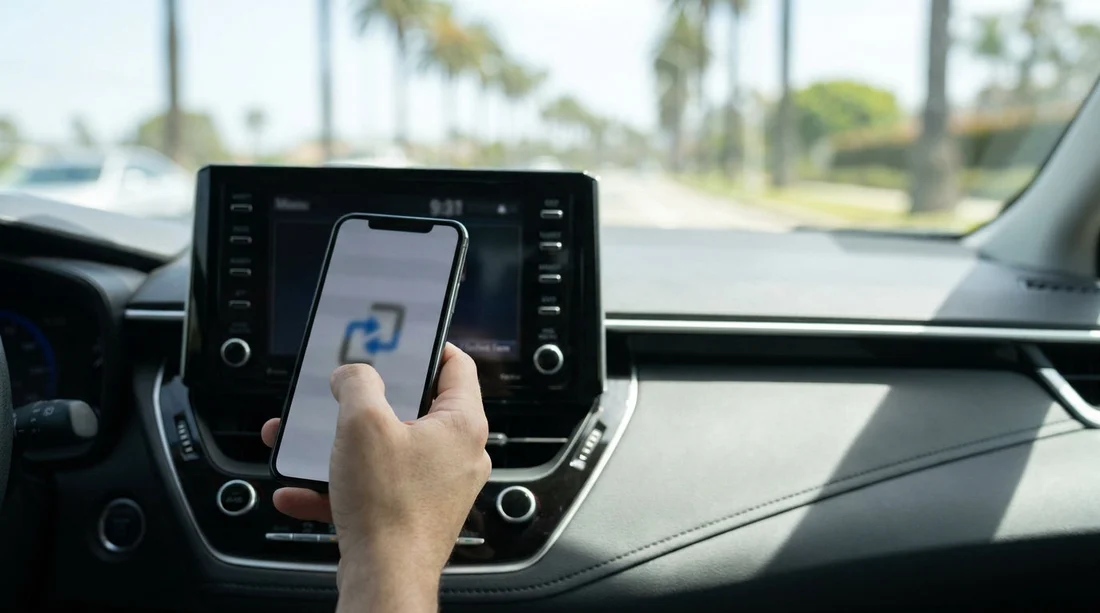
Quick Summary:
- Turn off contact sync, call history access, and message previews before pairing.
- Use guest profiles, one time permissions, and avoid saving Wi Fi passwords.
- Remove your phone from the car and forget the car on your phone.
- Before returning, clear infotainment history, recent destinations, and paired devices.
Pairing your phone with a rental car can make navigation and calls easier, but it can also copy data into the vehicle. Many infotainment systems store more than people realise, including recent destinations, call logs, device identifiers, and sometimes contacts or messages. If you are arranging car hire in California, it is worth doing a quick privacy check before you connect, then cleaning up properly before you hand the keys back.
This guide focuses on practical pre pick up checks for Bluetooth, Apple CarPlay, and Android Auto, plus a reliable end of trip removal routine. The aim is simple, enjoy connectivity without leaving a digital trail for the next driver.
Understand what the car can store
Different makes and model years store different things, but most modern rental vehicles can retain at least some of the following: paired device lists, call history, recent numbers, media history, favourite destinations, recent navigation searches, and sometimes a cached address book. Some systems also allow a driver profile, which can keep preferences and links to cloud accounts if you sign in.
The safest assumption is that anything displayed on the screen could be stored after you disconnect. That is why your best protection is to minimise what you share at the start, and delete what you shared at the end.
Pre pick up checks on your phone
Before you collect your vehicle, set up your phone so pairing shares as little as possible. This takes a couple of minutes in the terminal or car park and can significantly reduce risk.
1) Tighten Bluetooth permissions. When you pair via Bluetooth, your phone may ask whether to sync contacts and favourites. Choose the most restrictive option. If you only need hands free calling, you usually do not need contacts sync. If your phone allows it, disable sharing of call history and message access. Also switch off Bluetooth when you are not actively using it, so your phone does not reconnect automatically.
2) Use notification privacy for message previews. Even if you do not enable message access, some head units will display notification banners from your phone when connected for audio. On iPhone, set previews to show when unlocked, or disable previews during the trip. On Android, adjust lock screen notification settings and per app notification content. The goal is to prevent personal messages appearing on a shared screen.
3) Prefer CarPlay or Android Auto over plain Bluetooth. CarPlay and Android Auto often keep more activity on your phone rather than the vehicle, although the car may still show recent items during the session. They can be a better privacy choice than full address book syncing over Bluetooth. If you are picking up at car hire at Los Angeles Airport (LAX) and plan to use navigation immediately, CarPlay or Android Auto can help you get moving without feeding the car a full contact list.
Checks in the car before you connect
Once you are seated, spend a moment in the infotainment menus before you pair.
Look for a guest mode or driver profile. Some cars offer a guest profile that does not retain personal data between sessions. Choose it if available. If the car shows another driver name, request a profile reset, or switch to a default profile and delete the old one.
Check the paired device list. If you see many phones listed, the system has not been cleaned recently. Delete old devices before you add yours. This reduces the chance of accidental connection to someone else, and makes it easier to find and remove yours later.
Disable automatic downloads. Some systems have options like download contacts, import messages, or sync recent calls. Turn those off. Also check audio streaming apps on the car display, if it suggests signing into services, avoid logging into your personal accounts unless you can guarantee you will sign out and wipe the profile later.
Before return: a reliable cleanup checklist
Plan to spend two minutes in the car park before you drop the vehicle off. This is the most important step for privacy in car hire.
1) Remove your phone from the car. In the infotainment settings, find Bluetooth devices or connected phones and delete your device. If the system has separate sections for Bluetooth and smartphone projection, delete your phone from both lists.
2) Delete navigation history. Clear recent destinations, favourites you created, and search history in the car navigation. If the car uses a built in map system, look for options like clear history, clear previous destinations, or reset navigation data. If you used CarPlay or Android Auto with phone based maps, still check if the car shows recents and clear what you can.
3) Check call logs and messages screens. Some systems keep recent calls even after unpairing. Open the phone screen and clear recent calls if the menu permits. If messages were enabled, remove message history. Not all systems allow deletion of every item, but clearing what you can reduces exposure.
4) Delete the car from your phone too. On iPhone, remove the Bluetooth pairing and, if listed, remove the CarPlay vehicle in Settings. On Android, forget the Bluetooth device and remove it from Android Auto previously connected cars. This helps prevent your phone reconnecting in future if you rent the same vehicle again, or if a similar system broadcasts a matching name.
If you are returning a vehicle at car hire at Sacramento Airport (SMF) and you are rushing for a flight, prioritise deleting your device from the car and forgetting the car on your phone. Those two steps cover the most common data carryover.
When arranging car hire, picking up from a major hub such as minivan rental at San Francisco Airport (SFO) can mean rotating vehicles with lots of prior drivers. That makes end of trip cleanup even more worthwhile, because you cannot assume the system will be reset between customers.
If you want a simpler pick up experience, choosing a known provider at car hire at San Jose Airport (SJC) can help, but you should still complete the same removal steps before return.
FAQ
Does Bluetooth pairing in a rental car copy my contacts? It can. Many systems ask to sync contacts and call history during pairing. Decline contact sharing if you do not need it, and delete your device before returning the car.
Is Apple CarPlay or Android Auto safer than Bluetooth for privacy? Often, yes. They typically keep more data on your phone, though the car may still show recent items during use. You should still remove your device from the car and clear recent destinations.
What should I do if I cannot find a delete option in the infotainment menu? At minimum, unpair your phone from the car and forget the car on your phone. Then clear navigation recents if available. If you are unsure, ask staff whether there is a guest reset or device removal option.
Can the next driver see where I have been? Potentially. Recent destinations, saved favourites, and search history can remain in the vehicle. Avoid saving key addresses, and clear navigation history before you return the car.
Should I sign into my Google or Apple account on the car screen? It is best to avoid signing into personal accounts on a shared vehicle system. If you do sign in for a feature, sign out fully and delete any profile or account data before drop off.





























































































