


Quick Summary:
- Enable Bluetooth, unlock your phone, then add the car as a device.
- Confirm calls, media audio, and navigation prompts play through car speakers.
- Test steering wheel buttons, microphone pickup, and adjust call volume separately.
- Delete old pairings, restart devices, and use USB if Bluetooth fails.
When you pick up a car hire in California, the counter-side rush is real, queues are moving, and you want to drive off quickly. Still, spending three focused minutes to pair your phone and verify Bluetooth can save you from silent navigation, call echo, or music stuck on your handset once you are on the freeway.
This checklist is designed for the moment you first sit in the car, ideally while still parked in the collection area. It focuses on the three things most travellers need immediately, calls, music or podcasts, and navigation prompts, plus a fast fallback if Bluetooth is temperamental.
If you are collecting near major hubs such as San Francisco or San Jose, you may be heading straight into busy traffic. Having hands-free calling and clear map prompts working before you leave is not just convenient, it helps you stay focused.
If you are arranging a car hire around the Bay Area, these guides can help you plan pick-up logistics: car hire at San Francisco SFO and car hire at San Jose SJC.
Before you start, set up your phone in 30 seconds
Do these steps before you touch the car screen. It reduces pairing failures and stops notifications taking over the display.
First, turn on Bluetooth and keep your phone unlocked. On iPhone, check Bluetooth is on and you are not in Airplane Mode. On Android, ensure Bluetooth is on and, if prompted, allow new device pairing.
Second, turn your phone volume to about 60 percent and disable Silent Mode if you want navigation prompts to be audible. Some apps treat Silent Mode differently, and a quick toggle now avoids confusion later.
Third, decide what you want the car to do. If you want full navigation and app control, plan to use Apple CarPlay or Android Auto. If you only need calls and audio, basic Bluetooth is enough. Knowing your goal avoids chasing settings you do not need.
Pair Bluetooth on the car screen
Most modern rental cars in California follow the same flow, even if the buttons look different.
1) Start the car or switch the ignition to accessory mode so the infotainment system is fully powered.
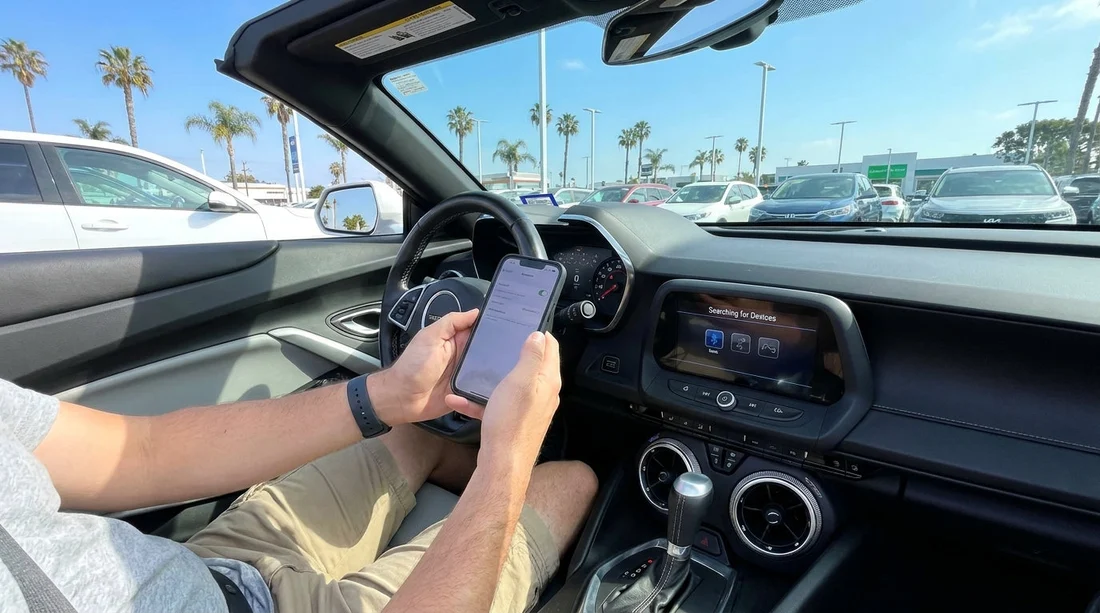
2) On the infotainment screen, open Phone, Settings, or Connections, then choose Add Phone, Pair Device, or Bluetooth.
3) On your phone, open Bluetooth settings and select the car name when it appears. If a pairing code pops up, confirm the code matches on both devices.
4) Accept permissions carefully. Allow Contacts and Favourites if you want to use voice dialling and see caller names. If you prefer privacy, you can decline Contacts and still use hands-free calling, you just may see numbers instead of names.
5) If asked whether to set this car as a priority device, choose yes. It helps the phone reconnect automatically after fuel stops.
Test calls properly, not just “it connected”
A Bluetooth icon alone does not mean the microphone and speaker routing is correct. Do a quick, realistic call test while still parked.
Call your voicemail, a travelling companion, or an automated number so you can listen without worrying about conversation. Confirm you hear audio through the car speakers. Then speak at a normal driving volume and ask whether you sound clear, not distant, not echoey.
Next, test the car controls. Press the steering wheel call button to end the call, then call again and answer using the car button. This confirms the system is actually controlling the call, not your handset.
Adjust call volume while you are on the call. Many cars store call volume separately from media volume. If your music is loud but calls are quiet, this is usually why.
If you are collecting from San Jose Airport, you can expect quick merges and fast lane changes soon after leaving the terminal area. For planning purposes, see car hire at San Jose Airport SJC.
Test media audio and navigation prompts
Now confirm entertainment and maps behave the way you expect. Start with media, then do navigation last.
Open a music app or podcast and press play. Verify sound comes from the car speakers and that track skip works from the steering wheel controls or infotainment buttons. If the audio plays on your phone speaker instead, look for a small audio output icon in the app and select the car or Bluetooth output.
Next, check navigation prompts. The quickest method is to open your maps app and start a short route, such as to a nearby petrol station or a well-known landmark. You are not committing to the route, you just want the first spoken instruction.
Important detail, some cars reduce media volume when navigation speaks, while others mix prompts over the audio. If prompts are too quiet, raise guidance volume in the maps app as well as the car volume.
If the car supports CarPlay or Android Auto, consider using it for navigation rather than plain Bluetooth. It typically gives better integration with the screen and clearer prompt handling.
CarPlay and Android Auto quick check
Many renters assume CarPlay or Android Auto will automatically appear. It often needs one extra step, and sometimes it works only via USB.
Look for a USB port labelled with a phone icon or CarPlay. Use a data-capable cable, not a charge-only cable. Plug in, then follow prompts on the car screen and your phone.
If wireless CarPlay or wireless Android Auto is available, the car may ask whether to use Bluetooth, Wi-Fi, or both. Agree to Wi-Fi prompts, because wireless projection usually uses Wi-Fi for the data stream even though it begins with Bluetooth pairing.
If you are renting in the Los Angeles area, you may spend a long time in stop-start traffic. For options and pickup details, see budget car hire in California LAX.
Fix common Bluetooth problems before you drive off
If something fails, use this order. It solves most issues quickly without needing staff assistance.
1) Disconnect and reconnect. On the car screen, disconnect the phone, then reconnect. Alternatively, toggle Bluetooth off and on on your phone.
2) Delete old pairings. In the car’s Bluetooth device list, delete phones you do not recognise. In your phone Bluetooth settings, forget the car, then pair again.
3) Restart the infotainment system. Some cars have a power or volume knob you can hold to reboot the system. If not, turn the car off, open and close the door, wait 30 seconds, then restart.
4) Check permissions. If calls connect but you cannot hear the other person, confirm the call audio is routed to the car, not the handset. If caller names are missing, allow Contacts access.
5) Use USB as the fallback. If Bluetooth is unreliable, a wired connection to CarPlay or Android Auto is often more stable and gives you navigation on the screen.
Once it is working, do a final “reconnect test”, turn Bluetooth off on your phone, turn it back on, and confirm the car reconnects within 10 to 20 seconds.
Privacy and reset tips for the end of your rental
Rental cars can store your call history and contacts depending on model. Before returning the car, remove your phone from the car’s paired list and delete any downloaded contacts.
If you used CarPlay or Android Auto, also check your phone’s list of connected cars and remove the rental vehicle if you prefer.
These steps take a minute and help protect your personal data for the next driver.
FAQ
How long should pairing and testing take at the counter-side? If the system is responsive, allow three to five minutes to pair, place a test call, play audio, and hear one navigation prompt.
Why does my phone say it is connected, but audio still plays from the handset? Your app may be using the phone speaker as the output. In the audio app, switch output to the car Bluetooth device, then raise media volume on the car.
Do I need to allow contacts to use hands-free calling in a rental car? No. You can usually place and receive calls without sharing contacts, but caller names may not show and voice dialling may be limited.
What if the car supports CarPlay or Android Auto but it will not launch? Try a different USB port and a data-capable cable, then unlock your phone and accept the on-screen permissions.
Should I delete my phone from the car before returning it? Yes. Remove the paired device and clear downloaded data so your call history and contacts are not left in the vehicle.





























































































