Quick Summary:
- Confirm the exact car supports CarPlay or Android Auto before leaving.
- Use a data-capable cable and test the correct USB port.
- Complete pairing, permissions, and audio checks while still parked on-site.
- Verify maps appear on the infotainment screen and track your location.
Landing in New York and collecting a car hire can feel like a sprint, especially if you need turn-by-turn guidance out of the airport and into busy streets. Apple CarPlay and Android Auto are the quickest way to get familiar navigation, calls and music on the car’s screen.
The goal at pick-up is simple, confirm the car supports your phone, confirm the connection method, and confirm permissions so maps and audio are working before you leave the car park.
1) Confirm support before you accept the keys
Start by asking one specific question, “Does this exact car support Apple CarPlay or Android Auto, and is it wired or wireless?” Some vehicles only offer one platform, some offer both, and some offer only a wired connection even if the screen looks modern.
If you are collecting at an airport, it is still reasonable to confirm feature support before you walk away. If you are comparing locations, see what to expect at car rental New York JFK or across the river at car hire airport Newark EWR.
2) Bring the right cable, and know what port you need
The most common failure at pick-up is not software, it is hardware. Wireless CarPlay or wireless Android Auto is convenient, but many rental cars still require a data-capable USB connection.
Use a short, good-quality cable you trust. For iPhone, Lightning to USB-A or USB-C, depending on the car. For Android, USB-C to USB-A or USB-C. Avoid very long cables and older, frayed leads because they drop data and cause random disconnects.
In the vehicle, identify the correct port. Some cars have multiple USB sockets, but only one supports data for CarPlay or Android Auto. If the screen does not react when you connect, move the cable to a different USB port near the infotainment area and try again.
If you booked a larger vehicle for family travel, note that people often assume a bigger model automatically has better tech, which is not always true. The vehicle class can affect ports and screen layout, so it is worth checking at pick-up, especially with minivan rental Newark EWR options where there may be more than one USB hub.
3) Do the on-screen test while you are still in the lot
Do not wait until you are merging onto the highway. Sit in the parked car with the engine on, or in accessory mode if advised, and run a quick end-to-end test.
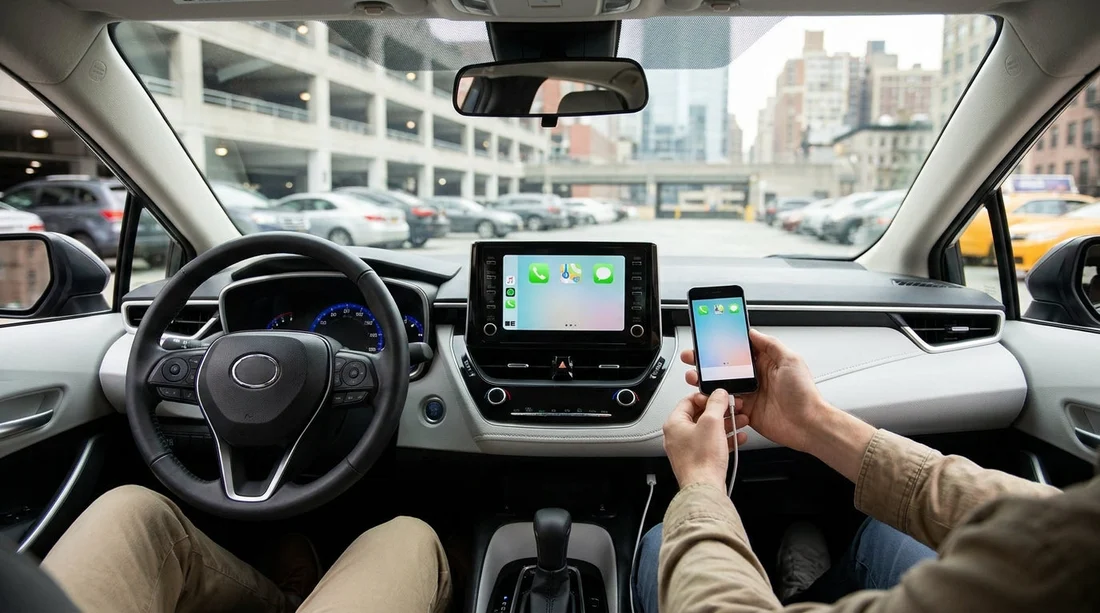
For Apple CarPlay (wired or wireless), unlock your iPhone, connect the cable if needed, and watch for a prompt on the car screen. You may be asked to allow CarPlay while the phone is locked. Tap Allow.
For Android Auto, unlock the phone and connect the cable if needed. Confirm any prompts requesting access to contacts, phone, location and notifications.
Once it loads, you should see the familiar CarPlay or Android Auto home screen on the car display. If you only see audio controls or basic Bluetooth, you are not yet in CarPlay or Android Auto mode, you are just paired for hands-free calling.
4) Check permissions that block navigation
Navigation fails most often because location permissions are not correct. Before you roll out, open your chosen map app and confirm it can locate you.
On iPhone, go to Settings, Privacy and Security, Location Services, and ensure your map app is set to “While Using the App” or “Always”, depending on your preference. Also check that CarPlay is allowed in Settings, General, CarPlay.
On Android, check Settings, Location, and ensure location is on. Then check the map app permissions for Location set to “Allow only while using the app” or similar.
Also confirm your phone has a data connection. In parts of New York, underground car parks and pick-up garages can have poor signal.
5) Verify audio routing, calls, and microphone
A working screen is only half the story. You want the car speakers and microphone correctly routed to CarPlay or Android Auto. Do three checks.
Audio check, play a song or podcast and ensure sound comes through the car speakers, and that the steering wheel volume controls adjust it.
Call check, make a quick test call to voicemail or a known contact. Confirm you can hear clearly and the other side can hear you.
Voice assistant check, press the voice button on the steering wheel. CarPlay should launch Siri, Android Auto should launch Google Assistant.
6) Confirm the car’s infotainment settings are not blocking you
Some rentals keep privacy-focused defaults. Look in the infotainment settings for options like “Smartphone integration”, “Apple CarPlay”, or “Android Auto” and ensure they are enabled.
If previous renters have connected devices, you might see old phones listed. Ask the agent if you can delete them, or do it yourself in the Bluetooth or phone projection menu.
If you are picking up through a specific supplier channel, the process at the desk can vary. These location pages can help you orient to what is typical for your car hire collection point, such as Enterprise car rental New York JFK and Budget car hire New York JFK.
7) Quick troubleshooting at the counter, before you drive off
If CarPlay or Android Auto does not appear within a minute or two, use this short sequence.
Step 1, swap USB ports and try a different cable if you have one.
Step 2, restart the phone. It sounds basic, but it clears stuck permissions prompts.
Step 3, on the car screen, find the phone projection menu and select CarPlay or Android Auto explicitly, rather than Bluetooth audio.
Step 4, for wireless, remove the car from your phone’s saved cars and re-pair.
Step 5, if nothing works, ask to try another vehicle before you leave the site.
FAQ
Does every car hire in New York include Apple CarPlay or Android Auto? No. Availability depends on the vehicle model, trim level, and sometimes the head unit fitted. Confirm support for the exact car and whether it is wired or wireless before leaving the desk.
Why does my phone charge but CarPlay or Android Auto will not launch? You are likely plugged into a charge-only port or using a cable that cannot pass data reliably. Try a different USB port near the infotainment system and a known data-capable cable.
Can I use wireless CarPlay or wireless Android Auto in a rental car? Sometimes. Wireless support varies widely, and it can be less reliable if the car has many previously paired devices. If wireless fails, a wired connection is usually the quickest fix.
What permissions must I allow for navigation to work properly? Allow location access for your map app and accept prompts for contacts, microphone, and notifications if you want calls and voice control. If you decline permissions, guidance and voice features can break.
How can I stop the rental car connecting to a previous renter’s phone? Delete old devices in the car’s Bluetooth or phone menu and remove the car from your phone’s remembered connections. This prevents automatic pairing conflicts, especially with wireless systems.