


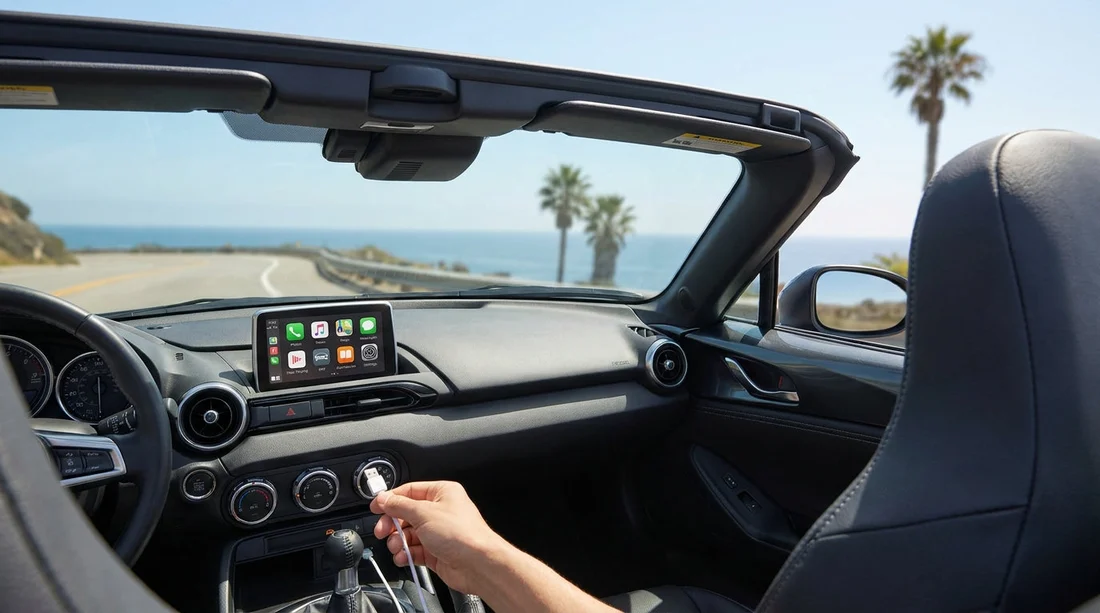
Quick Summary:
- Bring your own Apple-certified cable, rental cars often lack reliable leads.
- Pack USB-C to Lightning and USB-A to Lightning options.
- Add a USB-A to USB-C adapter for newer iPhones and ports.
- Test CarPlay quickly at pick-up, before leaving the car park.
If you are planning car hire in California and you rely on Apple CarPlay for maps, music, and hands-free calls, it is smart to assume the car will not come with a cable that fits your iPhone. Some vehicles do have a USB lead in the centre console, but many do not, and even when a cable is present it may be damaged, charge-only, or the wrong connector. Bringing your own cable and a small adapter or two is the simplest way to get CarPlay working within minutes of pick-up.
The key idea is this, CarPlay in many rental cars is still wired, and wired CarPlay depends on a solid data connection. That is different from basic charging, so an old, frayed, or budget cable can cause random drop-outs, failed connections, or a CarPlay screen that never appears.
Do you actually need your own USB cable?
For most travellers, yes. Bringing your own cable is the most reliable approach because you control the quality and the connector type. Rental fleets change frequently, so you cannot count on the same ports across vehicles, even within the same category. One car might offer USB-A in the dash, another might have USB-C in the console, and some have multiple ports where only one supports CarPlay.
There are also practical issues at pick-up. If you wait until you are already navigating out of the airport area to discover the cable is missing or the port is charge-only, you lose time, battery, and patience. Having your own kit lets you plug in, confirm CarPlay launches, and set your route before you join California traffic.
Know your iPhone connector first
What you need depends on your iPhone model. Many iPhones use Lightning, while iPhone 15 models use USB-C. CarPlay requires a data-capable cable, so aim for an Apple-certified cable or a reputable equivalent.
If your iPhone is Lightning, the most common working combination in a rental is a USB-A to Lightning cable, because many vehicles still offer USB-A ports. However, newer vehicles increasingly provide USB-C. For maximum flexibility in car hire, carrying both USB-A to Lightning and USB-C to Lightning covers almost every dashboard you will meet.
If your iPhone is USB-C, you will want a USB-C to USB-C cable as your main option. Then add a small USB-A to USB-C adapter, or a USB-A to USB-C cable, because plenty of cars still have USB-A only. This is especially useful if the only data port is USB-A while the USB-C ports are charge-only.
USB-A vs USB-C in rental cars, what to expect in California
California fleets include everything from compact runabouts to large SUVs and people carriers, so port types are mixed. USB-A remains common, especially in slightly older vehicles, while USB-C is common in newer models and higher trims. The complication is that not every port supports CarPlay. Some cars have rear-seat USB ports intended only for charging, while the CarPlay-enabled port may be a single USB socket near the infotainment screen.
If you are collecting at a busy hub, you may pick up at places like Orange County or San Diego where you want to get moving quickly. If you are organising car hire at Orange County Airport, it helps to have your cables ready in your hand luggage so you can test before leaving the facility area. For local pick-ups in the same region, the same logic applies, even a short drive is easier when navigation is already on-screen. See options such as car rental at Santa Ana Airport (SNA) and car rental in Santa Ana (SNA) for context on pick-up locations where you may want a rapid CarPlay set-up.
What to pack for fast CarPlay set-up
A simple kit avoids guesswork. Aim to keep it small enough to live in your tech pouch, but complete enough to handle different dashboards.
1) One main data cable that matches your iPhone. Choose a short-to-medium length cable that is easy to route from the port to a dashboard mount without tangling with the gear selector. Make sure it supports data. If you have had issues with drop-outs at home, replace the cable before the trip.
2) A second cable or an adapter for the other port type. This is the difference between “it should work” and “it works in this car”. For Lightning iPhones, that usually means packing both USB-A and USB-C versions. For USB-C iPhones, consider a USB-A to USB-C adapter or second cable.
3) Optional, a 12V car charger with USB-A and USB-C. This does not enable CarPlay by itself, but it keeps your phone topped up on long drives. It is useful if CarPlay is wireless and the phone drains faster, or if passengers also need power.
4) Optional, a spare cable for a second driver. If two people will take turns navigating, a second cable reduces wear and helps when one person is in the back seat charging.
How to test CarPlay at pick-up in under two minutes
Once you have the keys, do a quick check while still parked. Plug your phone into the port closest to the infotainment system first. If nothing happens, try a different port, some vehicles label the CarPlay or smartphone port. On the screen, look for “CarPlay” or “Phone Projection”. If prompted, allow CarPlay on your iPhone, and enable it while the phone is locked.
If CarPlay connects but drops out, swap to your backup cable, then try a different USB port. Many “CarPlay problems” in rental cars are simply cable issues or the wrong port. This quick test is worth doing even if you think the car supports wireless CarPlay, because you may prefer the stability of wired CarPlay for long stretches.
Wireless CarPlay, still bring a cable
Some rental vehicles offer wireless CarPlay, but it is not guaranteed, and it can be slower to pair the first time. Wireless also uses more battery, and connection stability varies by vehicle and phone. A cable remains the quickest fallback, and it often gives you the most reliable navigation on busy motorways.
Even with wireless CarPlay, you may still want a cable ready for charging. That matters on longer drives, for example heading from Los Angeles to the coast or up towards Northern California. If your trip includes family travel, you might also be considering larger vehicles where passenger charging needs add up. For those planning bigger group journeys, see minivan hire in Los Angeles (LAX) or van rental in California (LAX), where multiple USB ports may exist but not all will run CarPlay.
Common mistakes that stop CarPlay working
Using a charge-only cable. Some inexpensive cables are intended only to charge. CarPlay needs data.
Plugging into the wrong port. Rear-seat ports and some console ports may be power-only. Try the port closest to the screen first.
Assuming every trim supports CarPlay. Many cars do, but not all. If it is missing, you can still use Bluetooth audio and phone mounts safely.
Forgetting permissions on the iPhone. If you have previously disabled CarPlay for “unknown” cars, you may need to enable it under Settings, General, CarPlay.
Car hire planning tip, keep your tech accessible
Treat your cable kit like your driving licence and sunglasses, keep it in your personal bag, not buried in checked luggage. If you are picking up at an airport location and heading straight onto the motorway, you will appreciate being able to connect, set your preferred navigation app, and start with clear spoken directions.
California driving often includes complex interchanges and fast-moving lanes, so having CarPlay running from the start reduces distraction. If you are arriving in the Bay Area and collecting your vehicle there, the same “plug in and test before you go” routine applies. You can review regional options such as Enterprise car hire in San Jose (SJC) to align pick-up timing with a calm set-up moment.
FAQ
Do rental cars in California usually come with a USB cable for CarPlay? Usually not. Some cars may have a cable left in the console, but it is unreliable to count on, and it may not support data.
Which cable should I bring for Apple CarPlay during car hire? Bring an Apple-certified data cable that matches your iPhone, plus a backup option for the other port type, USB-A or USB-C.
My iPhone is Lightning, what is the safest combination to pack? Pack both USB-A to Lightning and USB-C to Lightning. That covers most vehicles, including newer models that only have USB-C ports.
How can I tell which USB port in the car supports CarPlay? Start with the port nearest the infotainment screen, and look for labels such as a smartphone icon or “CarPlay”. If one port fails, try another.
If CarPlay will not connect, what should I try first? Swap to a different cable, then try a different USB port. If it still fails, check iPhone CarPlay permissions and use Bluetooth as a backup.





























































































