


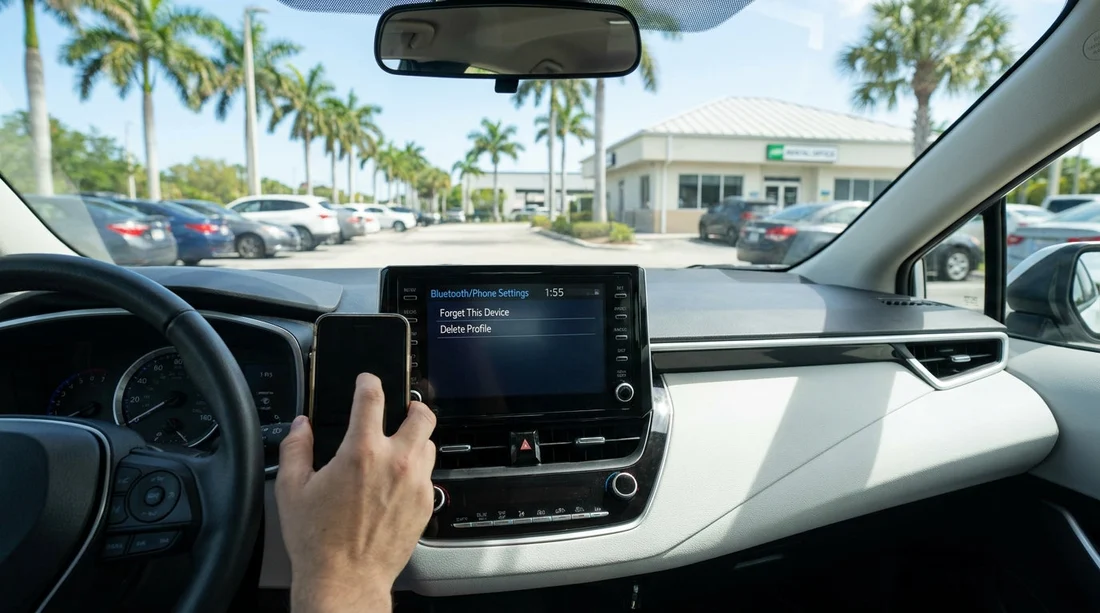
Quick Summary:
- Delete previous phones from Bluetooth and CarPlay to protect your data.
- Reset infotainment privacy settings, call history, messages, and navigation favourites.
- Re-pair your phone while parked, then set audio and microphone levels.
- Disable distracting alerts, set Do Not Disturb, and confirm hands-free calling.
Before you leave the lot in Florida, take two minutes to reset Bluetooth and Apple CarPlay in your rental car. Many vehicles keep the last driver’s paired phones, recent destinations, and audio preferences. That can be annoying, but it can also create privacy risks and extra distractions when you are trying to merge onto busy roads.
This checklist is designed for a typical modern infotainment system in a car hire vehicle. The exact menu names vary by brand, so use the general intent of each step, not the wording. If you collect your vehicle from locations like Fort Lauderdale or Brickell, doing this while still parked can prevent a lot of confusion once you are moving.
1) Clear Bluetooth pairings and connected devices
Start with Bluetooth because it is the most common source of unexpected pop-ups and unwanted connections. In the car’s Bluetooth settings, look for a list such as “Paired devices”, “Known devices”, or “Phone list”.
What to reset: remove every unknown phone, and remove your own phone if it was auto-added by a prior driver’s cable. Some cars also store multiple profiles, so check for “Driver profile” or “User profile” lists and delete any that are not yours.
Why it matters: a previously paired phone might try to reconnect when it is nearby, which can cause call audio to route unexpectedly. It also increases the chance the infotainment system shows recent calls, contact suggestions, or message prompts that do not belong to you.
Quick tip: if there is an option like “Forget all devices” or “Clear paired devices”, use it, but only while parked. Then restart the infotainment system if it offers a “Reboot” option, or turn the car off and on before re-pairing.
2) Reset Apple CarPlay, Android Auto, and phone projection permissions
CarPlay and Android Auto may be wired, wireless, or both. Even if you plan to use a cable, clear stored permissions so the car does not automatically connect to a previous user’s phone.
In the car: find “Phone projection”, “CarPlay”, “Android Auto”, or “Smartphone integration”. Remove listed phones from CarPlay and Android Auto sections separately, because some systems store them in different menus.
On your iPhone: go to Settings, General, CarPlay, then remove the rental car if it appears from a previous trip. This reduces the chance your phone attempts to reconnect to the wrong vehicle in a multi-storey car park.
3) Wipe navigation history, recent destinations, and “Home” shortcuts
Many cars store recent destinations in the built-in navigation system even if you mostly use phone maps. If you see saved locations like “Home”, “Work”, or named favourites that are not yours, remove them.
What to reset: recent destinations, saved favourites, previous route history, and any “My Places” list. If the system supports it, clear search history and predictive suggestions.
Why it matters: navigation suggestions can appear at the exact moment you are trying to focus on unfamiliar junctions. Clearing them also avoids learning about someone else’s habits and prevents your own destinations being stored for the next driver.
If you rely on phone maps: set your first destination before you move, then place the phone away if you are using CarPlay. In Florida’s heavier traffic, a clean, predictable screen reduces last-minute glances.
4) Clear call history, contacts sync, and message previews
Infotainment systems often offer to sync contacts, recent calls, and messages during Bluetooth pairing or when CarPlay first connects. This is convenient, but you should control it deliberately.
What to reset in the car: delete call logs, remove any downloaded contacts, and clear message history if the car stores it. Some systems keep a cache even after a phone is removed, so look for options like “Clear personal data” or “Reset phone data”.
What to adjust on your phone: if your phone asks to share contacts, you can decline and still use hands-free calling by dialling from the phone itself before you drive, or by using recent calls without full sync where supported.
Message safety: if you enable message reading, set it to announce messages only when you choose, not automatically. You want fewer interruptions, not more.
5) Remove driver profiles and reset infotainment personalisation
Some vehicles store driver profiles that include seat position, mirror settings, climate preferences, radio favourites, and linked phones. This is common in higher-trim SUVs and minivans.
What to reset: delete any existing profiles that are not yours, or switch to “Guest” mode if available. Then create a temporary profile only if you really need seat and mirror memory. If you are using a people carrier from Coral Gables, a clean profile can also prevent rear entertainment or audio zones being left in an odd state.
Radio and media: clear paired media devices, reset audio source priorities, and remove any streaming accounts if the car supports apps. Do not log into personal music accounts on the car itself unless you intend to log out later.
6) Set up your phone connection safely before moving
Once the old data is cleared, pair your own phone again, but do it in a way that reduces risk.
Parked pairing only: keep the vehicle in Park, then pair Bluetooth first, then enable CarPlay or Android Auto. If the car supports wireless CarPlay, confirm it connects consistently before you leave the bay. A half-finished connection often causes repeated pop-ups.
Audio checks: make a quick test call to voicemail or a trusted contact to confirm microphone pickup and speaker volume. Check that navigation voice prompts are audible but not startlingly loud. Also confirm whether the car is routing calls through Bluetooth or CarPlay, then stick with one to avoid switching mid-drive.
8) Final privacy sweep before you drive off
Take a final look through settings for anything labelled “Privacy”, “Personal data”, or “Connected services”. Different cars use different terms, but the intent is the same: ensure you are not leaving a trail of information behind, and you are not inheriting someone else’s.
Things to check: connected service accounts, Wi-Fi hotspot names and passwords, vehicle Wi-Fi history, garage door opener programming, and any in-car payment or app marketplace features.
Keep it simple: if you are only using the vehicle for a few days, you generally do not need to enable every connected feature. A minimal setup is usually the least distracting and easiest to clean up at return.
If you are collecting from Tampa and heading straight onto faster roads, the best outcome is a quiet cabin where your phone connects once, reliably, and stays out of your way.
FAQ
Q: Do I need to factory reset the infotainment system in a rental car?
A: Usually no. A factory reset can change broader vehicle settings and may be restricted. Focus on clearing paired devices, CarPlay or Android Auto phones, navigation history, and downloaded contacts.
Q: What if the car keeps reconnecting to a previous phone?
A: Delete all paired devices in Bluetooth settings, then remove phones listed under CarPlay or Android Auto. Restart the infotainment system or cycle the ignition, then pair your phone again while parked.
Q: Will deleting Bluetooth devices also remove navigation favourites?
A: Not always. Bluetooth lists, phone projection lists, and built-in navigation data can be stored separately. Clear each area explicitly, especially recents, favourites, and “Home” shortcuts.
Q: Is wireless CarPlay worth using in a car hire vehicle?
A: It can be, but only if it connects reliably. If you notice lag, repeated prompts, or audio dropouts, switching to a cable often reduces distractions and stabilises navigation.
Q: What should I do before returning the rental car?
A: Remove your phone from Bluetooth and CarPlay, clear recent destinations and call history, and delete any driver profile you created. This helps protect your privacy for the next driver.




























































































