


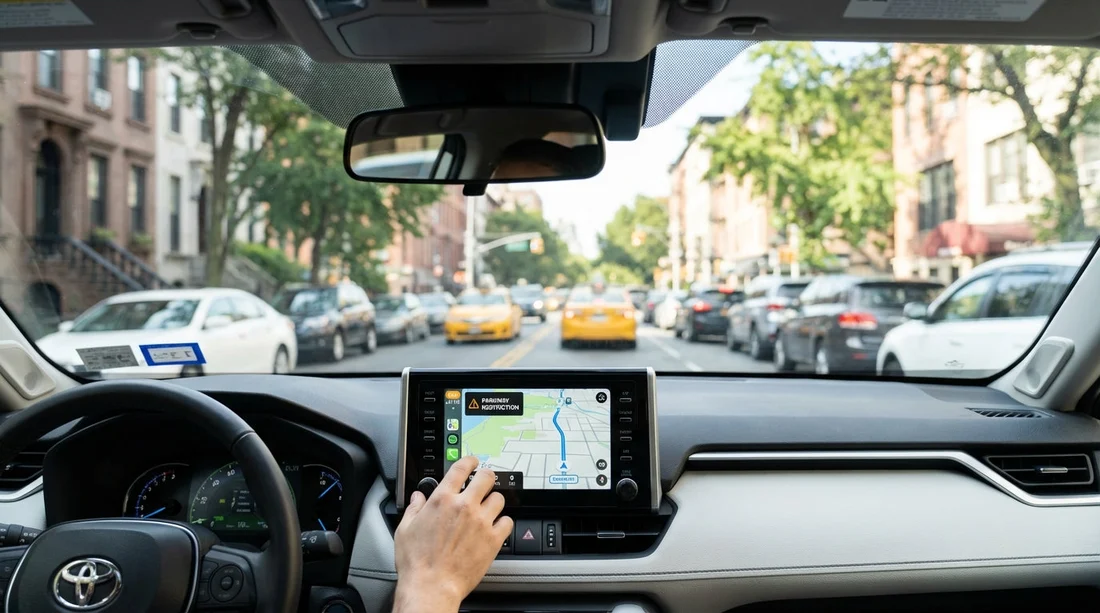
Quick Summary:
- Set sat-nav vehicle type to car, not truck or commercial.
- Enable avoidances for parkways, restricted roads, and low clearances.
- Preview the full route, zoom in, and scan for parkway names.
- Cross-check final turns with roadside signs before committing to ramps.
Using car hire in New York can feel straightforward until your sat-nav guides you onto a “parkway” that quietly bans certain vehicles, or under a low bridge with a clearance that leaves no margin. Most travellers are in standard rental cars, which are usually permitted, but confusion arises when you are in a larger SUV, a passenger van, or you have accidentally chosen the wrong “vehicle type” inside your navigation app. The goal is simple, make your sat-nav behave like a cautious local driver and then verify the last few turns with real-world signs.
New York City and nearby counties contain many parkways designed for passenger cars. Some of them prohibit commercial vehicles, and some also restrict oversized vehicles. Separately, the NYC area contains low bridges that can be a problem for taller vehicles. If you are picking up from an airport location, it helps to set everything up before you roll out of the car park, for example from Newark Airport (EWR) car rental or a JFK pick-up such as Hertz car rental at New York JFK. Your sat-nav settings should be ready, and your route should be checked, before you encounter a fast-moving interchange.
Know what you are trying to avoid
In the NYC region, “parkway” generally signals a road built for passenger vehicles, often with lower bridges and tighter ramps. Examples in the wider region include routes such as the Belt Parkway, Hutchinson River Parkway, Southern State Parkway, Northern State Parkway, and parts of the Bronx River Parkway. Restrictions vary by road, but the pattern is consistent, parkways are not meant for trucks, and some have restrictions that can catch out tall or commercial-looking vehicles.
Two practical takeaways matter for car hire drivers. First, if you are in a normal saloon, hatchback, or compact SUV, you are usually fine, but you still want to avoid being routed somewhere with awkward low clearances if you are unsure of your vehicle height. Second, if you are in a larger SUV, passenger van, or anything that could be interpreted as commercial, you should be even more cautious and rely on signed restrictions rather than assumptions.
Set your sat-nav correctly before you move
The single most common reason drivers end up on restricted routes is a wrong profile in their sat-nav. Many apps remember the last setting used, which might be “truck” from a previous user, “motorcycle”, or a generic “fastest route” with no avoidances enabled.
Do this at the pickup bay, with the vehicle in park and your phone connected to power.
Google Maps (phone, Android or iPhone)
Google Maps does not provide a full truck routing mode for general users in the way some specialist navigation apps do, but you can still reduce risk:
1) Switch on route options that reduce complexity. After you enter the destination and tap for directions, open “Options” and consider toggling “Avoid tolls” if you would rather stay on major interstates where possible. Many parkways are not tolled, so this is not a perfect filter, but it can nudge routing towards big, signed highways.
2) Use preview and compare routes. Before you start, swipe up on the route card to see alternate routes. Tap each route line and look for any segment with “Parkway” in the name. If one option uses a parkway and another stays on interstates, choose the interstate-heavy route.
3) Use the “Steps” list as a parkway detector. Expand the turn-by-turn list and scan for words like “Parkway”, “State Pkwy”, “River Pkwy”, or “Belt Pkwy”. If you see them and you want to avoid parkways, go back and select a different route.
Apple Maps (iPhone)
Apple Maps similarly focuses on car routing. Your best protection is route choice and avoidance settings:
1) Turn on “Avoid Tolls” and “Avoid Highways” only if it serves your plan. In NYC, “avoid highways” can push you onto smaller arterials, which is not always desirable. For avoiding parkways, “avoid highways” is not a reliable tool. Prefer route preview and step scanning.
2) Check route details. After choosing a route, tap for details and look for any named parkway segments. If it is there, choose an alternative route, or pick a waypoint that forces an interstate, such as “I-95 entrance” or “I-278” access point, then reroute.
Waze
Waze is excellent for live traffic, but you should tighten settings so it does not suggest awkward shortcuts.
1) Settings, Navigation, Avoid difficult intersections. This can reduce last-second lane changes near ramps.
2) Settings, Navigation, Avoid toll roads (optional). As with other apps, not a parkway filter, but sometimes moves you to interstates.
3) Use “Routes” before starting. Compare the presented routes, then tap each to see the key road names. If any route uses a parkway you want to avoid, pick an alternative, or add a waypoint to force an interstate.
Built-in sat-nav in the car
Many in-car systems do offer better avoidance controls than phone apps. Look for settings under “Navigation”, “Route preferences”, or “Avoid”. The options you want, where available, are:
Vehicle type: set to passenger car. Avoid “truck” or “commercial”.
Avoid restricted roads: enable.
Avoid ferries: optional, but can prevent odd river crossings.
Avoid unpaved roads: enable.
Avoid roads with width, height, or weight limits: enable if shown.
If you are collecting a larger vehicle from a specialist page such as SUV rental in New York JFK, treat the clearance-related options as essential, and keep your routing conservative.
Use a two-step route check, “name check” then “map check”
Sat-nav avoidances are helpful, but the safest habit is to perform a quick route audit before moving.
Step 1, Name check (30 seconds)
Open the route steps and scan for these red-flag words:
Parkway, Pkwy, State Pkwy, River Pkwy, Belt, Hutchinson, Southern State, Northern State, Bronx River, Henry Hudson. If you see any of these, assume there may be low bridges and vehicle restrictions, and try an alternate route.
Step 2, Map check (60 seconds)
Zoom in along the full route and look at the first 10 minutes of driving. Most mistakes happen early, when you are leaving the airport area and entering a tangle of ramps. Confirm which highway shield you want to follow, for example I-95, I-278, I-87, I-80, or the New Jersey Turnpike. If your route enters a parkway, you will often see it labelled clearly on the map at higher zoom.
If you are starting from EWR, it is common to have choices between the New Jersey Turnpike, I-78, I-95 approaches, and local connectors. An EWR pickup page like car rental at New Jersey EWR airport is a good reminder to set up navigation while still on airport property, where you can safely stop and check.
Force safer routing with one waypoint
If your app keeps suggesting a parkway, the quickest fix is to add a single waypoint that anchors the route onto an interstate. Choose something obvious and non-controversial, such as a well-known bridge approach that allows trucks, or simply “I-95” near your direction of travel. The objective is not a scenic stop, it is to force the underlying route engine to commit to a major highway.
Practical examples of waypoint thinking:
Heading to Manhattan from JFK, aim first for an interstate-labelled segment rather than a parkway-labelled segment, then let the app guide you in once you are on the correct corridor.
Heading from Newark to Long Island, aim first for I-278 connections that clearly avoid parkway-only sections, then refine.
This small trick is often more effective than toggling “avoid highways”, which can create a different set of problems in dense urban traffic.
On the road, trust the signs over the sat-nav
Even with careful settings, you must treat roadside signs as the legal instruction. In NYC and surrounding counties, ramps to parkways often have restriction signs posted before the commitment point. Common wording includes “No Trucks”, “No Commercial Vehicles”, and sometimes a posted clearance height.
How to handle the last 200 metres before a ramp
1) Slow your decision-making down early, get into the correct lane sooner.
2) Read every sign on the gantry and the right shoulder, especially anything mentioning “Parkway”.
3) If the sign indicates your vehicle is not permitted, do not take the ramp even if the sat-nav insists.
4) Continue straight if safe, then pull over when legal and reroute. Most apps recover quickly if you ignore one instruction.
This is where “avoid difficult intersections” settings and route preview pay off, you are less likely to be forced into a sudden manoeuvre.
Low bridge discipline, assume the posted clearance is the limit
Low bridges are less forgiving than most navigation errors. If you are in a standard car hire vehicle, you usually have plenty of clearance, but if you are in a taller SUV or a passenger van, you must take clearance signs seriously.
Do not rely on sat-nav for clearance unless you are using a dedicated commercial navigation system with verified height data and you have correctly entered your vehicle height. Most consumer apps are not guaranteeing clearance-aware routing.
If you do not know your vehicle height, treat low-clearance routes as “avoid”. Your rental paperwork may not clearly state height, and guessing is not worth it. Choose interstates and major arterials, and avoid parkways when uncertain.
Common NYC-area scenarios and how to prevent mistakes
1) Leaving JFK and being routed onto the Belt Parkway
The Belt Parkway is a classic “looks logical on the map” route that can be inappropriate for certain vehicles. If you want to avoid it, scan your steps for “Belt Pkwy”. If it appears, choose an alternate route or add a waypoint that keeps you on interstate-labelled roads. If you are using a specific supplier pickup such as Thrifty car rental at New York JFK, set your route in the car park and verify the first interchange before joining faster traffic.
2) Crossing between boroughs and being nudged onto a parkway connector
Some connections are labelled in ways that are easy to miss at speed. Do the “name check” on the steps list, and when you are close, watch for last-second signs that say “Parkway”. If you see restriction signage, stay on your current road and reroute.
3) Starting from EWR and cutting through local roads to save time
Traffic apps may suggest shortcuts that include complex merges. Prefer the clearest interstate route out of the airport area, then reassess after 10 to 15 minutes. The priority is to avoid being funnelled onto a restricted road before you have settled into the drive.
What to do if you realise too late
If you notice a parkway restriction sign late, safety comes first. Do not attempt illegal U-turns or sudden lane changes. Continue to the next safe exit if you can legally proceed, then pull over in a safe place and reroute. If you are already on a road with posted restrictions that apply to your vehicle, exit at the first opportunity where it is safe and lawful.
Also note that enforcement and penalties can be significant, and road layouts can make it hard to recover quickly. A calm “missed turn, reroute” approach is safer than trying to obey a sat-nav instruction that conflicts with signage.
Checklist you can repeat every time you drive
Before starting: confirm vehicle type is passenger car, enable restricted-road avoidances, and preview the full route.
Before major ramps: zoom in, read the next three instructions, and look for “Parkway”.
At the decision point: obey signs over the app, especially for trucks, commercial vehicles, and clearance limits.
After one correction: pull over safely, reroute, and consider adding a waypoint to an interstate.
With these habits, car hire driving around New York becomes far less stressful. Your sat-nav becomes a helpful assistant rather than a confident voice leading you into the wrong lane at the wrong time.
FAQ
Q: Are all parkways in New York restricted?
A: Many are designed for passenger cars and restrict trucks or commercial vehicles. Restrictions vary, so treat “Parkway” as a prompt to check signs and your route steps.
Q: Which sat-nav setting matters most for avoiding restricted routes?
A: The vehicle profile. Ensure it is set to passenger car, not truck or commercial, and enable any “avoid restricted roads” or “avoid height limits” options if available.
Q: Can Google Maps reliably avoid low bridges?
A: Not reliably for every case. Use route preview and step scanning to avoid parkways, and rely on posted clearance signs if you are in a taller vehicle.
Q: What should I do if my sat-nav tells me to enter a parkway but signs prohibit my vehicle?
A: Follow the signs, stay on the permitted road, then reroute when safe. Most apps quickly adjust after a missed turn.
Q: I am in an SUV, should I avoid parkways completely?
A: Not always, many SUVs are permitted, but if you are unsure about size, restrictions, or clearance, choosing interstates and major highways is the safer approach.





























































































