


Quick Summary:
- Check the USB port and enable CarPlay in the car’s settings.
- Pair iPhone via cable first, then approve prompts on both screens.
- Set Siri, notifications, and lock screen access before moving off.
- Clear prior phones, restrict data sharing, and delete pairing when returning.
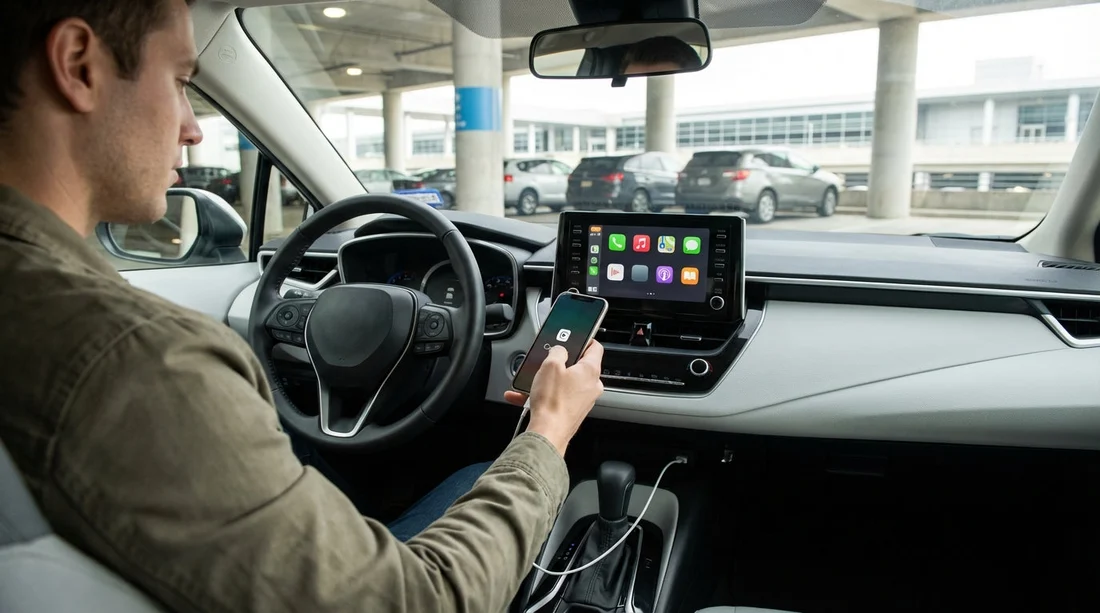
Landing at JFK can feel fast-paced, but taking five minutes to set up Apple CarPlay before you pull away makes your first drive in New York calmer and safer. CarPlay is straightforward once you know where the common snags are: the right USB port, the vehicle’s CarPlay toggle, iPhone permissions, and privacy settings that protect your data in a shared car hire vehicle.
This guide walks you through a practical, car-park-friendly setup you can do while stationary, with the engine on and the handbrake engaged. It covers wired and wireless CarPlay, what to allow or deny on prompts, and what to tidy up before you hand the car back.
If you arranged your vehicle through car hire New York JFK, you can use the same checklist regardless of supplier, because most CarPlay issues are system settings rather than brand-specific. If your collection is with a named desk, this also applies to vehicles picked up via Hertz car hire New York JFK or Payless car hire New York JFK.
Before you plug in: what to confirm while you are still parked
1) Use a safe setup position. Stay in the airport collection area or a nearby space, keep the car in Park, and avoid configuring anything in moving traffic. If the car needs the ignition on for the screen, start the engine and keep it stationary.
2) Check your iPhone basics. Ensure your iPhone is unlocked, Bluetooth is on, Wi‑Fi is on (for wireless CarPlay), and Airplane Mode is off. Also confirm you have mobile data coverage, because maps and music apps may look “broken” if your phone has no signal.
3) Identify the correct USB port. Many cars have multiple ports, but only one supports CarPlay data. Look for a USB port marked with a phone icon or “data”, not a rear-seat charging-only port. If your cable is old or frayed, CarPlay may connect and disconnect repeatedly.
4) Find CarPlay settings on the car’s screen. Common menu paths include Settings, Phone, Devices, Connections, or Projection. You are looking for a toggle such as “Apple CarPlay”, “Smartphone Projection”, or “Enable USB devices”. If CarPlay is disabled, your phone will only charge.
Wired Apple CarPlay at JFK: the most reliable method
Step 1: Connect with a data-capable cable. Plug your iPhone into the CarPlay USB port. Use an Apple or MFi-certified cable where possible. If you only get charging, swap ports and cables before changing deeper settings.
Step 2: Approve the iPhone prompts. You may see several pop-ups on your iPhone. The most important are:
“Allow CarPlay while locked?” If you want the screen to work when your phone is in your pocket, tap Allow. If you prefer maximum privacy, choose Don’t Allow, but note that you may have to unlock the phone more often.
“Allow this accessory to access your contacts?” This controls whether the car can display and search your contacts for calls and messages. If you do not need voice calling by contact name, you can choose Don’t Allow to minimise personal data shared with the car.
“Enable Siri?” CarPlay works best with Siri for navigation and hands-free messaging. If Siri is disabled, enable it in iPhone Settings, then try again.
Step 3: Approve the car’s prompt. Many vehicles display a message such as “Use Apple CarPlay?” or “Allow phone projection?”. Confirm or accept. If the car asks whether to make this device “priority” or “favourite”, only do so if you are the sole driver for the trip.
Step 4: Confirm audio routing. Open Music or a podcast and ensure audio plays through the car speakers. If it plays on the phone, select the car as the audio output within Control Centre, or choose the correct source on the car’s audio menu.
Step 5: Set your default navigation and voice volume. Start a route in Apple Maps or Google Maps and check guidance volume. Many cars have separate “navigation” volume, which you can adjust while the voice is speaking. This is worth doing before you hit the Van Wyck Expressway or Belt Parkway.
Wireless CarPlay: when it works well, and when it does not
Wireless CarPlay is convenient, but not every rental vehicle supports it, even if it has CarPlay via USB. If the car supports wireless, you will usually start with a one-time pairing and then connect automatically.
Step 1: Turn on Bluetooth and Wi‑Fi on your iPhone. Wireless CarPlay uses both. If you use a personal VPN, it can occasionally interfere with the initial handshake. If pairing fails repeatedly, temporarily disable the VPN, pair, then re-enable it.
Step 2: On the car screen, add a new phone. Go to Phone, Devices, Connections, or Bluetooth, then choose Add Device. Select your iPhone when it appears.
Step 3: Confirm the pairing code. Verify the code matches on both devices, then tap Pair. You may be asked to allow contacts and favourites sync. Decide based on your privacy preference, you can still use CarPlay with limited sharing.
Step 4: Approve CarPlay. A final prompt often appears asking to use CarPlay wirelessly. Accept, then wait 10 to 30 seconds for the CarPlay home screen to load.
Step 5: If it is slow, try wired first. At airports, there can be lots of nearby Bluetooth devices. Using wired CarPlay for the first setup can stabilise permissions, then you can switch to wireless later if supported.
Permissions and privacy: what to set before you drive off
Because a rental car is a shared device, it is worth being intentional about what the vehicle can access. CarPlay itself runs from your iPhone, but the car may store call history, contacts, and paired-device records.
Choose the minimum you need. If you only need navigation and music, you can deny contacts access and still use maps and audio apps. If you want hands-free calling by name, allow contacts but consider turning off “favourites” sync if prompted.
Control notifications. On your iPhone, go to Settings, Notifications, then decide which apps can display banners. In CarPlay, message previews can show on the car screen. If you share the drive with colleagues or new friends, you may want to reduce what appears.
Review CarPlay customisation. On iPhone, go to Settings, General, CarPlay, select the car, then customise the app order and remove apps you do not want visible on the dashboard screen. This is a quick way to keep work apps or sensitive chat apps off the car display.
Lock Screen and Siri settings. In iPhone Settings, Face ID and Passcode, decide whether to allow Siri when locked. If you disallow Siri when locked, CarPlay voice commands can become inconsistent. A balanced approach is allowing Siri while locked but limiting message previews.
Location and tracking. Navigation requires location services, but you can limit location access for non-essential apps. Also consider turning off “Precise Location” for apps that do not need it. This is not strictly a CarPlay setting, but it helps privacy during a trip in New York.
Common JFK pickup problems and fast fixes
CarPlay does not appear at all. Try a different USB port, then a different cable. Check the car’s projection settings to ensure Apple CarPlay is enabled. On your iPhone, go to Settings, General, CarPlay and remove the car if it is listed, then reconnect.
It connects, then drops repeatedly. This is usually cable quality, a loose port connection, or an iPhone with lint in the charging port. Gently clean the iPhone port if needed, and switch cables. If wireless, forget the Bluetooth pairing and re-pair.
No sound, or sound is delayed. Confirm the car is not on a different audio source. Raise volume during spoken navigation prompts to adjust guidance volume. If using wireless CarPlay, occasional lag can happen, wired will be more stable in heavy traffic areas.
Siri cannot hear you. Some cars use a different microphone source depending on mode. Make a test call, then try Siri again. Also check iPhone Settings, Siri and Search, and ensure “Listen for ‘Hey Siri’” or “Press Side Button for Siri” is enabled.
Maps are zoomed oddly or stuck. Verify you have data signal. If the car is in an underground garage, GPS and signal can be weak. Drive to an open area only after finishing setup, then wait for the map to recalibrate.
Good habits for car hire privacy in New York
Once you are connected, aim to keep your digital footprint small, especially if you are swapping drivers or switching vehicles. Treat the infotainment system as semi-public.
Use CarPlay instead of built-in navigation sign-ins. Some cars prompt you to sign into a vehicle profile or navigation account. Skip those unless you specifically need them. CarPlay provides your familiar apps without adding credentials to the vehicle.
Avoid uploading your entire address book. If prompted to sync contacts, consider declining. You can still place calls by dialling numbers or using recent calls on your phone.
Be careful with garage door and home address suggestions. If your phone suggests “Home” or shows frequent locations, be mindful when passengers can see the screen. You can clear Significant Locations in iPhone privacy settings if you prefer.
Keep charging simple. If you use wireless CarPlay, bring a charger anyway. Wireless projection can drain battery faster. A short, reliable cable reduces overheating and keeps navigation stable.
For travellers comparing pick-up points around the region, note that infotainment systems vary between fleets. If you are collecting outside JFK, you might also browse options like car hire airport New Jersey EWR or SUV hire Newark EWR, then apply the same CarPlay privacy checks before leaving the lot.
Before you return the vehicle: remove your phone properly
It is easy to forget that the car may remember your device name, call history, or recent destinations. Add a two-minute “digital checkout” to your return routine.
1) Disconnect CarPlay and forget the pairing. On the car screen, go to Phone or Devices, select your iPhone, then choose Remove, Delete, or Forget Device. If there is a “Delete personal data” or “Clear private data” option, use it.
2) Remove the car from your iPhone’s CarPlay list. On iPhone, Settings, General, CarPlay, select the vehicle, then choose Forget This Car. This prevents automatic reconnection if you hire the same vehicle model again.
3) Clear recent destinations if you used built-in nav. If you used the car’s own navigation even once, delete recent destinations and home/work entries. Some systems keep them separately from CarPlay.
4) Check Bluetooth and Wi‑Fi history. If the vehicle created a Wi‑Fi network for wireless CarPlay, your phone may auto-join in future. Forget that network if it appears in Wi‑Fi settings.
5) Do a quick final scan. Look for any USB sticks, charging cables, or mounts you added. Then take a photo of the infotainment device list screen if you want a record that your phone was removed.
FAQ
Do I need mobile data for Apple CarPlay to work after leaving JFK? CarPlay will launch without data, but live navigation, traffic, streaming music, and many apps need mobile data. Download offline maps or playlists if you expect weak signal.
Is wired or wireless CarPlay better in a rental car? Wired is usually more reliable and faster to set up, especially when you are in a hurry at pickup. Wireless is convenient for short hops, but may be less stable and uses more battery.
Can I use CarPlay without sharing my contacts with the car? Yes. You can deny contacts access and still use maps, music, and many apps. You may lose features like calling a contact by name or seeing full contact lists.
Why is the CarPlay option missing on the car screen? Common causes are using a charging-only USB port, a non-data cable, or CarPlay being disabled in the car’s projection settings. Try another port and enable Apple CarPlay in the vehicle menu.
What should I delete before returning a car hire vehicle? Remove your phone from the car’s paired devices, forget the car in your iPhone CarPlay settings, and clear any saved destinations in the car’s built-in navigation to protect privacy.





























































































