


Quick Summary:
- Park safely, then pair Bluetooth or CarPlay step by step.
- Decline contact syncing and call imports unless you truly need them.
- Review microphone, messages and notification previews before you start driving.
- Before returning, delete your phone profile and clear paired devices.
Pairing your phone in a rental car should be quick, but a rushed setup can share more than you intend. Many modern vehicles in California include Bluetooth handsfree, built-in navigation, Apple CarPlay, Android Auto, and a system that remembers devices after you leave. That is convenient for the next driver, but not always great for your privacy. The goal is simple, get safe audio and navigation while keeping personal data out of the vehicle’s memory.
This checklist is designed for typical airport pickup situations, when you have just collected keys and want to get moving. It applies whether you arranged car hire at Los Angeles LAX, are collecting near Orange County via Santa Ana SNA, or you are picking up further north such as San Jose SJC. The steps are similar across brands, but menu names vary. If anything looks unfamiliar, focus on the privacy decisions: what you allow to sync, what permissions you grant, and what you remove before drop-off.
Before you touch the infotainment system
Do two safety checks first. Park the vehicle fully, keep the handbrake set, and do the setup before you enter traffic. Then check your phone basics, because connection issues are often phone-side, not car-side. Ensure Bluetooth is on, Wi-Fi is on for CarPlay or Android Auto, and your phone is unlocked. If you use a USB cable, use one that supports data, not charge-only.
Next, take 30 seconds to scan the car’s screen for existing paired devices. Some rentals are cleaned well but still retain old Bluetooth profiles. If you see unknown phones, consider removing them before pairing yours. You do not want your audio routing to a stranger’s profile, and you also do not want to accidentally accept a prompt that merges contacts with an existing user profile.
Bluetooth pairing checklist for a rental car
Bluetooth is the simplest option for calls and music, and it can be more privacy-friendly than full phone projection if you keep syncing limited.
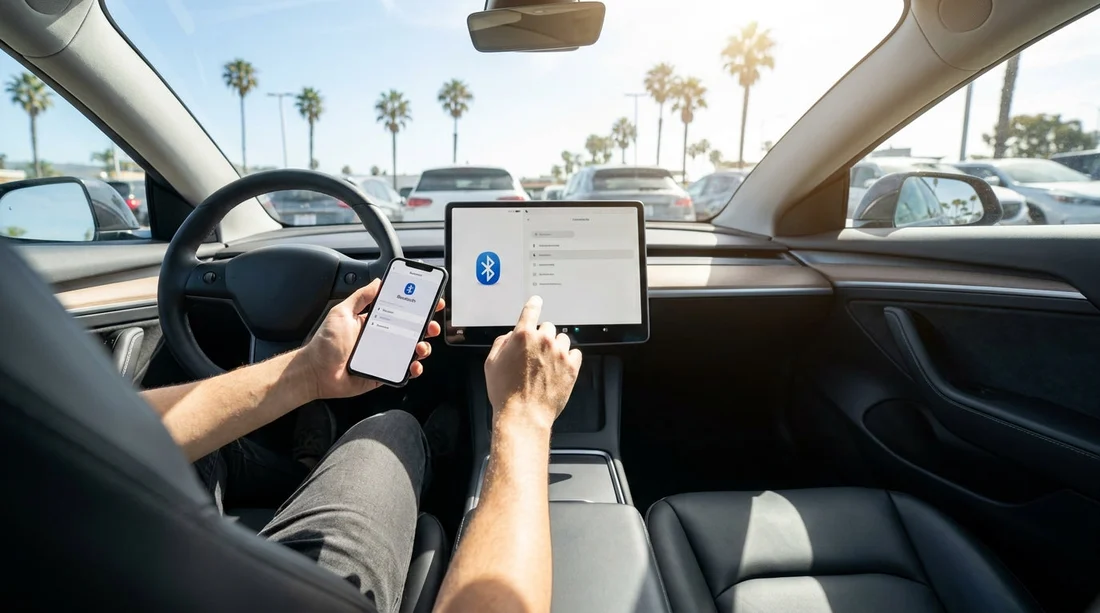
1) Put the car into pairing mode. On most systems, open Settings, Connections, Phone, or Bluetooth, then choose Add Device or Pair New Device. The screen should show the car’s Bluetooth name.
2) Pair from your phone, not the other way round. On iPhone, go to Settings, Bluetooth and select the car. On Android, go to Settings, Connected devices, Pair new device. Confirm the pairing code matches on both screens, then approve.
3) Decide what to share. This is the most important moment. Many vehicles ask to download contacts, favourites, messages, or call history. For privacy, choose “Don’t allow” for contacts and messages unless handsfree calling absolutely requires it for your trip. You can still dial numbers manually, or use voice commands on your phone itself.
4) Disable message previews. If the vehicle offers text message readouts, you may see message banners on the central display. Turn that off if other travellers will be in the car, or if you might leave the vehicle unlocked briefly while fuelling.
5) Test quickly. Make one short test call or play a track, then stop. If audio is distorted, lower the phone volume to around 70 percent, then adjust the car volume. This prevents sudden loud audio when navigation prompts start.
Apple CarPlay and Android Auto checklist
CarPlay and Android Auto are great for navigation, but they mirror more of your phone on the car screen. That is fine if you manage permissions and notifications upfront.
1) Prefer wired connection if available. Wired CarPlay or Android Auto can be more stable, and it reduces the chance of pairing prompts being remembered for wireless re-connection later. If the car supports wireless only, that is still workable with the privacy steps below.
2) Confirm which phone is connecting. If you are travelling with someone else, ensure your phone is the active device before you start driving. Some cars auto-connect to the last device used, which might be the previous renter’s phone if it was not cleared.
3) Set a navigation plan with privacy in mind. If you use Apple Maps, Google Maps, or Waze, consider turning off “Share ETA” and limiting location sharing to “While using the app”. In a rental, the simplest approach is to keep it session-based, rather than always-on.
4) Control what appears on the screen. On iPhone, consider enabling Focus mode such as Driving and hiding sensitive notification previews. On Android, adjust notification settings so message content does not show on the car display. This reduces accidental disclosure if a passenger glances at the screen.
5) Avoid logging into in-car apps. Some cars offer built-in Spotify or Google account sign-in separate from CarPlay or Android Auto. Skip that on a rental. Use your phone projection instead, because it is easier to disconnect cleanly later.
A quick pre-departure checklist at the pickup lot
Use this short sequence before you pull away in California traffic.
Step 1, clear old devices if you can see them. In Bluetooth settings, remove any unknown paired devices. If the screen requires a PIN or admin access you do not have, do not force it. Instead, pair your phone and keep sharing minimal.
Step 2, pair and decline contact sync. Complete pairing, then explicitly choose “Don’t allow” for contacts, favourites, messages, and call history where prompted.
Step 3, set Driving Focus or notification privacy. Hide message content on the lock screen and on CarPlay or Android Auto. This is a two-tap change that reduces exposure.
Step 4, test navigation audio. Start a route to your first stop, such as your accommodation, then verify you can hear prompts without blasting volume.
Step 5, note the “forget device” path. Before leaving, quickly find where the car stores paired phones so you can remove your phone later. On many vehicles it is Settings, Connections, Bluetooth, Paired devices, then Delete or Forget.
If you are collecting a larger vehicle, the screens and menus can be more complex, especially in people carriers, but the principles are the same. Many travellers arranging minivan rental at LAX appreciate setting this up while everyone is still settling in, rather than trying to fix it on the freeway.
What to do before you return the car
The end-of-trip cleanup matters as much as the initial setup. Give yourself two minutes at the return lot, while parked, before you hand over keys.
Delete your phone from the car. Remove your device from the paired list. If there is a separate CarPlay or Android Auto device list, remove it there too.
Clear recent destinations and call history. If you used built-in navigation, clear recent places and home or work addresses. If the car stored recent calls, clear those entries.
Log out of any in-car accounts. If you signed into anything on the vehicle directly, log out and remove the account. This is especially important for music apps and any app that stores personal preferences.
If your rental comes from a specific provider location, you may find model variations, but the cleanup steps remain consistent. For instance, cars associated with Hertz at LAX or other fleets may have different menus, yet almost always include a paired-device list and navigation history.
FAQ
Should I use Bluetooth or CarPlay in a California rental car? Bluetooth is often enough for calls and audio with less data sharing. CarPlay or Android Auto is best for navigation, but review notifications and permissions first.
Will the car keep my contacts after I return it? It can. Some vehicles store a downloaded phonebook and recent calls. Decline contact sync, and delete your phone profile plus any stored history before drop-off.
Is it safe to allow message access for handsfree driving? It can be, but it increases privacy risk because message content may appear on the screen. If you are sharing the car with others, keep message access off.
What is the quickest way to clean up my data at the end? Delete your phone from Bluetooth and CarPlay or Android Auto lists, then clear navigation recents. If you used an in-car account, log out and remove it.
What if I cannot find the delete device option? Use the car’s Settings or Connections menu and search for Bluetooth or Phone. If you still cannot remove it, disconnect on your phone and forget the car there, then mention it at return.

























































































