


Quick Summary:
- Check the car category notes for Apple CarPlay and connection type.
- Ask whether CarPlay is wired or wireless, and bring the right cable.
- Confirm the exact model year range, as infotainment varies within categories.
- Verify phone pairing is allowed, and that USB ports are functional.
When you see “CarPlay available” during car hire research in Miami, it can sound definitive. In reality, it often means the rental location expects that many vehicles in that category have Apple CarPlay, but the exact infotainment setup can vary by model, trim, and even production year. The good news is that you can usually confirm it with a few targeted checks before you arrive, and a couple of practical questions that rental teams can answer quickly.
This guide explains what “CarPlay available” typically means, what to look for in the car category description, and what to ask ahead of pick-up so you are not relying on guesswork when you land in Miami.
What “CarPlay available” usually means in rental listings
In many rental systems, “CarPlay available” is treated as a feature that may be present across a vehicle class, rather than guaranteed for every specific car. A “Compact” or “Intermediate” category might include several models, and only some trims may support CarPlay, or they may support it only via USB.
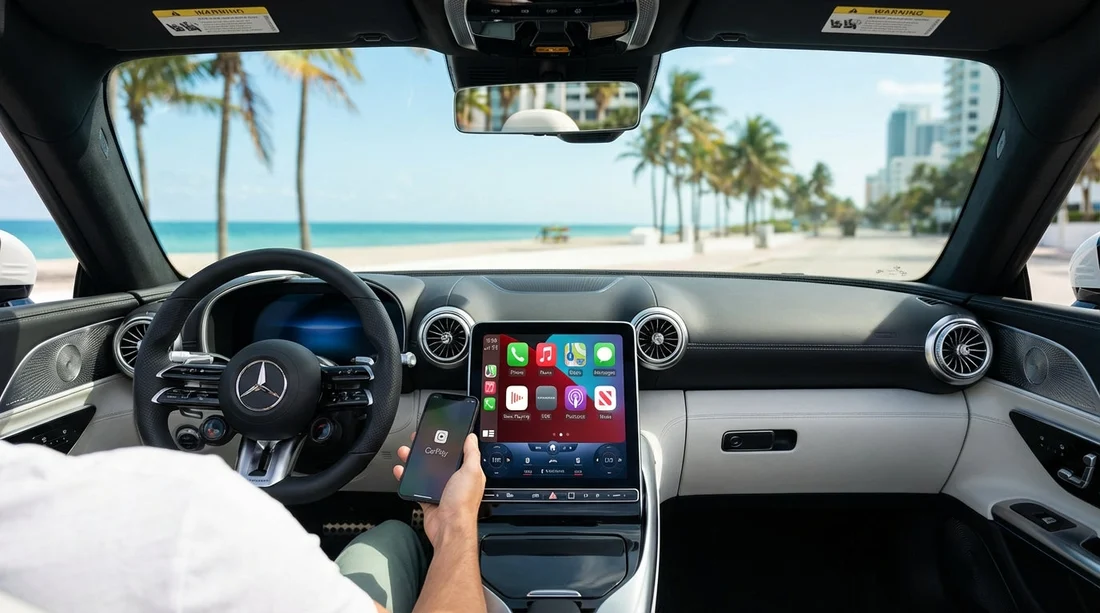
It also helps to know that CarPlay is not the same as Bluetooth audio. A car can have Bluetooth calling and streaming, yet have no CarPlay at all. CarPlay requires an infotainment system that supports Apple’s interface, typically shown as an icon on the head unit when a compatible iPhone is connected and permission is granted.
Check the car category listing for three specific details
Start by reviewing the vehicle category information and any “features” list. You are looking for clarity in three areas: the feature name, the connection method, and the wording used to describe certainty.
1) Feature naming. The most reliable wording is “Apple CarPlay”. “Smartphone integration” or “phone mirroring” can mean different systems, including Android Auto only, or proprietary mirroring that does not work like CarPlay. If the listing only says “Bluetooth” or “USB”, treat CarPlay as unconfirmed.
2) Wired vs wireless. Many rental vehicles support CarPlay only when plugged in. If the listing says “wireless CarPlay”, that is useful, but still worth verifying because categories can include multiple infotainment versions. If the listing does not specify, assume wired and plan accordingly.
3) Language about availability. Some listings use “may include”, “where available”, or “subject to vehicle availability”. That is a sign you should confirm with the pick-up location or a representative before arrival. If you are comparing pick-up points, it can be useful to check location pages and how categories are presented for your Miami-area plans, such as car hire in Miami Beach or a convenient suburban pick-up like car rental in Doral.
Understand why “or similar” is the key risk
Most car hire reservations are made by category, not by a guaranteed make and model. Even when a listing shows a specific vehicle photo, it is often representative. The phrase “or similar” is important because it means the fleet can substitute any vehicle that meets the category’s core requirements, typically seating, doors, and luggage capacity.
CarPlay is sometimes treated as an “extra” feature rather than a core requirement, especially in lower categories. That is why you should aim to confirm in writing, or at least have a note added to your reservation, that CarPlay is required. Even then, it can be subject to last-minute fleet changes, but it improves your chances significantly.
Ask ahead of pick-up, using questions that get a clear answer
If CarPlay matters to you, ask questions that a location can answer without guessing. Vague questions like “Does it have CarPlay?” can get a vague “It should”. Instead, use wording that forces a check of the actual vehicle or the likely models in that category.
Question 1: “Is Apple CarPlay guaranteed for my reserved category at this location?” If the answer is “not guaranteed”, follow up by asking what category is most consistently equipped.
Question 2: “Is CarPlay wired, wireless, or both in the vehicles you expect to issue?” This helps you pack correctly. Many cars require a USB-A to Lightning cable, while some newer cars use USB-C. Bringing a cable you trust avoids problems caused by worn rental cables.
Question 3: “Which model years are commonly in this category right now?” CarPlay support can change across a model refresh. A category that includes mixed years can produce mixed results.
Question 4: “Are USB ports enabled for data, not just charging?” Some vehicles have multiple ports, and not all support CarPlay data. Knowing this in advance can save time at the kerb.
If you are arriving via the wider metro area, you might compare inventory patterns between locations. For example, fleet mix can differ between Hertz car rental in Florida (MIA) and an airport outside central Miami such as car hire at Fort Lauderdale Airport (FLL), particularly at busy times.
What to check at the desk or at the car, before you drive away
Even with confirmation, do a quick CarPlay check before leaving the car park. This takes a minute and prevents an hour of frustration later.
1) Look for the CarPlay icon. On many systems, the home screen shows “Apple CarPlay” or a smartphone icon. If it is not visible, it may still appear after you connect by USB.
2) Plug in first. If the car supports wireless CarPlay, it often still requires a first-time USB connection to authorise pairing. Use a known-good cable and try the port labelled with a phone icon. If there are multiple ports, test the one most likely to support data.
3) Approve prompts on both devices. Your iPhone may ask to allow CarPlay when locked, and the vehicle screen may request permission to connect. If you dismiss these, CarPlay may not launch.
4) Confirm audio and maps. Open Apple Maps or your preferred navigation app and play a short audio clip. This verifies that both display and sound route correctly.
5) Know when to request a swap. If you cannot get CarPlay to appear after trying the correct port and approving prompts, ask the staff to help you test, or request another vehicle if CarPlay was promised. It is far easier to resolve immediately than after you have left the premises.
FAQ
Is “Apple CarPlay available” a guarantee for my rental car in Miami?
Not always. It often means the feature is common in that category, but substitutions and mixed trims can occur. Confirm whether it is guaranteed at your specific pick-up location.
How can I tell if CarPlay is wired or wireless before pick-up?
Ask the location which connection type is typical for the vehicles currently in that category. If they cannot confirm, plan for wired CarPlay and bring a reliable cable.
What should I do at the car if CarPlay does not appear?
Try a different front USB port, use a known data-capable cable, and approve prompts on the iPhone and screen. If it still fails, ask staff to test with you before leaving.
Does Bluetooth mean CarPlay will work?
No. Bluetooth supports calls and audio streaming, but CarPlay requires a compatible infotainment system. A car can have Bluetooth without CarPlay.
Can the rental team note CarPlay as a requirement?
Usually, yes. A note can help with vehicle assignment when alternatives exist, although it may still depend on availability at the time of collection.

























































































