


Quick Summary:
- Enable Bluetooth and visibility on your phone before starting the car.
- Pair from the car’s menu, confirm codes, then set phone priority.
- Choose the correct audio source, test navigation prompts and call audio.
- Review contacts and message permissions to protect privacy in the rental.
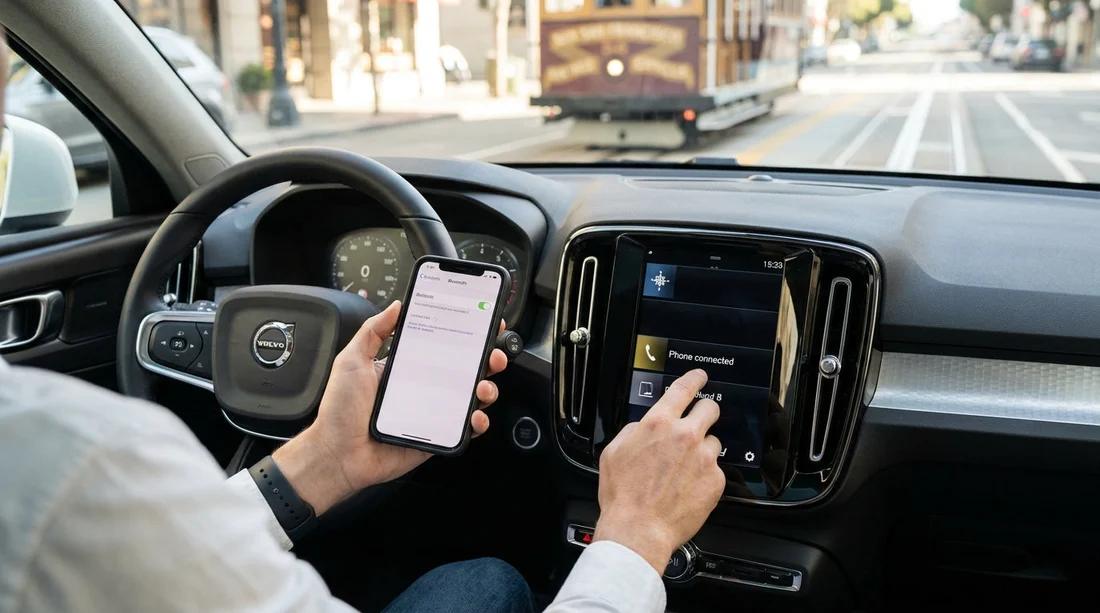
Connecting your phone to a rental car via Bluetooth is easiest when you do it before rolling out of the pickup area in San Francisco. In a busy city, you want navigation prompts, hands-free calls, and audio playback to work immediately, without fumbling at junctions or searching through menus at a kerbside stop.
This pre-drive pairing checklist is written for typical rental vehicles with built-in Bluetooth, and it also covers common privacy and permission prompts that can appear on both iPhone and Android. If you picked up at the airport, you may find it simpler to complete these steps while parked near your terminal or car park exit, then start your route.
If you are comparing options for car hire at the airport, these pages may be useful background reading: San Francisco Airport car rental and Hertz car rental at SFO. The Bluetooth steps below apply regardless of provider, but menus can vary by vehicle make and infotainment system.
Before you pair, do a 60-second setup on your phone
1) Turn on Bluetooth, and keep the phone awake. Open Settings and switch Bluetooth on. Leave the phone unlocked during pairing so prompts are not missed.
2) Check battery and charging. If the car has USB ports, plug in early. Low Power Mode or Battery Saver can sometimes pause background connections, which may interrupt a first-time pairing.
3) Decide how you want to use navigation audio. If you will rely on Google Maps, Apple Maps, Waze, or another app, make sure it has permission to use location and run in the background. You want spoken directions to route through the car speakers.
4) Consider your privacy preferences in a shared car. Many systems ask to sync contacts and recent calls. If you do not need in-dash contact browsing, you can usually deny contact sync and still take calls over Bluetooth.
In the car, find the correct Bluetooth menu quickly
1) Start the car or switch ignition to accessory mode. Many infotainment systems only allow pairing when the vehicle is on, or when the handbrake is engaged.
2) Open Phone, Connections, or Bluetooth settings on the head unit. Look for “Add Device”, “Pair New Phone”, or a plus icon. If the car displays a pairing name like “Toyota Camry” or “SYNC”, note it.
3) Make the car discoverable. Some systems require you to press “Search for devices” to broadcast a signal. Keep this screen open while you work on the phone.
4) Pair from the phone, not from the car, if the car list is slow. On your phone’s Bluetooth list, select the vehicle name. If several similar names appear, match the one shown on the car screen.
If you are arranging car hire in the city or at the airport, these pages cover common pickup locations and can help you plan where you will have time to configure settings: Car rental near San Francisco SFO and National car hire at SFO.
Pairing checklist: codes, permissions, and the “first call” test
1) Confirm the pairing code on both screens. The car and phone will usually show the same 6-digit code. Confirm on both. If they do not match, cancel and restart, because the connection may be attempting to pair with a different nearby device.
2) Allow “Phone calls” and “Media audio”. Most phones show toggles for Calls and Audio. Ensure both are enabled if you want hands-free calling and music or navigation prompts through the car speakers.
3) Decide on contacts and message access. You may see prompts such as “Sync contacts”, “Allow access to contacts and call history”, or “Show notifications”. In a rental car, a sensible default is to deny contact sync and notifications unless you truly need them. You can still place and answer calls using the handset interface while audio routes through the car.
4) Set the phone as the primary device, if the car supports it. Some cars allow a priority order when multiple phones are paired. If you are travelling with others, set your device to connect automatically, otherwise the car may grab the wrong phone on restart.
5) Make a quick test call before you move. Call a voicemail number or a trusted contact to check microphone pickup, speaker volume, and echo. Adjust “Call volume” separately from “Media volume” if the system provides both.
Audio source and navigation: make sure directions are audible
1) Select the correct source on the infotainment system. Even when Bluetooth is paired, the head unit might still be on FM, AM, or USB. Switch the source to Bluetooth Audio or Media.
2) Test navigation prompts at a safe, parked moment. Start a route and listen for the first spoken instruction. If you see the map moving but hear nothing, check: phone volume, in-app guidance volume, car media volume, and whether the phone is connected for Media Audio.
3) Avoid dual connections that fight each other. If you connect via both Bluetooth and USB, some cars prioritise CarPlay or Android Auto automatically. That can be fine, but if the interface keeps switching sources, choose one method for the drive and disconnect the other.
4) Turn off “Bluetooth scanning” add-ons if audio stutters. Some phones have extra options like “Nearby device scanning”. If you experience dropouts, disabling scanning can stabilise the connection.
Contacts privacy and clean-up: don’t leave your data behind
In a rental, privacy is not just about what happens on the road, it is about what remains after you return the keys. Many vehicles store paired device names, recent calls, and sometimes a copied contact list.
1) Choose minimal permissions at first. Deny contact sync and message notifications unless needed. You can usually still answer calls safely.
2) Avoid saving “favourites” or home addresses in the car. If you must enter a destination into the car system, consider using your phone navigation instead, as it is easier to manage and clear.
3) After pairing, check the car’s phonebook setting. Some systems have a toggle like “Auto download phonebook”. Turn it off if available.
4) Before drop-off, remove your device from the car. In the Bluetooth or Phone settings on the head unit, choose your phone and select “Remove”, “Forget”, or “Delete device”. On your phone, also tap the car entry and choose “Forget”. This two-sided clean-up reduces the chance of auto-connection later.
Troubleshooting in San Francisco: fast fixes when pairing fails
Bluetooth won’t find the car. Ensure the car is in pairing mode, then toggle Bluetooth off and on. If the list is cluttered with old devices, clear them from the car’s paired list.
Pairing succeeds but audio is silent. Confirm Media Audio is enabled for that Bluetooth connection on the phone, and set the car’s source to Bluetooth Audio. Raise media volume, not just call volume.
Calls connect but people can’t hear you. Some cars default the microphone to a different profile on first connection. Try ending the call, reconnecting, and placing a new call. Also check if the car has a “mute” button on the steering wheel or screen.
Navigation speaks through the phone speaker, not the car. In your map app, check guidance settings for “Play voice over Bluetooth” or similar. On iPhone, check the route’s audio output icon and choose Bluetooth or the car system.
Too many prompts while you’re trying to leave. Pull over before exiting the rental facility, finish permissions, then do a short test route. It is faster than trying to fix issues mid-drive.
FAQ
Q: Should I pair my phone before leaving the rental car park at SFO?
A: Yes. Pairing, permissions, and testing audio are quickest while parked, and it helps you start navigation and calls safely once you join traffic.
Q: Can I use Bluetooth for calls without sharing my contacts?
A: Usually, yes. Allow “Phone calls” but deny contact sync. You can still answer calls and dial from the phone while audio runs through the car.
Q: Why does my rental car keep connecting to the wrong passenger’s phone?
A: Many systems auto-connect to the last or highest-priority device. Set your phone as the primary device, or remove other paired devices from the car list.
Q: What is the quickest way to fix a failed pairing?
A: Delete the pairing from both the car and your phone, restart Bluetooth on the phone, then pair again while the car is in discoverable mode.
Q: Do I need to unpair Bluetooth when I return the rental car?
A: It is a good habit. Remove your phone from the car’s Bluetooth menu and forget the car on your phone to reduce stored call history and auto-connect issues.





























































































